 E-CommerceGenerative AI in Online Retail: Uses That Pay BackGenerative AI ecommerce uses ranked by payback and risk: product descriptions, AI search and support assistants, plus Arabic quality checks for UAE stores.
Shopify GA4 Integration: Setup, Checks and Reports That Matter
How to connect Shopify to Google Analytics 4, check that the ecommerce data is accurate, and use the GA4 reports that show where shoppers drop out.
To connect Shopify to Google Analytics 4, create a GA4 property and web data stream, install Shopify's Google and YouTube sales channel, and link it to that property so your store sends ecommerce events to GA4. Once data flows, the value comes from checking the events are accurate and using the reports to find where shoppers drop out. Setup takes minutes; trustworthy data takes a little longer.
This guide walks through the setup, the checks that catch broken tracking, and the reports worth using for an online store.
Why GA4 is the only Google Analytics option now
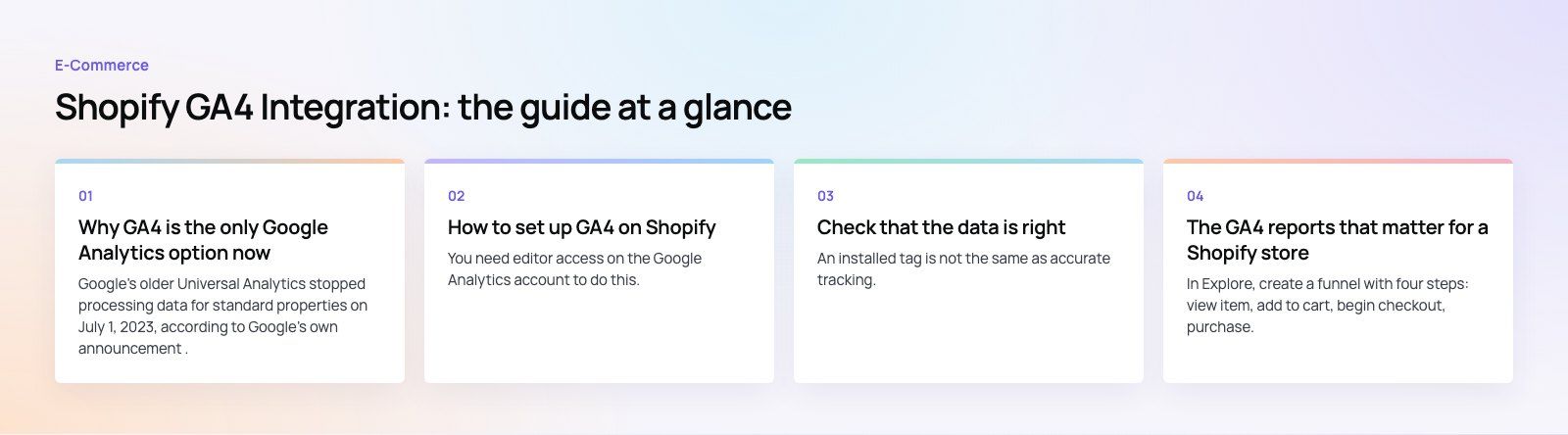
Google's older Universal Analytics stopped processing data for standard properties on July 1, 2023, according to Google's own announcement. Any Shopify store still relying on an old UA tracking code is collecting nothing. GA4 is the current version, and it works differently in ways that matter for ecommerce.
- Events, not sessions. Every interaction, from a product view to a purchase, is an event with parameters. That makes funnels and product analysis more flexible.
- Users across devices. GA4 can join activity from the same person across devices when signals allow, which gives a better view of how people actually buy.
- Consent aware. GA4 works with consent settings and fills some gaps with modeling, which matters as more visitors decline cookies.
How to set up GA4 on Shopify
Step 1: Create the GA4 property
- In Google Analytics, go to Admin and create a new property for your store.
- Set the reporting time zone and currency to match your Shopify settings, so revenue and daily totals line up.
- Create a web data stream for your store's domain and note the measurement ID, which starts with G.
You need editor access on the Google Analytics account to do this.
Step 2: Install the Google and YouTube sales channel
- In Shopify admin, add the Google and YouTube sales channel from the Shopify App Store.
- Connect the Google account that has access to your GA4 property.
- Choose the GA4 property and confirm the connection.
This is the route described in Shopify's GA4 help page. The app places the Google tag on your storefront and checkout and sends the standard ecommerce events, such as product views, add to cart, checkout steps and purchases.
Step 3: Remove old or duplicate tags
One issue we often see is double counting. A store has the Google and YouTube channel connected, plus a hard coded gtag snippet in the theme, plus a Google Tag Manager container from an earlier agency. Each one fires a purchase, and revenue in GA4 doubles. Search your theme files and your custom pixels for old tags, and keep one method only.
Step 4: Decide whether you need custom pixels
Shopify checkout no longer accepts arbitrary scripts in the old way. Tracking that runs during checkout goes through Shopify's customer events, either from an app or a custom pixel you add under Settings. If you need Google Tag Manager, custom events or extra platforms, this is where they belong. For most small stores, the Google and YouTube channel alone is enough.
Check that the data is right
An installed tag is not the same as accurate tracking. Before you trust any report, run these checks.
- DebugView and Realtime. Browse your store, add a product to the cart and start checkout. Confirm each event appears in GA4 with the product name, price and currency.
- Test a purchase. Use a discount code or a low value test product and compare the order in Shopify with the purchase event in GA4.
- Compare totals weekly. GA4 revenue will rarely match Shopify exactly because of consent choices, ad blockers and refunds. A small gap is normal. A large gap, or GA4 showing more than Shopify, points to a tagging problem.
- Exclude internal traffic. Filter out your own team's visits so they do not distort conversion rates.
- Check referrals. If payment gateways show up as traffic sources, add them to the unwanted referrals list so purchases are credited to the real source.
The GA4 reports that matter for a Shopify store
| Report or exploration | Question it answers | What to do with it |
|---|---|---|
| Ecommerce purchases | Which products are viewed, added to cart and bought? | Spot products with many views but few add to carts; fix price, photos or copy |
| Funnel exploration | Where do shoppers drop out between product, cart and checkout? | Prioritize the step with the biggest loss |
| Traffic acquisition | Which channels bring buyers, not just visitors? | Shift budget toward sources that convert |
| Landing pages | Which entry pages lead to sales? | Improve high traffic pages that fail to convert |
| Device category | Is mobile converting worse than desktop? | Test checkout and product pages on phones first |
Build a simple checkout funnel
In Explore, create a funnel with four steps: view item, add to cart, begin checkout, purchase. Break it down by device. If mobile users add to cart at a healthy rate but abandon at checkout far more than desktop users, the problem is usually the checkout experience on small screens: slow loading, too many fields, or missing local payment options.
Look at customers, not only sessions
GA4's user and lifetime reports show how much revenue comes from returning buyers and which acquisition channels bring customers who buy again. That changes how you value channels. A source with a modest first order but strong repeat purchases may be worth more than it looks in a last click report.
Going further than the default setup
Link Google Ads and Search Console
Linking Google Ads lets you import GA4 conversions and build audiences such as cart abandoners. Linking Search Console shows which organic queries lead to your landing pages. Both take a few minutes in GA4 admin.
Add events that reflect your business
Standard ecommerce events cover most stores. Some need more: a size guide opened, a product finder completed, a wholesale enquiry sent, a newsletter sign up. Add these through a custom pixel or Tag Manager and mark the important ones as key events.
Export to BigQuery or a dashboard
GA4's interface has limits on data retention and sampling in explorations. If you want long term analysis or to combine GA4 with Shopify order data, ad spend and stock levels, export to BigQuery and report through a dashboard tool.
Common mistakes to avoid
- Running two or three tracking methods at once and double counting revenue.
- Leaving the default data retention period without checking whether it suits your reporting.
- Ignoring consent settings, which can make GA4 numbers far lower than reality in some markets.
- Judging channels only by last click, which undervalues anything that starts a purchase without closing it.
- Never revisiting the setup after theme changes, new apps or checkout updates.
If you want tracking you can trust and reports that lead to changes in the store, our Shopify developers handle GA4 setup and custom pixels, and our digital marketing team turns the data into campaign decisions. For a focused look at where buyers drop out, try the checkout teardown. If you need GA4 combined with sales and stock data, our Power BI developers build the dashboards. You can see a Shopify build in the EGO Sustainable case study.
Frequently asked questions
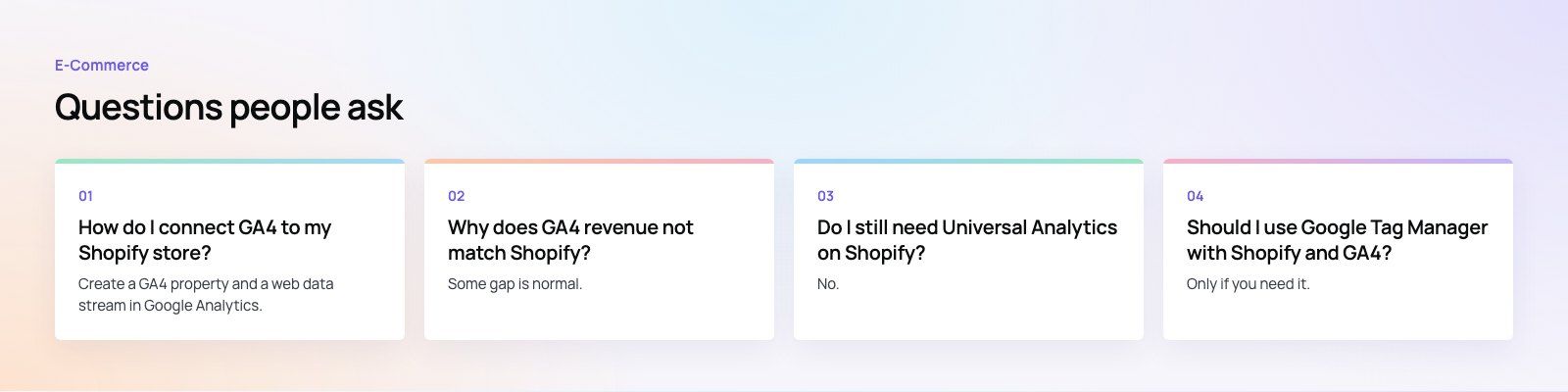
Create a GA4 property and a web data stream in Google Analytics, then install Shopify's Google and YouTube sales channel and connect it to that property.
The channel adds the Google tag to your storefront and checkout and sends standard ecommerce events. Afterwards, remove any old tracking code from your theme so purchases are not counted twice.
E-CommerceGenerative AI in Online Retail: Uses That Pay BackGenerative AI ecommerce uses ranked by payback and risk: product descriptions, AI search and support assistants, plus Arabic quality checks for UAE stores. E-CommerceConnecting WooCommerce to ERP, CRM and Shipping Without DuplicatesPlan a WooCommerce ERP integration that avoids duplicates: data ownership rules, idempotent order sync, CRM matching and UAE shipping, with Odoo and Dynamics.
 E-CommerceEnterprise Ecommerce Platform Selection: Requirements Before DemosChoose an enterprise ecommerce platform by setting integration, multi entity, data residency and order management requirements before any vendor demo starts.
Tell us what the business needs. We will tell you what to build first.
Schedule a free consultation and get a written recommendation, with costs, before you commit to anything.
Get in touchPROVEN RESULTS
4.7 / 5verified reviews on Google