 E-CommerceGenerative AI in Online Retail: Uses That Pay BackGenerative AI ecommerce uses ranked by payback and risk: product descriptions, AI search and support assistants, plus Arabic quality checks for UAE stores.
Shopify Performance Optimization: How to Make Your Store Load Faster
What actually slows a Shopify store down, the theme, app, image and script fixes that matter most, and how to track Core Web Vitals so speed holds.
To make a Shopify store load faster, focus on the parts you control: the theme, the apps you install, the images you upload and the third party scripts you add. Shopify already handles hosting, the CDN, caching and compression, so most slowdowns come from what sits on top of the platform. Measure with real user data first, fix the biggest offender, then measure again.
This guide explains what actually slows a Shopify store down, the fixes that make the most difference, and how to track progress so speed does not slip back after the next app install.
Why store speed matters
Shoppers decide quickly whether a store feels trustworthy. A product page that jumps around while it loads, or a menu that ignores the first tap, makes people hesitate at exactly the moment you want them to add to cart. Slow pages also cost you in search, because Google uses page experience signals, including Core Web Vitals, as part of how it evaluates pages.
Speed is not one number. Google describes three Core Web Vitals that map well to how a shopper feels a page:
- Largest Contentful Paint (LCP) measures how fast the main content, usually the hero or product image, appears.
- Interaction to Next Paint (INP) measures how quickly the page responds when someone taps a button, opens a menu or picks a variant.
- Cumulative Layout Shift (CLS) measures how much the layout moves while the page loads.
Each one points to a different kind of fix, which is why it pays to know which metric is weak before you start changing things.
What Shopify already does for you
Shopify runs the servers, serves files through a global CDN, compresses assets and caches pages. Its own guidance on improving online store performance notes that advice about server configuration, caching or CDN setup from general web performance articles usually does not apply to Shopify stores. That is good news. It means you can skip a long list of server tweaks and spend your time on the theme, apps, media and scripts.
It also means some older tips are out of date. Combining every CSS file into one, for example, mattered more when browsers fetched files one at a time. Modern connections handle many small files well, so the bigger win is loading less code overall, not bundling it differently.
Start with the theme
Use a current, maintained theme
The theme decides how much code every page loads before any app adds its own. Shopify recommends staying on an up to date Online Store 2.0 theme, and newer themes are generally built with performance in mind. If your store still runs on a heavily modified theme from several years ago, an upgrade can do more than any amount of tuning.
Keep templates lean
Every section on a page adds markup, styles and often scripts. Long home pages with slideshows, video banners, several product carousels, testimonials and an Instagram feed are a common cause of slow LCP. Ask whether each section earns its place. Two strong sections usually sell better than eight weak ones.
Test animations and transitions
Page transitions and scroll animations look polished in a demo but can delay content and hurt responsiveness. Turn them off, measure, turn them back on and measure again. Keep them only if the difference is small.
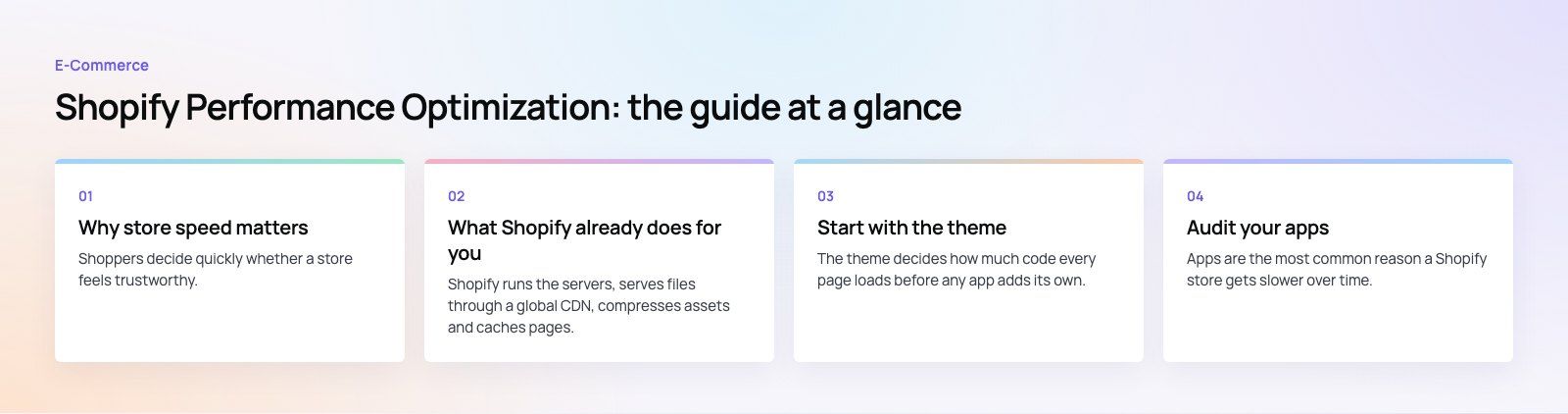
Audit your apps
Apps are the most common reason a Shopify store gets slower over time. Each one can inject JavaScript, stylesheets and network requests onto every page, even pages where the app does nothing.
- List every installed app and note what it does and which pages need it.
- Remove anything not essential to sales. Old review widgets, unused pop ups and trial tools tend to pile up.
- Consolidate overlapping apps. Two apps that both show badges or both handle upsells are paying the performance cost twice.
- Clean up after uninstalling. Shopify warns that removing an app does not always remove its code from the theme. Ask the developer for removal steps, or check theme files for leftover snippets.
Prefer apps that use theme app extensions and app blocks, because they load only where you place them rather than across the whole store.
Get images right
Upload at sensible sizes
Shopify optimizes and resizes images when it serves them, but it still helps to upload images close to the size they will be displayed and in a sensible format: JPG for photographs, PNG only when you need transparency. A product photo exported straight from a camera is far larger than any screen needs.
Load the right image first
The image that forms your LCP, usually the hero or first product photo, should load immediately. Images further down the page can wait. Modern Shopify themes use native lazy loading through Liquid image tags for below the fold images. A common mistake is lazy loading the hero itself, which delays the very thing LCP measures.
Reduce image count on long pages
Collection pages that show hundreds of products at once load hundreds of images. Turn on pagination, or limit how many products load at first, so shoppers see something fast and can load more on demand.
Control third party scripts
Tag managers, chat widgets, heatmaps, ad pixels and review carousels all run JavaScript on the main thread. That code competes with your theme when a shopper taps a button, which is why poor INP scores often trace back to scripts rather than the theme.
- Audit your tag manager and remove tags no one uses.
- Load chat and support widgets only after the page is interactive, or only on pages where support matters.
- Use Shopify's customer events and pixels where possible instead of hard coding tracking scripts into the theme.
- If a page stays blank and then appears all at once, open your browser's developer tools, find the slowest scripts and raise it with the app or theme developer.
Fix layout shifts
CLS problems usually come from elements that appear late and push content down: announcement bars, cookie banners, app widgets that inject reviews, or images without width and height set. Reserve space for anything that loads after the first paint, and keep banners in a fixed position rather than inserting them above the content.
Clean up links and redirects
Broken links frustrate shoppers and waste crawl effort. Redirect chains add an extra round trip before a page even starts loading. Check for broken links regularly, point redirects straight at the final URL, and use permanent 301 redirects when a product or collection moves. This matters most after a theme change or a platform migration, when old URLs tend to break in bulk.
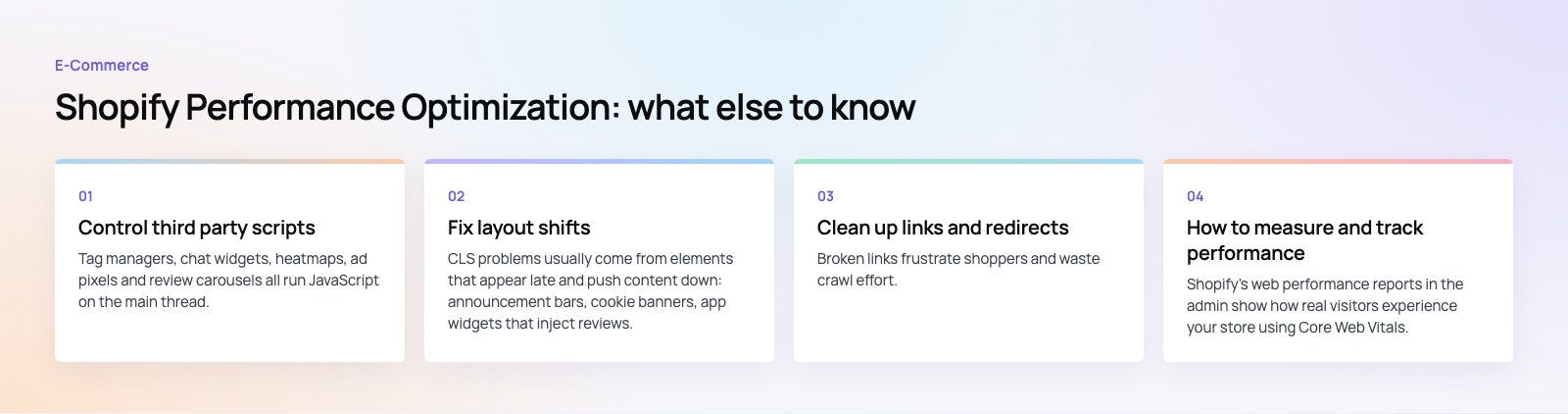
How to measure and track performance
Use real user data first
Shopify's web performance reports in the admin show how real visitors experience your store using Core Web Vitals. Start there. Lab tools are useful for diagnosis, but real user data tells you which problems your customers actually feel.
Diagnose with lab tools
Google PageSpeed Insights gives detailed metrics for a single URL and points to the elements and scripts causing trouble. Test your home page, a busy collection page and your best selling product page, since each behaves differently.
Test on real devices
Open the store on an older phone on a mobile connection. Ask colleagues in other locations to do the same. Many problems that never show on a fast office connection are obvious this way.
Connect speed to sales
Speed work only matters if it helps the business. Track conversion rate, add to cart rate and bounce rate in Shopify analytics and Google Analytics alongside your Core Web Vitals. When you change a theme section or remove an app, note the date so you can see the effect. For bigger design changes, an A/B test gives you evidence rather than opinion.
Quick reference: symptom and likely fix
| Symptom | Weak metric | Likely fix |
|---|---|---|
| Hero image appears late | LCP | Do not lazy load the hero, resize it, cut sections above it |
| Taps and menus feel sluggish | INP | Remove unused apps and tags, defer chat and tracking scripts |
| Content jumps while loading | CLS | Reserve space for banners and widgets, set image dimensions |
| Collection pages crawl | LCP | Paginate products, reduce images per page |
| Store got slower over months | All | App audit and leftover code cleanup |
When Shopify is not the bottleneck
Most stores never outgrow what a well tuned Shopify theme can deliver. If you need complete control of the front end, for example a highly custom experience or content heavy pages that a theme struggles with, a headless commerce build keeps Shopify as the backend while you own the storefront code. It adds cost and maintenance, so it makes sense only when a lean theme genuinely cannot meet your needs.
If you want a second opinion before you commit to big changes, our speed optimization quick start looks at your real user data and lists the fixes in order of impact. For ongoing theme and app work, our Shopify developers keep stores fast as they grow, and our Core Web Vitals service covers the measurement side. You can also see how we built a bilingual Shopify store in the EGO Sustainable case study.
Frequently asked questions
Shopify takes care of servers, the CDN, caching and compression, so slowness almost always comes from what runs on top.
The usual causes are too many apps, heavy third party scripts, oversized images, long home pages with many sections and animations. An audit of apps and scripts, followed by trimming the theme, fixes most cases without any change to the platform itself.
E-CommerceGenerative AI in Online Retail: Uses That Pay BackGenerative AI ecommerce uses ranked by payback and risk: product descriptions, AI search and support assistants, plus Arabic quality checks for UAE stores. E-CommerceConnecting WooCommerce to ERP, CRM and Shipping Without DuplicatesPlan a WooCommerce ERP integration that avoids duplicates: data ownership rules, idempotent order sync, CRM matching and UAE shipping, with Odoo and Dynamics.
 E-CommerceEnterprise Ecommerce Platform Selection: Requirements Before DemosChoose an enterprise ecommerce platform by setting integration, multi entity, data residency and order management requirements before any vendor demo starts.
Tell us what the business needs. We will tell you what to build first.
Schedule a free consultation and get a written recommendation, with costs, before you commit to anything.
Get in touchPROVEN RESULTS
4.7 / 5verified reviews on Google