 E-CommerceGenerative AI in Online Retail: Uses That Pay BackGenerative AI ecommerce uses ranked by payback and risk: product descriptions, AI search and support assistants, plus Arabic quality checks for UAE stores.
Shopify QuickBooks Integration: Setup, Options and Common Mistakes
How a Shopify QuickBooks integration works, the connector options, step by step setup, payout reconciliation and the mistakes that leave your books wrong.
A Shopify QuickBooks integration moves your store's sales, refunds, fees and payouts into QuickBooks Online automatically, so your books match your bank without manual data entry. The simplest route is Intuit's own connector app from the Shopify App Store, and stores with several payment gateways, currencies or sales channels often add a dedicated reconciliation tool. Either way, the quality of the setup decides whether the numbers can be trusted.
This guide covers what the integration does, the options available, how to set it up, the mistakes that cause messy books and when a custom integration makes sense.
What QuickBooks does for an online store
QuickBooks Online is cloud accounting software. For an ecommerce business, the parts that matter most are:
- Recording income and expenses against a chart of accounts
- Reconciling bank and payout deposits
- Tracking inventory value and cost of goods sold
- Sales tax or VAT reporting, depending on your country
- Invoicing, which matters if you also sell wholesale or B2B
- Profit and loss, balance sheet and cash flow reports
Shopify knows what was sold. QuickBooks needs to know what was earned, what was paid in fees and what actually landed in the bank. The integration is the bridge between those two views.
Why connect Shopify to QuickBooks
Less manual entry
Typing order totals into a spreadsheet and then into QuickBooks takes hours each month and invites errors. A connector brings the data across on a schedule, so your bookkeeper reviews instead of retypes.
Payouts that reconcile
This is the real problem most stores face. A payout from Shopify Payments is not the same as your sales total. It is sales minus refunds, minus processing fees, sometimes minus chargebacks, grouped across several days. Recording the deposit as revenue overstates income and understates costs. A good integration splits each payout into its parts so the deposit matches the bank line exactly.
Cleaner tax reporting
When sales, shipping, discounts and tax collected are each mapped to the right account, tax returns are far easier to prepare. Your accountant can see what was taxable without reverse engineering order exports.
Better decisions
Accurate, up to date books show which products and channels make money after fees and refunds, not just which ones sell. That is the information you need for pricing, stock and marketing decisions.
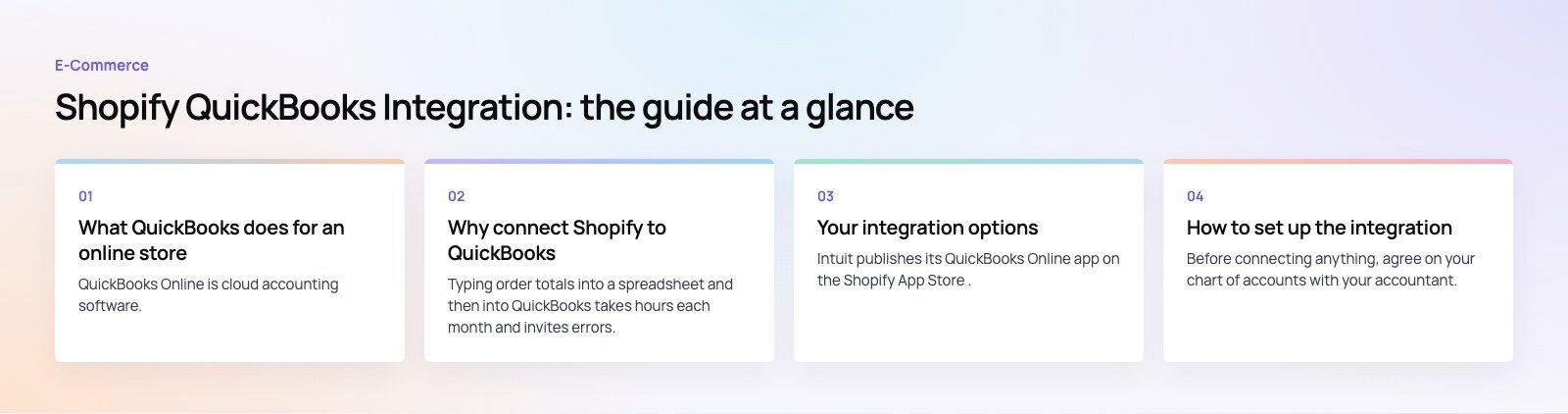
Your integration options
| Option | Best for | Watch out for |
|---|---|---|
| Intuit's QuickBooks Online app for Shopify | Single store, Shopify Payments, straightforward catalog | Check how it handles your other gateways and currencies before relying on it |
| Dedicated reconciliation apps such as A2X | Higher volumes, several gateways, summary journals instead of one entry per order | Separate subscription and an extra system to configure |
| Automation platforms | Simple one way flows, such as new order to sales receipt | Not built for payout reconciliation, easy to create duplicates |
| Custom integration | Multiple stores, ERP or warehouse systems, unusual tax or B2B rules | Needs a developer to build and maintain it |
Intuit publishes its QuickBooks Online app on the Shopify App Store. Its listing describes syncing retail and B2B sales activity, including bringing B2B orders across as invoices. Read the current listing and Intuit's help articles before installing, because supported features vary by QuickBooks region and plan.
How to set up the integration
Step 1: Prepare QuickBooks first
Before connecting anything, agree on your chart of accounts with your accountant. Decide which accounts will hold product sales, shipping income, discounts, refunds, payment processing fees, gift card liability and tax collected. Most setup problems start because these accounts were created on the fly during the first sync.
Step 2: Install and connect
- Install the connector app in your Shopify admin.
- Sign in to QuickBooks Online when prompted and authorize the connection.
- Confirm the store and the QuickBooks company file, especially if you manage more than one.
Step 3: Map your data
Mapping tells the integration where each piece of a Shopify order should land. Map sales, shipping, discounts, refunds, fees and tax to the accounts you prepared. Decide whether you want one entry per order or a daily summary. Per order entries give detail but can clutter QuickBooks for busy stores. Summaries keep the ledger lighter and are easier to reconcile.
Step 4: Decide on inventory
Choose one system as the source of truth for stock quantities. For most direct to consumer stores, Shopify is where stock is managed and QuickBooks records the value. If you buy stock through purchase orders in QuickBooks or an inventory tool, make sure two systems are not both trying to adjust quantities.
Step 5: Test before going live
Place a few test orders, including a discount, a partial refund and an order with shipping. Wait for a payout and check that it reconciles against the bank line to the cent. Fix the mapping now, not after six months of data.
Step 6: Review regularly
Check the sync log weekly for failed records, and reconcile payouts every month. Integrations fail quietly when a token expires or a new payment method appears.
Common mistakes that break the books
- Recording payouts as revenue. This hides fees and refunds and inflates income.
- Running two integrations at once. An old automation and a new connector both posting orders creates duplicates that take days to unpick.
- Ignoring other gateways. PayPal, buy now pay later providers and marketplaces pay out separately. Each needs its own clearing account.
- Importing history without a plan. Pulling in a year of past orders on top of figures already entered by hand double counts income. Agree a clean start date.
- Treating gift cards as sales. A gift card is a liability until it is redeemed.
What drives the cost
The connector app itself may be free to install, though the listing notes that additional charges may apply, and reconciliation apps charge their own subscriptions. The bigger cost is usually time: the hours spent mapping accounts correctly, testing payouts and cleaning up historic data. Costs rise with the number of stores, gateways and currencies, B2B or wholesale invoicing, and any link to a warehouse or ERP system. A simple single store setup is often a short job for your bookkeeper. A multi store operation with custom rules is a proper project.
When a custom integration makes sense
Off the shelf connectors suit most stores. A custom build is worth considering when:
- You run several Shopify stores that report into one set of books
- Orders also flow to an ERP, warehouse or CRM and QuickBooks must stay consistent with them
- You sell B2B on payment terms with rules a standard app does not support
- You need reporting that combines store, ad and accounting data
In those cases the integration becomes part of your operating system, and it pays to design the data flow once rather than patching several apps together. If you are at that stage, our custom software team builds and maintains integrations between stores and finance systems, and our Shopify developers can handle the store side. Teams considering a larger move to a full business system can also look at Business Central, and our retail and ecommerce page shows the kind of stores we work with.
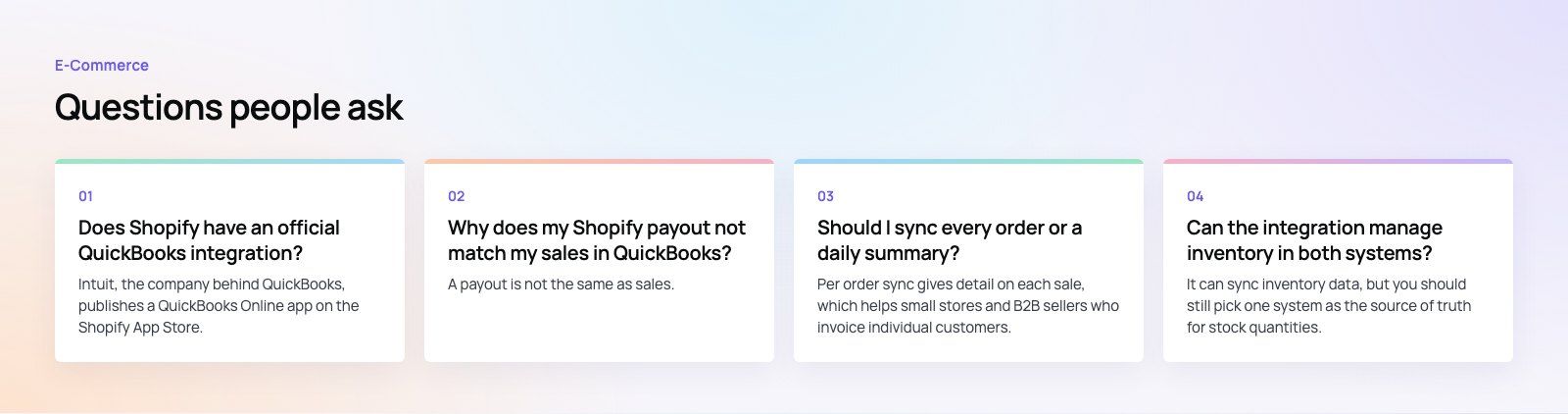
Frequently asked questions
Intuit, the company behind QuickBooks, publishes a QuickBooks Online app on the Shopify App Store.
It syncs sales activity from your store into QuickBooks, and its listing covers B2B orders as invoices too. Check the current listing and Intuit's help pages before installing, because supported features can differ by QuickBooks region and plan, and some stores pair it with a reconciliation app.
E-CommerceGenerative AI in Online Retail: Uses That Pay BackGenerative AI ecommerce uses ranked by payback and risk: product descriptions, AI search and support assistants, plus Arabic quality checks for UAE stores. E-CommerceConnecting WooCommerce to ERP, CRM and Shipping Without DuplicatesPlan a WooCommerce ERP integration that avoids duplicates: data ownership rules, idempotent order sync, CRM matching and UAE shipping, with Odoo and Dynamics.
 E-CommerceEnterprise Ecommerce Platform Selection: Requirements Before DemosChoose an enterprise ecommerce platform by setting integration, multi entity, data residency and order management requirements before any vendor demo starts.
Tell us what the business needs. We will tell you what to build first.
Schedule a free consultation and get a written recommendation, with costs, before you commit to anything.
Get in touchPROVEN RESULTS
4.7 / 5verified reviews on Google