 E-CommerceGenerative AI in Online Retail: Uses That Pay BackGenerative AI ecommerce uses ranked by payback and risk: product descriptions, AI search and support assistants, plus Arabic quality checks for UAE stores.
WooCommerce Amazon Integration: How to Set It Up Properly
How to connect WooCommerce to Amazon Seller Central, sync products, stock and orders, use Multi-Channel Fulfillment and avoid the common overselling mistakes.
WooCommerce Amazon integration connects your WooCommerce store to your Amazon Seller Central account so products, stock levels and orders stay in sync across both channels. You set it up with a connector plugin or a custom integration, map your products to Amazon's categories and attributes, and optionally let Amazon's Multi-Channel Fulfillment ship your website orders from its warehouses.
Done well, it lets you sell to Amazon's shoppers without running two separate operations. Done badly, it oversells stock and creates listing errors. This guide covers why to do it, the setup steps, the tool options, what drives the cost and the mistakes to avoid.
Why connect WooCommerce to Amazon
A WooCommerce store gives you control over your brand, customer data and margins. Amazon gives you shoppers who are already searching and ready to buy. Running both makes sense for many product businesses, but only if they share one source of truth.
- More reach. Shoppers who never find your website can find you on Amazon, and some will come back to your store directly.
- One catalogue. Create and edit products in WooCommerce and push them to Amazon instead of maintaining two catalogues.
- Accurate stock. When an item sells on either channel, stock updates on the other, which prevents overselling.
- Central order handling. Amazon orders can be pulled into WooCommerce so your team works from one order list.
- Outsourced shipping. With Multi-Channel Fulfillment, Amazon can pick, pack and ship orders placed on your own website.
The challenges this solves
Visibility
Ranking a new store in Google takes time. Amazon already has search demand, so listing there brings sales while your own SEO builds.
Inventory across channels
Selling the same stock in two places without sync means manual updates, and manual updates eventually fail. A single overselling incident on Amazon can hurt your seller metrics.
Fulfillment workload
Packing and shipping every order in house limits growth. Amazon's fulfillment network can take over for both channels if your products suit it.
What you need before you start
- A live WooCommerce store with clean product data: unique SKUs, accurate stock, good images and complete attributes.
- An Amazon Seller Central account on a professional plan for the marketplace you want to sell on.
- Brand approval or GTIN exemptions where your category requires them.
- A connector plugin or a developer to build a custom integration.
- Access to authorize the connector app inside Seller Central, which grants it permission to read and write your listings and orders.
Product data quality is the biggest predictor of a smooth setup. If your WooCommerce catalogue has missing SKUs or inconsistent variations, fix that first.
How to integrate WooCommerce with Amazon, step by step
- Choose your connector. Decide between a ready made plugin and a custom integration based on catalogue size and complexity (see the comparison below).
- Install and activate it from the WordPress admin under Plugins.
- Connect Amazon. In the plugin settings, select your marketplace and authorize the connection through Seller Central.
- Match existing listings. If you already sell on Amazon, link products by SKU or ASIN so you do not create duplicates.
- Map categories and attributes. Amazon's product types require specific fields, such as size, color, material or compliance details. Map each WooCommerce attribute to the matching Amazon field.
- Create new listings for products not yet on Amazon, starting with a small batch to catch errors.
- Turn on inventory sync and set buffer rules, such as holding back a few units on Amazon to avoid overselling during busy periods.
- Configure order import so Amazon orders appear in WooCommerce with the right status, customer details and shipping method.
- Set up fulfillment, either shipping yourself and sending tracking back to Amazon, or using Amazon's fulfillment services.
- Test, then scale. Place test orders on both sides, confirm stock moves correctly, then roll out the full catalogue.
Tool options compared
| Option | What it handles | Best for | Watch out for |
|---|---|---|---|
| WP-Lister for Amazon | Listing, matching, inventory sync, order import, MCF support in the Pro version | Small and mid sized catalogues managed from WordPress | Check support for your Amazon marketplace |
| Amazon Fulfillment (MCF) for WooCommerce | Sends paid WooCommerce orders to Amazon for fulfillment | Stores already using Amazon warehouses | Fulfillment only, not listing |
| Multichannel connector services | Listings and orders across Amazon and other marketplaces | Brands selling on several marketplaces | Another subscription and data in a third system |
| Custom integration | Anything you specify through Amazon's Selling Partner API | Large catalogues, ERP links, unusual rules | Needs development and ongoing maintenance |
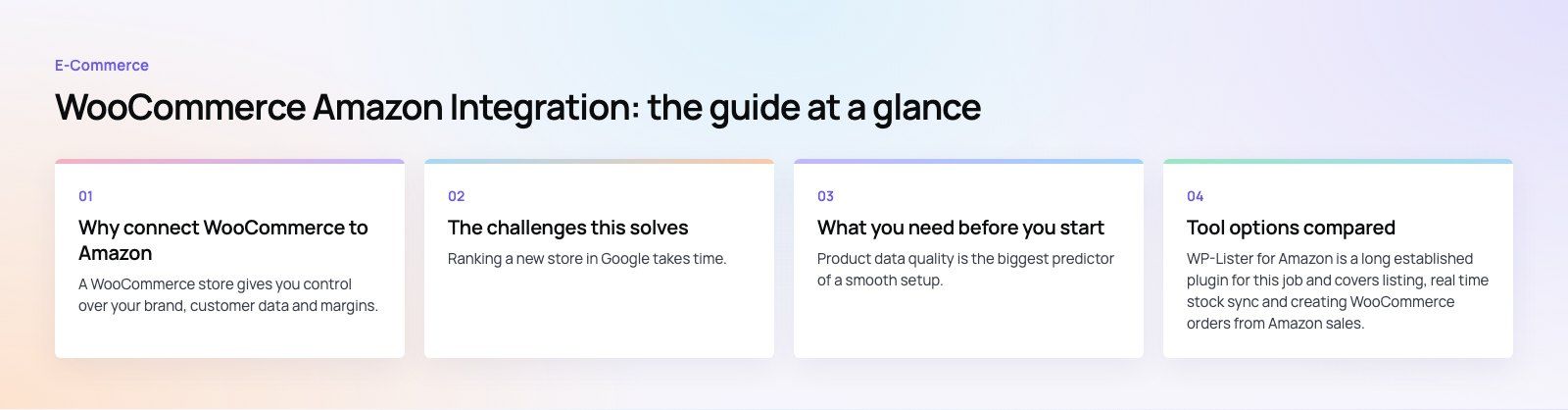
WP-Lister for Amazon is a long established plugin for this job and covers listing, real time stock sync and creating WooCommerce orders from Amazon sales. For fulfillment, the Amazon Fulfillment (MCF) extension on the WooCommerce marketplace sends orders to Amazon once payment completes.
Using Amazon Multi-Channel Fulfillment
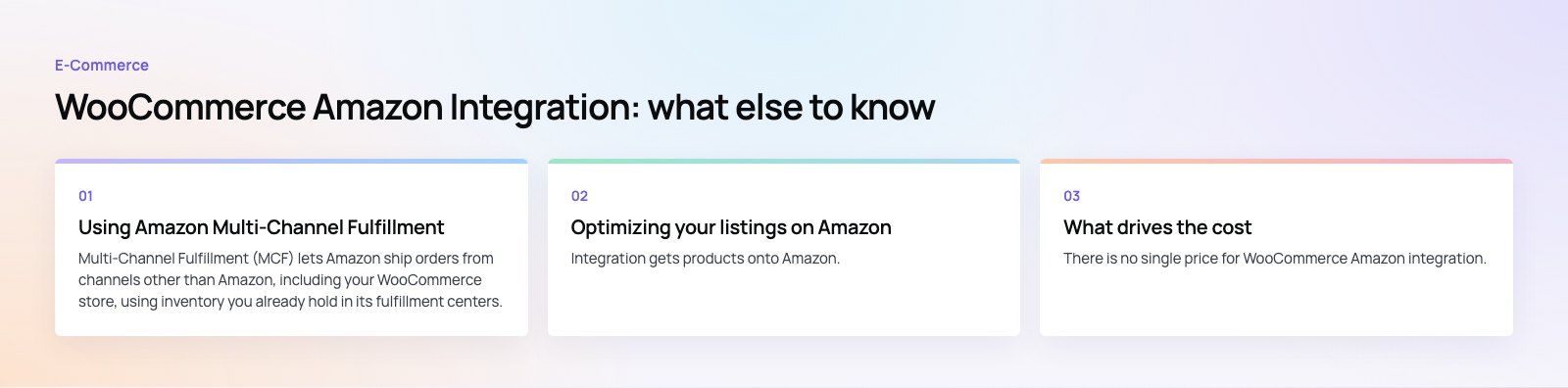
Multi-Channel Fulfillment (MCF) lets Amazon ship orders from channels other than Amazon, including your WooCommerce store, using inventory you already hold in its fulfillment centers.
- Enroll in the program through Seller Central and send stock to Amazon's warehouses.
- Install an MCF connector so paid WooCommerce orders pass to Amazon automatically.
- Amazon picks, packs and ships, and tracking flows back to the customer.
- Decide whether you want unbranded packaging, which most stores selling under their own brand prefer.
MCF suits small, steady selling products. Bulky, slow moving or highly seasonal items can become expensive to store, so model the fees against your current shipping before committing.
Optimizing your listings on Amazon
Integration gets products onto Amazon. Selling them takes listing work:
- Titles that follow Amazon's style rules for your category and include the main search terms.
- Bullet points and descriptions written for Amazon shoppers, not copied from your website.
- Backend search terms for synonyms and alternative spellings.
- Images on a white background for the main image, plus lifestyle and detail shots.
- A+ Content if you are brand registered, for richer product pages.
Many connectors let you override titles and descriptions per channel, so your website copy and Amazon copy can differ.
What drives the cost
There is no single price for WooCommerce Amazon integration. The main cost drivers are:
- The connector. Plugins are usually an annual or monthly subscription; multichannel services often price by order volume.
- Amazon's own fees, including the selling plan, referral fees per sale and, if you use MCF, fulfillment and storage fees based on size, weight and storage time.
- Setup work. Cleaning product data and mapping attributes takes the most time, especially for variations.
- Custom development if you need ERP links, complex pricing rules or bundles that plugins cannot handle.
- Maintenance, since Amazon changes category requirements and APIs over time.
Check current Amazon fees in Seller Central for your marketplace before you calculate margins per channel.
Common mistakes to avoid
- Syncing a messy catalogue. Missing SKUs and inconsistent variations produce rejected listings.
- No stock buffer. Without one, a burst of orders can oversell before sync catches up.
- Same price everywhere without checking fees. Amazon's fees differ from your website costs, so set channel pricing rules.
- Ignoring Amazon's policies. Restricted categories, packaging rules and listing style rules apply regardless of your plugin.
- Not testing returns. Decide how Amazon returns update stock in WooCommerce before you go live.
Getting help with the integration
For small catalogues a plugin is often enough. For larger stores, or when Amazon, WooCommerce and an ERP all need to agree on stock, it pays to plan the data flow properly. Our WooCommerce developers have built stores like Ghezlan, a bilingual WooCommerce store for a UAE veterinary supplier, and we handle custom integrations where plugins fall short. If you sell across several channels, see our work for retail and ecommerce brands or contact us to scope your setup.
Frequently asked questions
It is a connection between your WooCommerce store and your Amazon Seller Central account that keeps products, stock and orders in sync.
You manage your catalogue in WooCommerce, push listings to Amazon, and pull Amazon orders back into WooCommerce. Many setups also use Amazon Multi-Channel Fulfillment so Amazon ships orders placed on your own website from its warehouses.
E-CommerceGenerative AI in Online Retail: Uses That Pay BackGenerative AI ecommerce uses ranked by payback and risk: product descriptions, AI search and support assistants, plus Arabic quality checks for UAE stores.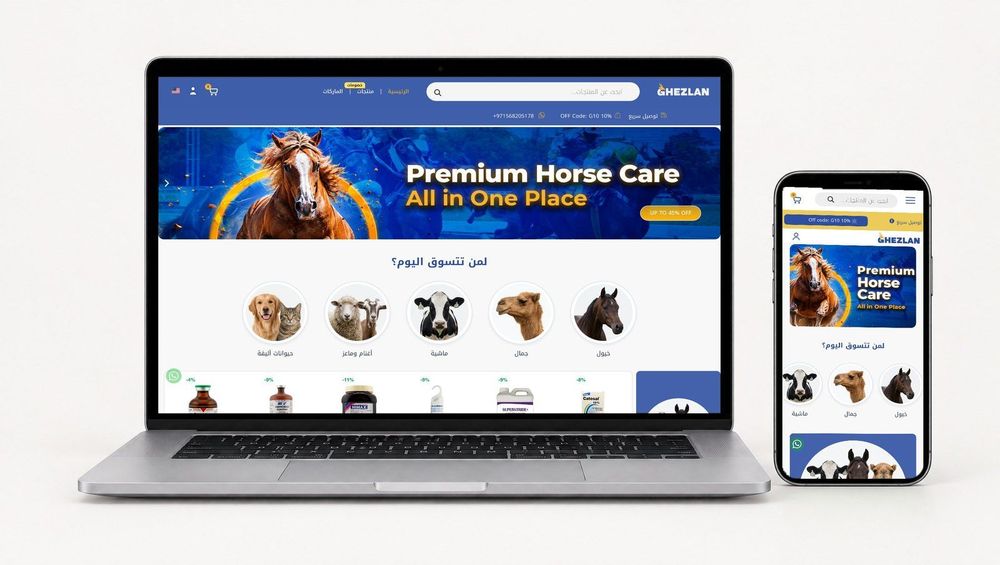 E-CommerceConnecting WooCommerce to ERP, CRM and Shipping Without DuplicatesPlan a WooCommerce ERP integration that avoids duplicates: data ownership rules, idempotent order sync, CRM matching and UAE shipping, with Odoo and Dynamics.
 E-CommerceEnterprise Ecommerce Platform Selection: Requirements Before DemosChoose an enterprise ecommerce platform by setting integration, multi entity, data residency and order management requirements before any vendor demo starts.
Tell us what the business needs. We will tell you what to build first.
Schedule a free consultation and get a written recommendation, with costs, before you commit to anything.
Get in touchPROVEN RESULTS
4.7 / 5verified reviews on Google