 Web DevelopmentWordPress vs Drupal: Which CMS Is Right for Your Business?WordPress vs Drupal compared on ease of use, content modeling, security, performance, ecommerce and cost drivers, with five questions to help you choose.
Best WordPress Cache Plugins for a Faster Site
WP Rocket, LiteSpeed Cache, W3 Total Cache and WP Super Cache compared, with how WordPress caching works and how to set it up safely.
The best WordPress cache plugin depends on your server and how hands-on you want to be. WP Rocket is the easiest premium option, LiteSpeed Cache is the strongest free choice if your host runs LiteSpeed, W3 Total Cache suits technical users who want fine control, and WP Super Cache is a simple free option for small sites. If your host already provides server-level caching, you may need only a light plugin, or none, for page caching.
This guide explains how caching works in WordPress, compares the four most widely used plugins, and shows how to choose, configure and test one without breaking your site.
Why caching matters for WordPress speed
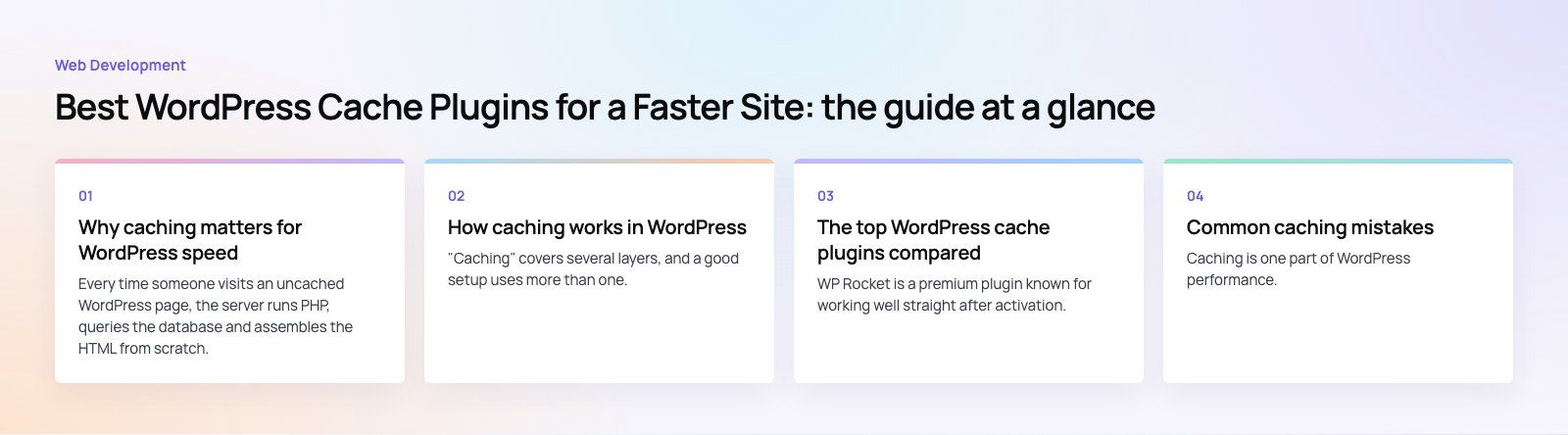
Every time someone visits an uncached WordPress page, the server runs PHP, queries the database and assembles the HTML from scratch. That work takes time, and it multiplies under traffic. Caching saves a ready-made copy of the result and serves it to the next visitor, which cuts server work and response time.
A faster site keeps visitors on the page, helps conversions and supports search visibility through Google's Core Web Vitals. Caching is usually the single biggest speed win on a WordPress site, although it works best alongside image optimization, lean themes and good hosting.
| Situation | Effect on the site |
|---|---|
| Pages served from cache | Faster responses, lower server load, better experience under traffic |
| Every page built on each visit | Slower responses, more bounces, higher risk of slowdowns during peaks |
How caching works in WordPress
"Caching" covers several layers, and a good setup uses more than one. The WordPress advanced administration handbook describes these in detail.
Page caching
Stores the finished HTML of a page so it can be served without running PHP or querying the database. This is the main job of a cache plugin.
Browser caching
Tells the visitor's browser to keep static files such as images, CSS and JavaScript for a period, so repeat visits load faster.
Object caching
Keeps the results of frequent database queries in memory, usually with Redis or Memcached. It helps most on dynamic sites such as stores, membership sites and busy admin areas.
Server and CDN caching
Many hosts cache pages at the server level, and a CDN can cache content close to visitors around the world. When these are in place, the plugin's role changes from doing the caching to managing and clearing it.
What to look for in a cache plugin
- Compatibility with your host. Some hosts block or replace certain plugins. Check your host's guidance first.
- Ease of setup. Sensible defaults matter if no developer will maintain the site.
- Cache clearing rules. The plugin should clear the right pages automatically when you publish or update content.
- Extra optimizations. Minification, file combining, lazy loading, delaying JavaScript and CDN integration can add real gains, but each needs testing.
- Ecommerce awareness. Cart, checkout and account pages must never be cached for everyone. Good plugins exclude them automatically for WooCommerce.
- Support and updates. An actively maintained plugin is safer and keeps pace with WordPress releases.
The top WordPress cache plugins compared
| Plugin | Model | Best for | Setup effort |
|---|---|---|---|
| WP Rocket | Premium | Owners who want strong results with little configuration | Low |
| LiteSpeed Cache | Free | Sites hosted on LiteSpeed servers | Medium |
| W3 Total Cache | Free with Pro version | Technical users who want detailed control | High |
| WP Super Cache | Free | Small sites that need simple page caching | Low |
WP Rocket
WP Rocket is a premium plugin known for working well straight after activation. Page caching starts immediately, and further optimizations are switched on from a clear dashboard.
- Page caching and cache preloading so pages are ready before visitors arrive.
- Browser caching, lazy loading of images and video, and options to delay or defer JavaScript.
- CSS and JavaScript minification, plus removal of unused CSS.
- CDN integration.
It is a paid plugin, so weigh the time it saves against the cost. For owners without a developer, that trade is often worthwhile.
LiteSpeed Cache
LiteSpeed Cache is free and works with the server-level cache built into LiteSpeed web servers. On that kind of hosting it is usually the best choice, because caching happens at the server rather than in PHP.
- Server-level page caching on LiteSpeed hosting.
- Image optimization and modern format conversion.
- CSS and JavaScript optimization, lazy loading and database cleanup.
- Object cache support and CDN integration.
Its page cache needs a LiteSpeed server. On other servers, some optimization features still work, but another plugin is usually a better fit for page caching.
W3 Total Cache
W3 Total Cache offers one of the widest sets of caching controls, with a free version and a Pro upgrade.
- Page, object, database and browser caching.
- Minification of HTML, CSS and JavaScript.
- Support for many CDN providers.
- Detailed settings for each caching layer.
That flexibility is its strength and its risk. Misconfigured settings can slow a site or break layouts, so it suits people comfortable testing each change.
WP Super Cache
WP Super Cache is a free plugin focused on page caching. It generates static HTML files and serves them to most visitors.
- Simple page caching with an easy recommended mode.
- Compression of cached pages.
- CDN support for static files.
It does not include the wider front-end optimizations of the premium options, so pair it with an image optimizer and a lean theme. For a small brochure site or blog, it is often enough.
How to choose and set up your cache plugin
- Check your hosting first. If your host uses LiteSpeed, start with LiteSpeed Cache. If it provides its own page cache, follow its recommendations and avoid doubling up.
- Run a baseline test. Measure a few key pages, such as the homepage, a blog post and a product page, on mobile before changing anything.
- Install one cache plugin only. Two page caching plugins fight each other and cause errors.
- Enable page caching first. Test again, then add browser caching and lazy loading.
- Add advanced options one at a time. Minification, combining files and delaying JavaScript give gains but can break layouts or scripts. Test after each change.
- Exclude dynamic pages. Make sure cart, checkout, account and form pages are not cached for all visitors.
- Retest and monitor. Compare results with the baseline and check real user data over the following weeks.
Common caching mistakes
- Running two caching plugins, or a plugin on top of host caching without checking compatibility.
- Caching logged-in users or checkout pages, which can show one customer's data to another.
- Turning on every optimization at once and not knowing which one broke the site.
- Forgetting to clear the cache after design changes, then assuming the change failed.
- Expecting caching to fix a heavy theme, unoptimized images or too many plugins.
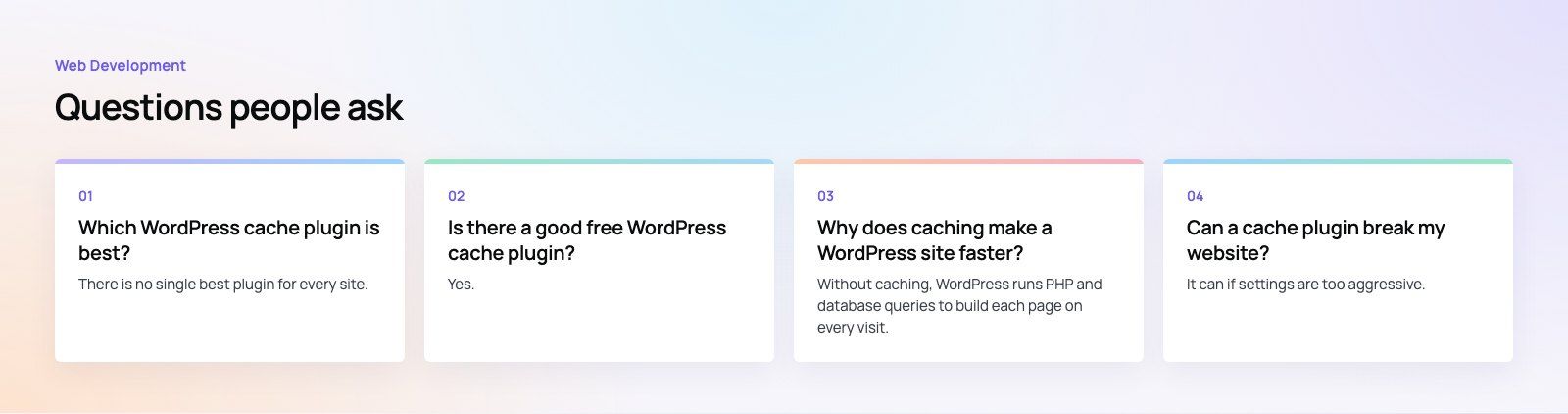
Caching is one part of WordPress performance. Theme weight, plugin count, image handling and hosting all count. Codeeo's WordPress developers handle these issues on client sites, and a speed optimization quick start or our Core Web Vitals service is a good place to begin if your site feels slow.
Frequently asked questions
There is no single best plugin for every site.
WP Rocket is the easiest premium option with strong defaults. LiteSpeed Cache is the best free choice on LiteSpeed hosting. W3 Total Cache suits technical users who want detailed control, and WP Super Cache works well for small sites that need simple page caching. Start by checking what your host supports.
Web DevelopmentWordPress vs Drupal: Which CMS Is Right for Your Business?WordPress vs Drupal compared on ease of use, content modeling, security, performance, ecommerce and cost drivers, with five questions to help you choose. Web DevelopmentCustom Website Development vs Website Builders: Pros and ConsAn honest comparison of custom website development and website builders: control, cost over time, SEO, integrations, and how to decide which fits your business.
 Web DevelopmentWeb Development Consultant: What They Do and When to Hire OneWhat a web development consultant does, how the role differs from a developer or agency, when hiring one pays off and how to choose the right one.
Tell us what the business needs. We will tell you what to build first.
Schedule a free consultation and get a written recommendation, with costs, before you commit to anything.
Get in touchPROVEN RESULTS
4.7 / 5verified reviews on Google