 Web DevelopmentWordPress vs Drupal: Which CMS Is Right for Your Business?WordPress vs Drupal compared on ease of use, content modeling, security, performance, ecommerce and cost drivers, with five questions to help you choose.
How to Fix Common WordPress Errors: A Step by Step Guide
Fix common WordPress errors, from the critical error message and white screen to 500 errors and database problems, with a clear troubleshooting order.
Most WordPress errors come from a handful of causes: a plugin or theme conflict, outdated software, a server limit such as memory or upload size, or a damaged file or database. To fix one, back up the site, read the exact error message, turn on debug logging to see the real cause, then isolate it by disabling plugins and switching to a default theme. The steps below cover the common errors and the order to troubleshoot them in.
WordPress is flexible because it runs on plugins, themes and a server you control. That flexibility also means more places for something to go wrong. The good news is that almost every error leaves clues, and a calm, step by step approach finds the cause faster than random changes.
Before you start: protect the site
- Take a backup of files and the database, even if the site is broken. You want a way back if a fix makes things worse.
- Use a staging copy where possible. Many hosts offer one click staging, so you can test fixes without touching the live site.
- Note what changed recently. A plugin update, a new theme, a PHP version change or a hosting move is usually the trigger.
- Get file access. Have your hosting file manager, SFTP or SSH ready, because some fixes need you to edit files when the dashboard is unavailable.
Common WordPress errors and what they mean
| Error | Likely cause | First fix to try |
|---|---|---|
| "There has been a critical error on this website" | A PHP fatal error, usually from a plugin or theme | Use the recovery mode email link, or check the debug log |
| White screen with no message | A PHP error with error display turned off | Enable debug logging, then disable plugins |
| 500 internal server error | Faulty .htaccess, plugin error or server limit | Rename .htaccess, then check server error logs |
| Error establishing a database connection | Wrong credentials in wp-config.php or the database server is down | Check database name, user, password and host with your host |
| Allowed memory size exhausted | PHP memory limit too low for a plugin or task | Raise WP_MEMORY_LIMIT or ask your host to raise PHP memory |
| Uploaded file exceeds the maximum size | Server upload limit | Raise upload_max_filesize and post_max_size in PHP settings |
| Briefly unavailable for scheduled maintenance | An update was interrupted | Delete the .maintenance file in the site root |
| Syntax error, unexpected ... | A typo in code added to a theme or snippet | Undo the last code change through file access |
| Pages return 404 but the home page works | Rewrite rules out of date | Resave settings under Settings, Permalinks |
| Mixed content or SSL warnings | Some resources still load over http | Update site URLs to https and fix hardcoded links |
| Destination folder already exists | A failed install left a folder behind | Delete that plugin or theme folder, then reinstall |
| Locked out of the admin | Lost password, changed URL or security plugin block | Reset the password by email or through your host's tools |
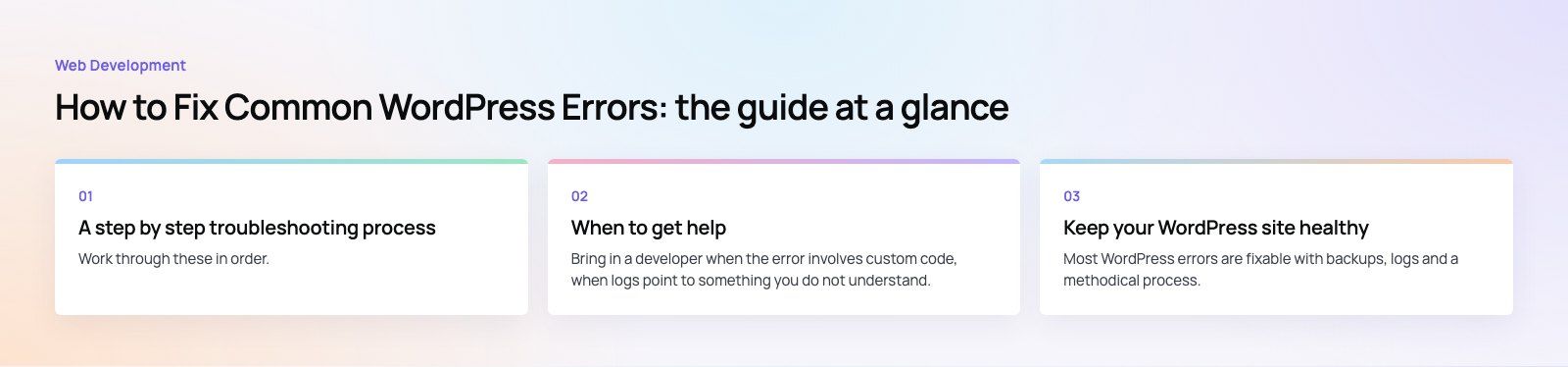
A step by step troubleshooting process
Work through these in order. Stop as soon as the error disappears, then note what fixed it.
1. Use recovery mode if WordPress offers it
When a plugin or theme causes a fatal error, WordPress shows a critical error message and emails the site administrator a special login link. That link opens the dashboard in recovery mode with the faulty extension paused, so you can deactivate or update it. Check the admin inbox, including spam, before anything else.
2. Turn on debug logging
Debug logging turns a vague error into a specific one, often naming the file and line. In wp-config.php, set WP_DEBUG to true, WP_DEBUG_LOG to true and WP_DEBUG_DISPLAY to false. Errors are then written to a debug.log file in the wp-content folder instead of being shown to visitors. The WordPress debugging guide explains each setting. Turn logging off again when you are done, because the log can grow large and may expose file paths.
3. Check the hosting error logs
Some errors happen before WordPress loads, so they never reach debug.log. Your hosting control panel usually has a PHP or web server error log. A 500 error with nothing in debug.log is often explained there.
4. Disable plugins to find a conflict
If you can reach the dashboard, deactivate all plugins and check whether the error clears. If you cannot, rename the plugins folder inside wp-content through file access, which disables them all at once. Then reactivate plugins one at a time until the error returns. The last one you enabled is the cause, or conflicts with something already active.
5. Switch to a default theme
If plugins are not the cause, switch temporarily to a current default WordPress theme. If the error disappears, the problem is in your theme or child theme, often a function that no longer works with your PHP or WordPress version.
6. Update core, plugins, themes and PHP carefully
Outdated software causes both errors and security holes. Update WordPress core, then plugins and themes, testing on staging if you can. Check which PHP version your host runs; old PHP versions break modern plugins, while a jump to a new PHP version can break old ones. Change one thing at a time so you know what made the difference.
7. Clear every cache
Caching plugins, server caches, CDNs and browsers can all keep serving a broken or outdated page after you fix it. Clear them in that order and test in a private window before assuming a fix did not work.
8. Repair or restore the database
If tables are damaged, WordPress has a built in repair tool. Add WP_ALLOW_REPAIR set to true in wp-config.php, visit the repair page under wp-admin/maint/, run the repair, then remove the setting straight away, because that page does not require a login. If repair fails, restore the database from your most recent clean backup.
9. Replace core files
If core files are corrupted or were modified by malware, download a fresh copy of WordPress and replace the wp-admin and wp-includes folders. Do not overwrite wp-content or wp-config.php, which hold your content and settings.
Why WordPress errors happen
- Plugin conflicts. Two plugins modify the same feature, or one assumes something the other changed.
- Theme incompatibility. Custom or abandoned themes fall behind WordPress and PHP updates.
- Outdated software. Old core, plugins or PHP create compatibility and security problems.
- Corrupted files. Interrupted updates, failed uploads or malware damage files.
- Resource limits. Traffic spikes, heavy imports or bloated plugins exceed memory or processing limits on the plan.
- Poor quality code. Nulled or unmaintained plugins and themes often contain errors, and sometimes malicious code.
How to prevent errors in future
- Update on a schedule rather than letting updates pile up, and read changelogs for major versions.
- Test on staging first for theme changes, major plugin updates and PHP upgrades.
- Keep plugins lean. Remove anything unused, and choose plugins with recent updates and active support.
- Back up automatically to storage outside your hosting account, and test a restore occasionally.
- Use the Site Health screen under Tools, which flags outdated PHP, missing modules and other risks.
- Monitor uptime and resources so you hear about problems before customers do.
- Harden security with strong unique passwords, two factor login and a reputable security plugin or firewall.
- Choose capable hosting with current PHP versions, enough memory and helpful support.
When to get help
Bring in a developer when the error involves custom code, when logs point to something you do not understand, when the site handles orders or bookings and every hour offline costs money, or when you suspect a hack. The WordPress troubleshooting FAQ and support forums are useful for common problems, but a developer with file and database access can usually diagnose faster and safely.
Keep your WordPress site healthy
Most WordPress errors are fixable with backups, logs and a methodical process. If you would rather not do it yourself, our WordPress development team fixes errors, cleans up plugin conflicts and maintains sites, and a website audit or speed optimization review finds problems before they take the site down. For stores, our WooCommerce developers handle the same work on checkout critical sites. Contact us to talk through your site.
Frequently asked questions
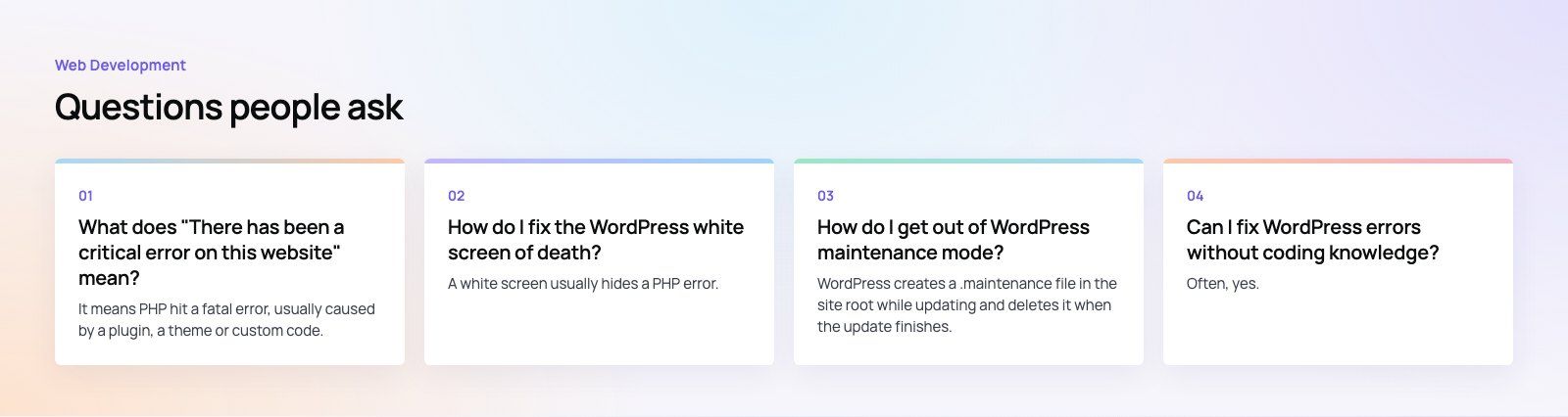
It means PHP hit a fatal error, usually caused by a plugin, a theme or custom code.
WordPress catches it and emails the administrator a recovery mode link that opens the dashboard with the faulty extension paused. Use that link to deactivate or update the culprit. If no email arrives, enable debug logging in wp-config.php and read debug.log to find the file responsible.
Web DevelopmentWordPress vs Drupal: Which CMS Is Right for Your Business?WordPress vs Drupal compared on ease of use, content modeling, security, performance, ecommerce and cost drivers, with five questions to help you choose. Web DevelopmentCustom Website Development vs Website Builders: Pros and ConsAn honest comparison of custom website development and website builders: control, cost over time, SEO, integrations, and how to decide which fits your business.
 Web DevelopmentWeb Development Consultant: What They Do and When to Hire OneWhat a web development consultant does, how the role differs from a developer or agency, when hiring one pays off and how to choose the right one.
Tell us what the business needs. We will tell you what to build first.
Schedule a free consultation and get a written recommendation, with costs, before you commit to anything.
Get in touchPROVEN RESULTS
4.7 / 5verified reviews on Google