 Web DevelopmentWordPress vs Drupal: Which CMS Is Right for Your Business?WordPress vs Drupal compared on ease of use, content modeling, security, performance, ecommerce and cost drivers, with five questions to help you choose.
How to Check Website Performance and Fix What You Find
Which tools to use, which metrics matter and how to read the results when you check web page performance, plus the fixes for slow LCP, INP and CLS.
To check web page performance, run the page through Google PageSpeed Insights to see both real user data and a lab test, then review the Core Web Vitals report in Google Search Console for your whole site. Those two tools tell you how fast pages load, how quickly they respond and how stable they are. Add uptime monitoring, analytics and a basic security and SEO check, and you have a complete picture of where the site is losing visitors.
This guide covers what to measure, which tools to use, how to read the results and the fixes that usually make the biggest difference.
What "web page performance" actually covers
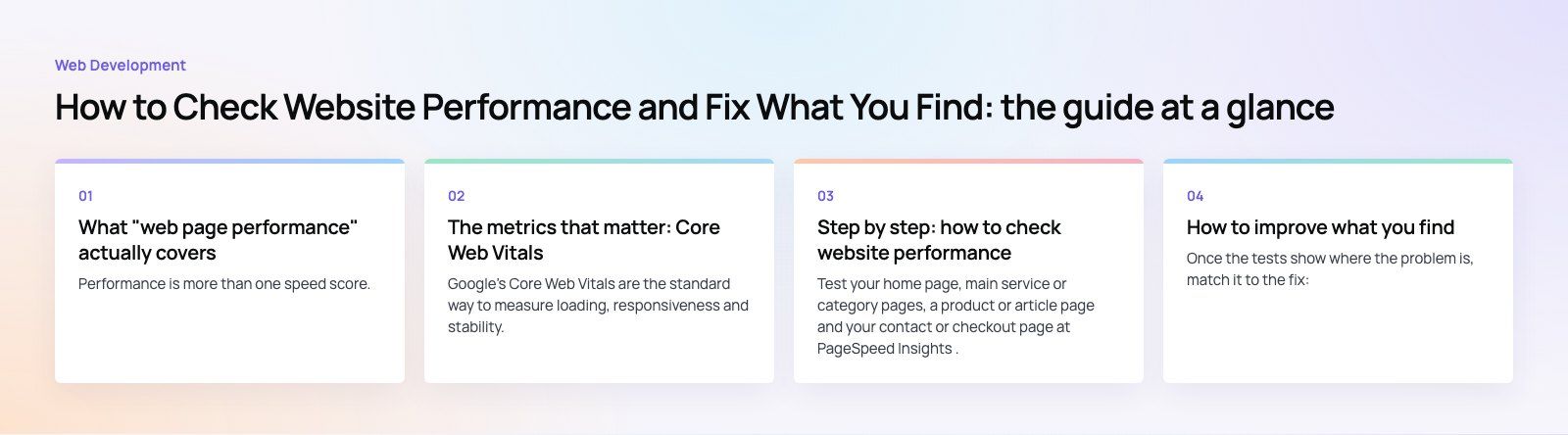
Performance is more than one speed score. A useful check looks at five areas:
- Loading: how quickly the main content appears.
- Responsiveness: how fast the page reacts when someone taps or types.
- Stability: whether the layout jumps around while loading.
- Availability: whether the site is up and the server answers quickly.
- Experience: whether visitors can find what they need and complete a task, on mobile as well as desktop.
The metrics that matter: Core Web Vitals
Google's Core Web Vitals are the standard way to measure loading, responsiveness and stability. According to web.dev (checked 2026), a page passes when 75 percent of real visits meet these thresholds:
| Metric | What it measures | Good | Common causes of a poor score |
|---|---|---|---|
| Largest Contentful Paint (LCP) | When the main image or text block appears | 2.5 seconds or less | Slow server, large hero images, render blocking CSS and fonts |
| Interaction to Next Paint (INP) | How quickly the page responds to taps, clicks and typing | 200 milliseconds or less | Heavy JavaScript, third party scripts, long tasks on the main thread |
| Cumulative Layout Shift (CLS) | How much content moves while the page loads | 0.1 or less | Images without dimensions, late loading ads, injected banners, web fonts swapping |
INP replaced the older First Input Delay metric in 2024, so guides that still talk about FID are out of date.
Two supporting metrics are also worth watching: Time to First Byte (TTFB), which shows how fast your server starts responding, and total page weight, which shows how much data a visitor has to download.
Step by step: how to check website performance
1. Run PageSpeed Insights on key pages
Test your home page, main service or category pages, a product or article page and your contact or checkout page at PageSpeed Insights. The top section shows field data from real Chrome users where Google has enough traffic. The lower section is a Lighthouse lab test with a list of specific opportunities. Always check the mobile result first, because that is where most sites struggle.
2. Check the Core Web Vitals report in Search Console
PageSpeed Insights tests one URL. Search Console groups your pages by template and shows which groups are poor, need improvement or are good. This tells you whether a problem is site wide (a slow theme) or limited to one page type (a heavy product template).
3. Dig deeper with a waterfall
Tools such as WebPageTest and Chrome DevTools show a waterfall of every file the page loads, in order. It is the fastest way to spot an oversized image, a slow third party script, a chain of redirects or a font that blocks rendering.
4. Test on a real phone and a slow connection
Desktop tests on fast office internet hide problems. Open the site on a mid range phone over mobile data, or use DevTools network throttling. Tap menus, open forms and scroll. If it feels sluggish to you, it feels worse to visitors.
5. Test from your visitors' locations
A site hosted far from its audience will have a slow TTFB for them. Run tests from locations near your customers. If the server is far away, a content delivery network or a closer hosting region usually helps.
6. Monitor uptime
Use an uptime monitor such as UptimeRobot or Better Stack to check the site every few minutes and alert you when it goes down or slows sharply. Downtime loses sales directly and, if it happens often, can affect how search engines crawl the site.
7. Review behavior in analytics
In Google Analytics 4, look at engagement rate, pages per session and conversion rate by device and landing page. A page with a strong ranking but poor engagement often has a speed, layout or relevance problem. Compare mobile and desktop: a big gap usually points to a mobile performance issue.
8. Run a basic SEO and accessibility check
Lighthouse includes SEO and accessibility audits alongside performance. Tools such as Screaming Frog or Semrush crawl the whole site for broken links, missing titles, redirect chains and duplicate pages. These issues often sit next to performance problems and are worth fixing together.
9. Review security basics
Confirm every page loads over HTTPS without mixed content warnings, the CMS, plugins and themes are up to date, and a firewall or security service is in place. An outdated plugin is a security risk and often a performance drain too.
10. Make it a routine
Performance degrades quietly as new plugins, tracking scripts and images are added. Re test key pages after every significant release and run a full review at least quarterly.
How to improve what you find
Once the tests show where the problem is, match it to the fix:
If LCP is slow
- Compress and resize the hero image, serve it as WebP or AVIF and do not lazy load it.
- Improve server response with page caching, better hosting or a CDN.
- Preload the main font or image and remove render blocking CSS where possible.
If INP is poor
- Remove or delay third party scripts you do not need: old tracking pixels, chat widgets, heatmaps.
- Load non essential JavaScript with defer or async.
- Break up long JavaScript tasks and avoid heavy page builders on key templates.
If CLS is high
- Set width and height on every image and video.
- Reserve space for ads, embeds and cookie banners.
- Use font display settings that limit layout shift when web fonts load.
General improvements that help almost every site
- Enable text compression (Brotli or gzip) and browser caching on the server.
- Minify CSS and JavaScript and remove unused code.
- Load only the font weights you use, or use system fonts.
- Cut unnecessary redirects and fix redirect chains.
- On WordPress, audit plugins regularly and clean up the database.
Common mistakes when checking performance
- Chasing a perfect lab score. The score in Lighthouse is a guide. Real user data in the field section and Search Console is what counts.
- Testing only the home page. Product, article and checkout templates are often slower and matter more for revenue.
- Testing from your own office. A fast connection near the server hides what visitors abroad or on mobile data experience.
- Fixing once and forgetting. Every new script or plugin can undo earlier gains.
If you would like a second pair of eyes, Codeeo offers a website audit and a focused speed optimisation review, and our Core Web Vitals service fixes the issues the tests uncover. For sites that need a rebuild rather than a tune up, see our web development work.
Frequently asked questions
Google PageSpeed Insights is the best starting point because it combines real user data from Chrome with a Lighthouse lab test and a list of specific fixes.
Pair it with the Core Web Vitals report in Google Search Console, which shows performance across all your pages grouped by template. WebPageTest and Chrome DevTools are useful when you need a detailed waterfall.
Web DevelopmentWordPress vs Drupal: Which CMS Is Right for Your Business?WordPress vs Drupal compared on ease of use, content modeling, security, performance, ecommerce and cost drivers, with five questions to help you choose. Web DevelopmentCustom Website Development vs Website Builders: Pros and ConsAn honest comparison of custom website development and website builders: control, cost over time, SEO, integrations, and how to decide which fits your business.
 Web DevelopmentWeb Development Consultant: What They Do and When to Hire OneWhat a web development consultant does, how the role differs from a developer or agency, when hiring one pays off and how to choose the right one.
Tell us what the business needs. We will tell you what to build first.
Schedule a free consultation and get a written recommendation, with costs, before you commit to anything.
Get in touchPROVEN RESULTS
4.7 / 5verified reviews on Google