 Web DevelopmentWordPress vs Drupal: Which CMS Is Right for Your Business?WordPress vs Drupal compared on ease of use, content modeling, security, performance, ecommerce and cost drivers, with five questions to help you choose.
How to Edit the WordPress Footer Without Breaking Your Site
How to edit the WordPress footer safely with the Site Editor, widgets or a child theme, show a different footer per page, and what a good footer should include.
To edit the WordPress footer, use the tool your theme was built for: the Site Editor for block themes, the Widgets screen or Customizer for classic themes, or a child theme when you need to change the footer template itself. You should never edit WordPress core files or a parent theme's files directly, because the next update will overwrite your work. Back up the site first, make the change in the right place, and test it on mobile before you publish.
This guide walks through each method, explains how to show a different footer on certain pages, and lists what a useful footer should contain.
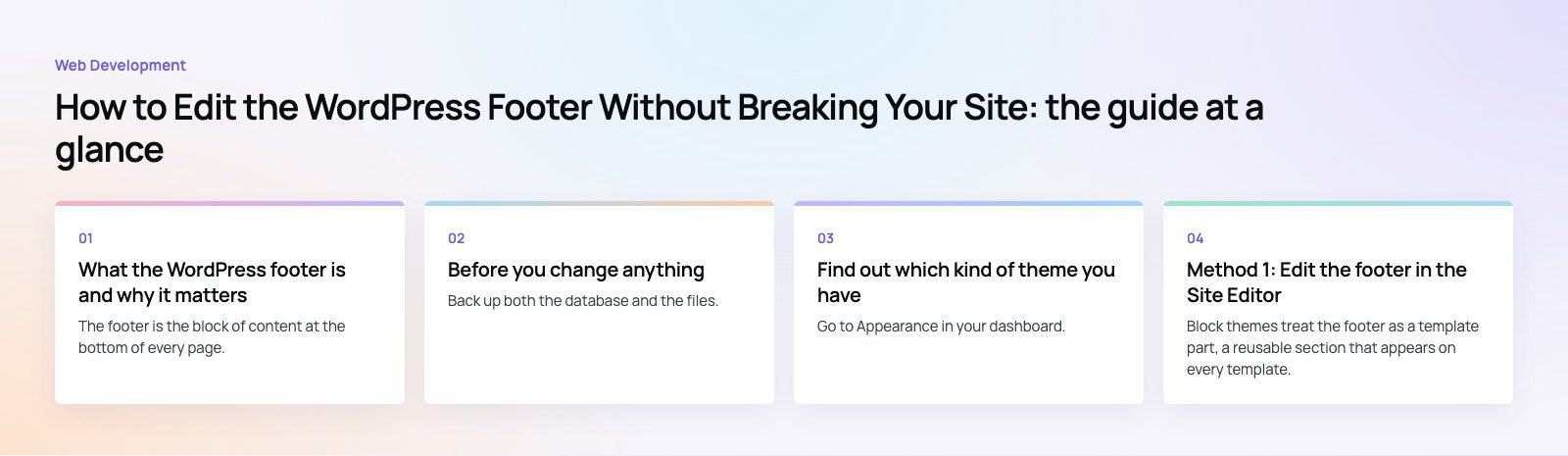
What the WordPress footer is and why it matters
The footer is the block of content at the bottom of every page. Visitors who scroll that far are usually looking for something specific: a phone number, an address, a returns policy, a privacy notice or a way to follow the business on social media. If the footer answers those questions, they stay. If it is a single copyright line, many of them leave.
A well built footer also does quiet work for search. It gives every page a consistent set of internal links to your most important sections, and it is a natural place for the business name, address and phone details that support local search. Keep those links useful and few. A footer stuffed with dozens of keyword links looks spammy to people and adds nothing for search engines.
Before you change anything
Take a full backup
Back up both the database and the files. Most hosts offer one click backups, and the official WordPress backup guide explains what to include if you do it yourself. If an edit goes wrong, a backup turns a broken site into a five minute restore.
Never edit core or parent theme files
Older tutorials often say to customize the footer "in the core". In practice that means editing files that WordPress or your theme vendor will replace on the next update. Any change made there disappears without warning. Changes belong in the Site Editor, in widgets, or in a child theme you control.
Work on staging if you can
If your host offers a staging copy, make footer changes there first. The footer appears on every page, so a mistake is visible across the whole site at once.
Find out which kind of theme you have
Go to Appearance in your dashboard. If you see Editor, you have a block theme and should use Method 1. If you see Widgets or Customize, you have a classic theme and should use Method 2. If you need to change the structure of a classic footer, such as removing a theme credit that has no setting, use Method 3.
| Method | Theme type | Best for | Skill needed |
|---|---|---|---|
| Site Editor | Block theme | Layout, text, links, social icons, separate footers per page | None |
| Widgets or Customizer | Classic theme | Adding text, menus and contact blocks to footer areas | None |
| Child theme | Classic theme | Changing footer markup or removing hard coded credits | Basic PHP and HTML |
| Page builder or footer plugin | Either | Visual footer layouts when the theme is limited | None, but adds weight |
Method 1: Edit the footer in the Site Editor
Block themes treat the footer as a template part, a reusable section that appears on every template. The official Site Editor documentation covers the interface in full. The short version:
- Go to Appearance > Editor.
- Open Patterns and find the template part called Footer. Your theme may include more than one footer design.
- Click the footer to open it on its own, so you are not editing the rest of the page by accident.
- Click any block to edit it, or use the + inserter to add a new block.
- Open List View from the toolbar to see every block in the footer as a tree. This makes nested columns and groups much easier to manage.
- Click Save. The change applies to every template that uses this footer.
Blocks that work well in a footer
- Paragraph for the copyright line and a one sentence description of the business.
- Navigation for links to policy, contact and key service pages.
- Social Icons for links to your active profiles only.
- Columns or Group to arrange contact details, links and a short call to action side by side.
Start from a footer pattern
If you would rather not build from scratch, open the inserter, switch to Patterns and look under the Footer category. A pattern drops in a complete layout that you then edit. It is the quickest way to get a footer that looks designed rather than assembled.
Show a different footer on specific pages
Landing pages and checkout pages often need a lighter footer with fewer exits. To create one:
- In Appearance > Editor > Patterns, click the + next to Patterns and choose to create a template part.
- Give it a clear name, such as "Footer, landing pages", and set the area to Footer.
- Build the footer and save it.
- Open the template used by those pages, or create a custom template, select the existing footer and replace it with your new template part.
- Assign that template to the pages that should use it.
Method 2: Use widgets or the Customizer in a classic theme
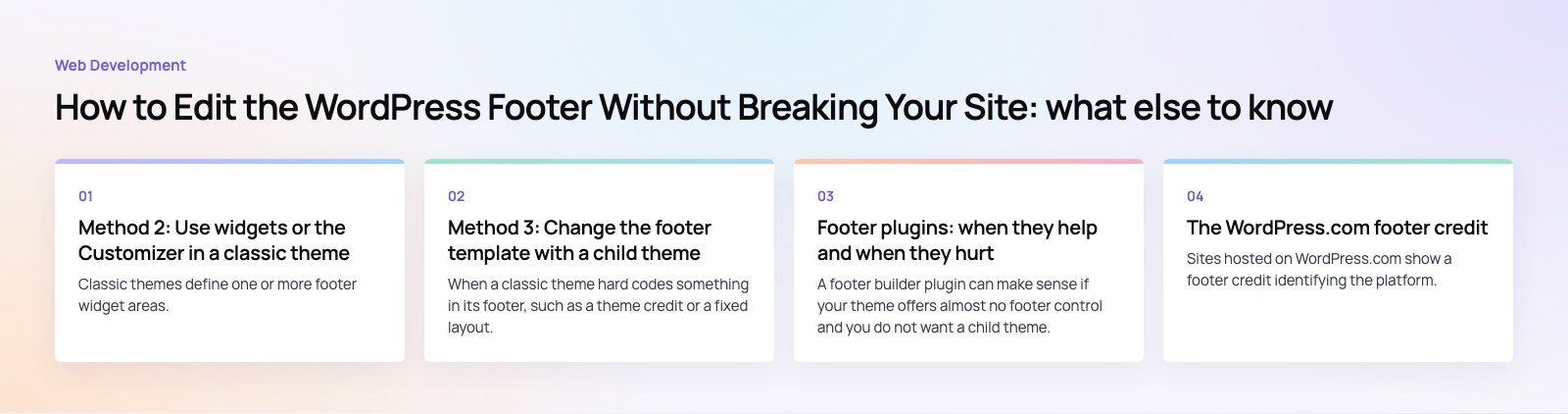
Classic themes define one or more footer widget areas. The number and layout depend on the theme.
- Go to Appearance > Widgets.
- Expand each footer area to see the blocks already in it.
- Use the + inserter to add Paragraph, Navigation, Social Icons or other blocks.
- Click Update to save.
Many classic themes also add footer settings under Appearance > Customize, such as the copyright text, column count or background color. Check there before reaching for code, because a setting is always easier to maintain than a template edit.
Method 3: Change the footer template with a child theme
When a classic theme hard codes something in its footer, such as a theme credit or a fixed layout, the safe way to change it is a child theme. A child theme inherits everything from the parent and lets you override individual files. The WordPress child themes handbook explains how to create one.
- Create the child theme folder with its style.css header and activate it.
- Copy footer.php from the parent theme into the child theme folder.
- Edit the copy. Keep the wp_footer() call in place, because plugins rely on it to load scripts, tracking and chat widgets.
- Upload, clear any cache and check the result on desktop and mobile.
The parent theme can now update freely and your footer stays as you left it. We used the same principle on the EGL Aesthetic site, which runs on a custom child theme so brand specific templates survive updates.
Footer plugins: when they help and when they hurt
A footer builder plugin can make sense if your theme offers almost no footer control and you do not want a child theme. The trade off is weight. Each plugin adds code to every page, and a footer appears on every page. Before installing one, check whether your theme or the Site Editor can already do the job.
The same caution applies to embeds. A map, an Instagram feed or a newsletter widget in the footer loads on every visit. If speed matters, use a static map image linked to the full map, and load feeds only where they earn their place. Our Core Web Vitals service often finds sitewide footer embeds among the first things worth fixing.
The WordPress.com footer credit
Sites hosted on WordPress.com show a footer credit identifying the platform. Depending on your plan, you can choose an alternative wording, show the WordPress logo instead, or remove the credit entirely. Plan names and allowances change, so check the current WordPress.com plan details before you count on removing it. Self hosted WordPress sites have no such requirement, although some themes add their own credit that you can change through theme settings or a child theme.
What a good footer includes
- Business name, address and phone number, written the same way they appear on your Google Business Profile.
- Links to privacy policy, terms, returns or delivery information where relevant.
- Links to your main service or category pages, kept short.
- A clear next step, such as a contact link or a newsletter sign up with a single field.
- Social icons for the profiles you actually keep active.
- A copyright line with the current year, generated automatically if your theme supports it.
Common footer mistakes
- Twenty or more links in tiny text, which nobody reads on a phone.
- Contact details that differ from the contact page.
- Dead social links to accounts the business stopped using.
- Low contrast text that fails accessibility checks.
- Heavy embeds that slow every page on the site.
Testing after you edit
Open the site in a private window so you see what visitors see, not a logged in or cached version. Check the footer on a phone, a tablet and a desktop. Click every link. Purge your caching plugin and any CDN cache, then check again. If you changed the footer template, confirm that analytics, chat and cookie banners still load, since they usually depend on the wp_footer() hook.
If your footer needs more than a few block edits, such as a child theme, a multi footer setup or a full redesign, our WordPress development team builds and maintains these for businesses across the UAE and the US. You can also see more of our published case studies or get in touch to talk through your site.
Frequently asked questions
No.
WordPress core files and parent theme files are replaced during updates, so any edit made there is lost the next time the site updates, often without anyone noticing. Use the Site Editor for block themes, widgets or the Customizer for classic themes, and a child theme when you need to change the footer template itself. These methods survive updates and are easy to reverse.
Web DevelopmentWordPress vs Drupal: Which CMS Is Right for Your Business?WordPress vs Drupal compared on ease of use, content modeling, security, performance, ecommerce and cost drivers, with five questions to help you choose. Web DevelopmentCustom Website Development vs Website Builders: Pros and ConsAn honest comparison of custom website development and website builders: control, cost over time, SEO, integrations, and how to decide which fits your business.
 Web DevelopmentWeb Development Consultant: What They Do and When to Hire OneWhat a web development consultant does, how the role differs from a developer or agency, when hiring one pays off and how to choose the right one.
Tell us what the business needs. We will tell you what to build first.
Schedule a free consultation and get a written recommendation, with costs, before you commit to anything.
Get in touchPROVEN RESULTS
4.7 / 5verified reviews on Google