 Web DevelopmentWordPress vs Drupal: Which CMS Is Right for Your Business?WordPress vs Drupal compared on ease of use, content modeling, security, performance, ecommerce and cost drivers, with five questions to help you choose.
How to Keep Your Website Updated and Secure
A practical routine for keeping a website updated and secure: access controls, tested updates, hosting basics, restorable backups, monitoring and a schedule.
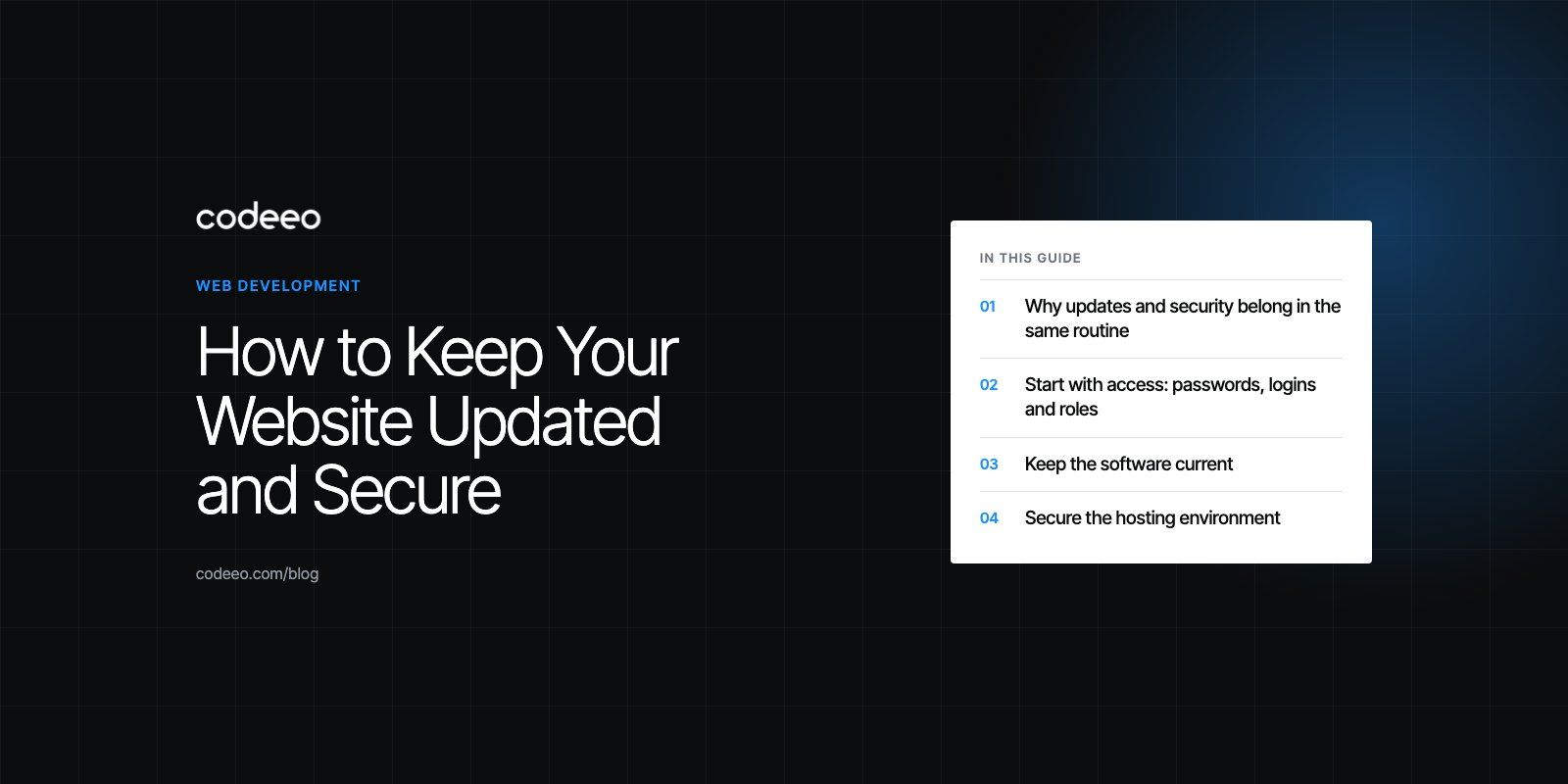
To keep a website updated and secure, you need a routine rather than a one time fix: patch the CMS, plugins and server on a schedule, lock down who can log in, take backups you have actually tested, and watch the site so you hear about problems before your customers do. Most break ins on small and mid sized sites come through outdated software or weak logins, so those two areas deserve the most attention.
This guide turns that routine into a practical plan you can run every week, month and quarter, with the tools and habits that matter most for a typical business site.
Why updates and security belong in the same routine
An update is usually a security fix in disguise. When a plugin, theme or framework releases a patch, the change log often mentions a vulnerability, and that public notice tells attackers exactly what to look for on sites that have not updated yet. Automated scanners sweep the web for known weak versions within days of a disclosure.
That is why "we will update when something breaks" is the riskiest approach. A site that falls several versions behind becomes harder to update safely, so owners put it off even longer, and the gap keeps growing. A regular routine keeps each update small, which makes it easier to test and easier to roll back.
Start with access: passwords, logins and roles
Stolen or guessed credentials are one of the easiest ways into a website, so tighten access before anything else.
Use long passwords and a password manager
Current guidance from the US National Institute of Standards and Technology, in NIST SP 800-63B (2025), favors length over complexity rules and advises against forcing people to change passwords on a fixed calendar unless there is a sign of compromise. In practice that means long passphrases, a unique password for every account, and a password manager so nobody has to remember them.
Turn on multi factor authentication
Enable multi factor authentication (MFA) for the CMS admin, hosting control panel, domain registrar, DNS provider and any email account that can reset those logins. An authenticator app or hardware key is stronger than SMS codes. Attackers often target the registrar or DNS account because controlling the domain gives them everything else.
Give each person only the role they need
Content editors rarely need administrator rights. Review user accounts at least quarterly, remove people who have left, and replace shared logins with named accounts so you can see who changed what.
Keep the software current
Every layer of a website runs software that ages: the CMS core, themes, plugins or packages, the programming language version on the server, the database and the operating system.
CMS core, themes and plugins
On WordPress, minor core releases can update automatically, and the official upgrade documentation explains how to manage major updates. Plugins and themes need their own attention. Remove anything you no longer use, because a deactivated plugin can still be exploited if its files sit on the server. Prefer well maintained extensions with recent releases and an active support history.
Server software and dependencies
Ask your host or developer which language runtime your site uses and whether it still receives security support. Custom sites built on frameworks such as Laravel, Next.js or React depend on dozens of packages, and each one can carry a vulnerability. Dependency scanning in your code repository flags those packages so they can be patched in the normal release cycle.
Test updates on staging first
A staging copy of your site lets you apply updates, click through key pages and forms, and only then push the change live. This single habit removes most of the fear around updates. If something does break, a recent backup and a clear rollback step mean the fix takes minutes, not days.
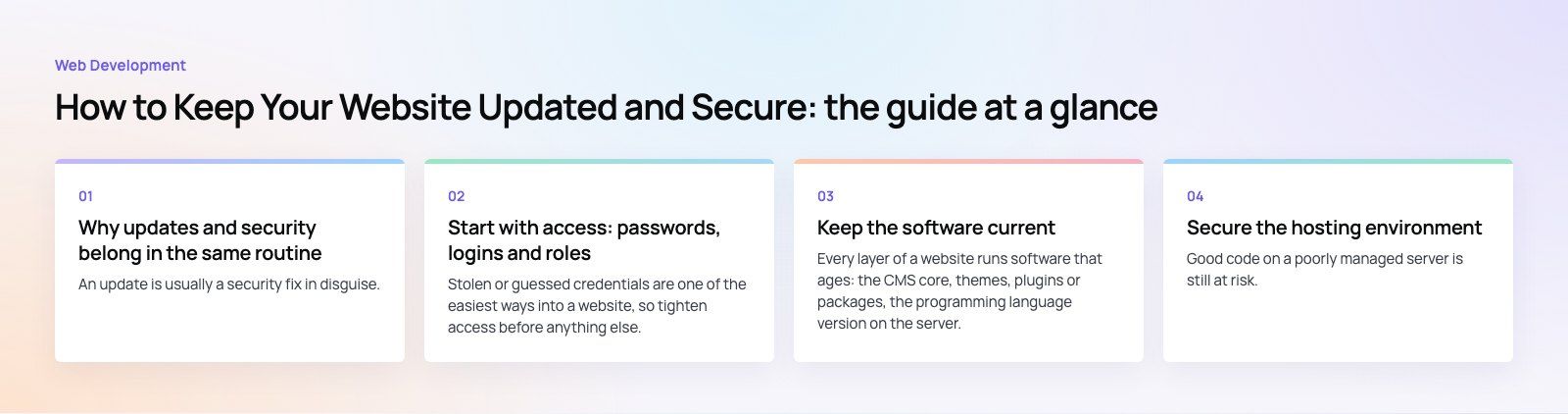
Secure the hosting environment
Good code on a poorly managed server is still at risk. When you choose or review hosting, look for these basics:
- Isolation: your site should not share files or processes with unrelated sites on the same account.
- Automatic server patching: the host should keep the operating system and web server current.
- HTTPS by default: a valid TLS certificate on every page, renewed automatically. Free certificate authorities such as Let's Encrypt make this standard practice.
- A web application firewall: a WAF filters common attacks such as SQL injection and cross site scripting before they reach your application. Many CDNs include one.
- Off site backups: stored somewhere other than the server they protect.
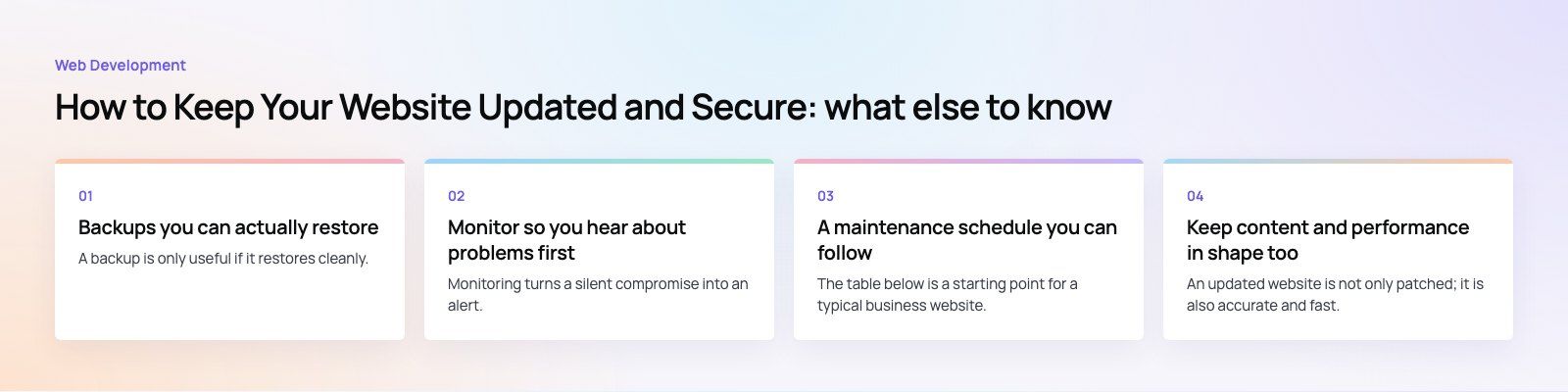
Backups you can actually restore
A backup is only useful if it restores cleanly. Set a schedule that matches how often your site changes: a busy store that takes orders all day needs frequent database backups, while a brochure site may only need a daily copy. Keep several generations so you can go back to a point before an infection began, which is often days or weeks before anyone noticed it.
At least once a quarter, restore a backup to a staging environment and confirm the site works. Teams that skip this step often discover during an emergency that the backup was incomplete or the files were corrupted.
Monitor so you hear about problems first
Monitoring turns a silent compromise into an alert. A sensible setup includes:
- Uptime monitoring that checks the site every few minutes and alerts by email or chat.
- Malware and file change scanning that flags new or modified files in places they should not appear.
- Login alerts for new admin accounts or logins from unfamiliar locations.
- Google Search Console, which reports security issues and manual actions that can affect how your site appears in search.
- Certificate and domain expiry reminders, because an expired certificate or domain takes a site offline just as surely as an attack.
A maintenance schedule you can follow
The table below is a starting point for a typical business website. Adjust the frequency for busier sites or stores.
| Frequency | Task | Why it matters |
|---|---|---|
| Daily | Automated backups and uptime checks | Limits data loss and shortens downtime |
| Weekly | Review and apply plugin, theme and package updates on staging, then live | Closes known vulnerabilities while changes are small |
| Weekly | Check security scan results and failed login reports | Catches attacks in progress |
| Monthly | Test contact forms, checkout and key user flows | Updates can quietly break forms that bring in leads |
| Monthly | Check page speed and Core Web Vitals | New plugins and content often slow pages down |
| Quarterly | Restore a backup to staging and audit user accounts | Proves recovery works and removes stale access |
| Yearly | Review hosting, runtime versions and unused features | Avoids running software past its support window |
Keep content and performance in shape too
An updated website is not only patched; it is also accurate and fast. Outdated prices, old team pages and broken links erode trust and can hurt search visibility. A monthly content pass that fixes broken links and refreshes key pages keeps the site credible.
Performance tends to decay as content grows. Compress and resize images, serve modern formats such as WebP or AVIF, cache pages, and remove scripts you no longer need. If your pages feel slow on mobile, our Core Web Vitals service focuses on exactly that problem.
Common mistakes that leave sites exposed
- Abandoned plugins: extensions that have not been updated by their authors in a long time are a frequent entry point.
- Shared admin logins: one password used by several people and agencies, never rotated after someone leaves.
- Backups on the same server: if the server is compromised or deleted, the backups go with it.
- No owner: the agency that built the site has moved on and nobody internally knows the hosting or registrar logins.
- Updating directly on live: skipping staging turns a routine update into an outage.
If you are not sure where your site stands, a website audit is a quick way to get a list of outdated components, security gaps and performance issues in priority order.
When to rebuild instead of patching
Sometimes the honest answer is that a site has fallen too far behind. Signs include a theme that no longer receives updates, a plugin stack that cannot run on a supported language version, or custom code nobody can safely change. In those cases a planned rebuild or site migration to a maintained platform can cost less over time than repeated emergency fixes.
Keeping your site in good hands
A secure, current website comes from small, regular habits: strong access controls, updates tested on staging, restorable backups and monitoring that alerts you early. Codeeo's team of 80+ across Dubai, Riyadh and Karachi has delivered 200+ projects across the UAE and the US, and our WordPress development and web development teams can set up and run this routine for you. Get in touch to talk it through.
Frequently asked questions
Check for updates at least weekly and apply security patches as soon as you have tested them on a staging copy.
Minor core releases on platforms such as WordPress can update automatically. Larger version changes for the CMS, themes or language runtime deserve a planned window, a fresh backup and a quick test of forms, checkout and key pages before you publish the change live.
Web DevelopmentWordPress vs Drupal: Which CMS Is Right for Your Business?WordPress vs Drupal compared on ease of use, content modeling, security, performance, ecommerce and cost drivers, with five questions to help you choose. Web DevelopmentCustom Website Development vs Website Builders: Pros and ConsAn honest comparison of custom website development and website builders: control, cost over time, SEO, integrations, and how to decide which fits your business.
 Web DevelopmentWeb Development Consultant: What They Do and When to Hire OneWhat a web development consultant does, how the role differs from a developer or agency, when hiring one pays off and how to choose the right one.
Tell us what the business needs. We will tell you what to build first.
Schedule a free consultation and get a written recommendation, with costs, before you commit to anything.
Get in touchPROVEN RESULTS
4.7 / 5verified reviews on Google