 E-CommerceGenerative AI in Online Retail: Uses That Pay BackGenerative AI ecommerce uses ranked by payback and risk: product descriptions, AI search and support assistants, plus Arabic quality checks for UAE stores.
WooCommerce POS Integration: Connect In Store and Online Sales
How WooCommerce POS integration keeps shop and website stock, products and customers in sync, with options, setup steps and common problems.
WooCommerce POS integration connects the till in your physical store to your WooCommerce website, so both sell from the same products, stock and customer records. A sale in the shop reduces stock online straight away, and an online order is visible to staff at the counter. For any retailer selling in both places, it removes double entry and stops the website selling items that have just left the shelf.
This guide explains what POS integration does, the main options, how to implement it and the problems to plan for.
What a WooCommerce POS integration does
A point of sale (POS) system handles in person sales: scanning items, taking card or cash payments and printing receipts. Integrating it with WooCommerce means the two systems share data instead of running separately. A good integration covers:
- Inventory sync. Stock levels update in both directions so neither channel oversells.
- Product and price sync. Products, variations and prices are managed once and appear in both places.
- Order and sales data. In store and online sales are reported together, so you see total performance by product and location.
- Unified customer records. A customer's purchases are tied to one profile whether they shop online or in store, which supports loyalty programs and personalized marketing.
- Omnichannel services. Buy online and pick up in store, returns across channels and gift cards that work everywhere become possible.
Your main options
There are two broad routes: run the POS inside WooCommerce, or connect a separate POS system to it.
POS built on WooCommerce
These tools use WooCommerce itself as the back end, so products, stock and orders already live in one place.
- Woo mobile app POS mode. The WooCommerce mobile app includes a Point of Sale mode that turns a supported tablet into a register, with card payments through WooPayments or Stripe and all sales syncing to the store. As of 2026 it is limited to a list of supported countries and to simple use cases, so check the documentation for your market.
- WCPOS. A point of sale plugin and app that runs on top of your WooCommerce store, with a free version and a paid tier for extra features.
- FooSales. A WooCommerce POS with web, iOS and Android apps, offering features such as offline mode and several payment options.
Separate POS connected to WooCommerce
Here the POS has its own back office and syncs with WooCommerce through an extension or integration.
- Square. Square for WooCommerce is an official extension that syncs catalog, inventory, orders and customer data between Square's POS and your store.
- Other retail POS systems. Many retail POS platforms offer WooCommerce connectors or open APIs. Quality varies widely, so test stock sync and variations carefully before committing.
| Approach | Strengths | Watch out for |
|---|---|---|
| POS built on WooCommerce | One database, no sync delays, familiar admin | Hardware and payment terminal support, offline behavior, country availability |
| Separate POS with official extension | Mature retail features, hardware ecosystem | Which system owns products and stock, sync frequency |
| Separate POS with custom integration | Fits complex catalogs and multiple stores | Build and maintenance effort |
How to choose a POS for WooCommerce
- Payments in your market. Confirm the POS and its card readers work with a payment provider available where your stores are.
- Catalog complexity. Variable products, bundles, weights and made to order items stress integrations. Test your hardest products first.
- Number of locations. Check stock by location, transfers between stores and whether the website can show availability per store.
- Offline mode. Shops cannot stop selling when the internet drops. Find out what works offline and how sales sync afterwards.
- Hardware. List the scanners, receipt printers, cash drawers and card readers you need and confirm they are supported.
- Reporting. Decide whether you will report from WooCommerce, the POS or a separate dashboard, and make sure the data lands there.
- Tax and receipts. Check that tax rules and receipt formats meet the requirements in each country you trade in.
Steps to implement WooCommerce POS integration
- Decide the source of truth. Choose which system owns products, prices and stock. Two masters lead to overwritten data.
- Clean your catalog. Align SKUs, barcodes, variations and tax classes so every product matches exactly in both systems.
- Install and configure. Set up the POS plugin or extension, connect payment providers and configure locations, taxes and receipts.
- Run an initial sync. Import products and opening stock, then spot check counts and prices against the shelf.
- Test real scenarios. Sell the last unit in store while an online order is in progress, process a return of an online order in the shop, and test a payment failure.
- Train your staff. Short hands on sessions with written or video guides work better than one long training day.
- Go live and monitor. Watch sync logs and stock variances closely for the first weeks, and schedule regular stock checks.
Common challenges and how to handle them
Stock out of sync
The most common complaint is stock that does not match between channels. Causes include slow sync intervals, products that exist in one system only and manual edits in the wrong place. Use a single source of truth, sync stock as close to real time as the tools allow, and set alerts for sync failures and negative stock. Regular cycle counts catch drift early.
Complex setup for larger stores
Many products, several outlets, multiple tax rates or currencies make configuration slower. Plan the setup on paper first, test with a subset of products and bring in a WooCommerce developer with POS experience if your catalog is complex.
Payment and data security
Card data must be handled under the PCI DSS rules. Use certified card readers and payment providers so card details never touch your own systems, keep WooCommerce, plugins and POS apps updated, and use secure hosting with strong admin passwords and two factor sign in.
Staff adoption
Staff who are unsure of a new system make mistakes with orders and stock. Involve a few experienced team members in testing, give them short guides for common tasks, and run refresher sessions after updates.
Returns across channels
Customers expect to return online orders in the shop. Decide how refunds, stock returns and exchanges are recorded so both systems and your accounts stay correct.
Where POS integration is heading
- Mobile and tablet POS that lets staff sell anywhere on the shop floor, as WooCommerce's own POS mode shows.
- Tap to pay on phones, reducing the need for separate card terminals in some markets.
- Unified customer profiles that feed loyalty programs and personalized offers across channels.
- Smarter stock planning using combined sales data from both channels to forecast demand.
- Cross border selling with better support for multiple currencies and tax rules.
Customer data across channels can get rich quickly. The Gorgeous Flower Co is a WooCommerce florist with free same day delivery in Dubai, delivery dates and windows at checkout, loyalty points and subscriptions, and Ghezlan is a bilingual WooCommerce store for a UAE veterinary supplier with 146 products found by animal, product type or brand.
If you want your shop and website running from the same stock and customer data, Codeeo's WooCommerce developers can help you choose a POS, plan the sync rules and handle payment integration. We are a team of 80+ across Dubai, Riyadh and Karachi with 200+ projects delivered across the UAE and the US. Contact us to discuss your stores.
Frequently asked questions
Yes.
WooCommerce can act as the back end for in store sales through its mobile app's Point of Sale mode, available in a list of supported countries, or through POS plugins such as WCPOS and FooSales. In each case, products, stock and orders live in WooCommerce, so in store and online sales share one database. Check hardware, payment and offline support for your market first.
E-CommerceGenerative AI in Online Retail: Uses That Pay BackGenerative AI ecommerce uses ranked by payback and risk: product descriptions, AI search and support assistants, plus Arabic quality checks for UAE stores.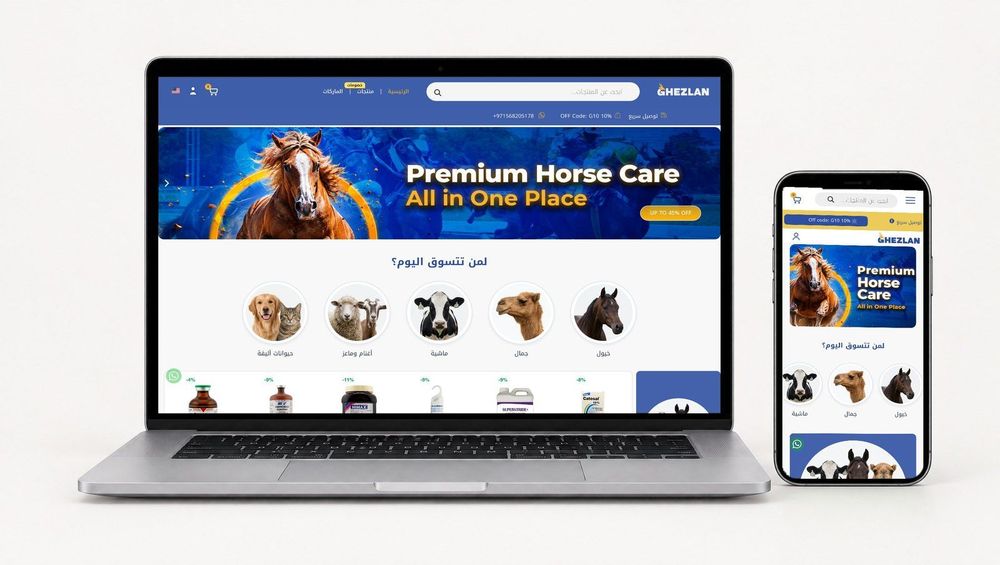 E-CommerceConnecting WooCommerce to ERP, CRM and Shipping Without DuplicatesPlan a WooCommerce ERP integration that avoids duplicates: data ownership rules, idempotent order sync, CRM matching and UAE shipping, with Odoo and Dynamics.
 E-CommerceEnterprise Ecommerce Platform Selection: Requirements Before DemosChoose an enterprise ecommerce platform by setting integration, multi entity, data residency and order management requirements before any vendor demo starts.
Tell us what the business needs. We will tell you what to build first.
Schedule a free consultation and get a written recommendation, with costs, before you commit to anything.
Get in touchPROVEN RESULTS
4.7 / 5verified reviews on Google