 App DevelopmentCross Platform App Development: How It Saves Time and MoneyHow shared code across iOS and Android cuts build and maintenance effort, which frameworks to consider in 2026, and when native development is still the better call.
How to Build a Flutter App for a WordPress Site
A step by step guide to building a Flutter app on top of WordPress: the REST API, authentication, app structure, content rendering, testing and store release.
To build a Flutter app for a WordPress site, you keep WordPress as the content source and connect the app to it through the built in WordPress REST API. The app requests posts, pages, media or products as JSON, turns them into Dart models and shows them in native screens, while editors keep working in the WordPress dashboard they already know. The main steps are preparing the site, setting up Flutter, designing the app structure, fetching and displaying data, testing, and publishing to the App Store and Google Play.
Below we cover each step, the decisions that matter most, and the points where WordPress app projects usually go wrong.
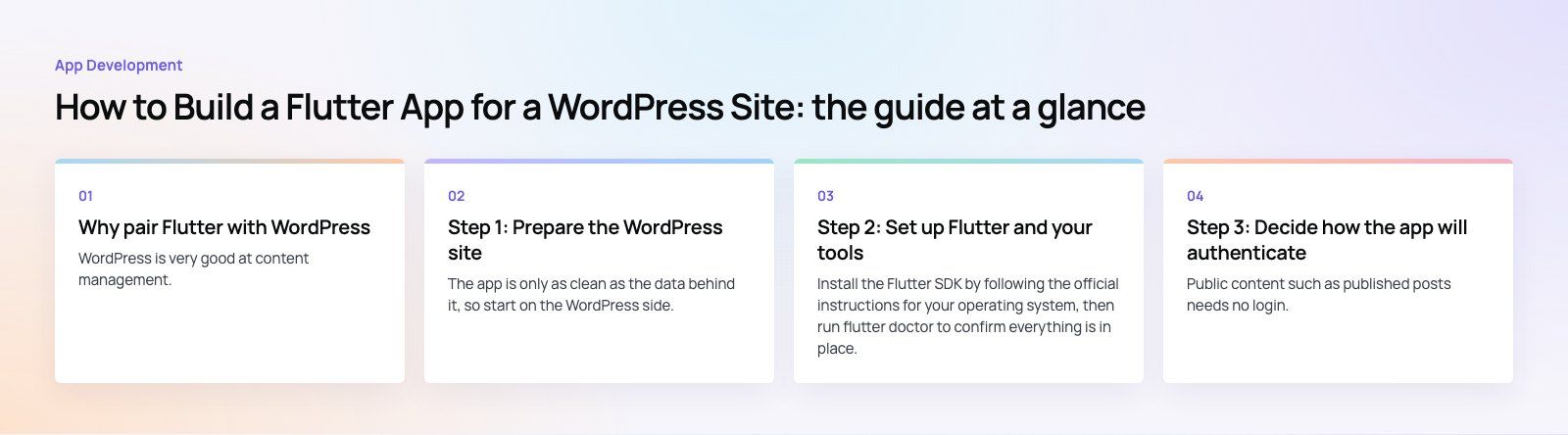
Why pair Flutter with WordPress
WordPress is very good at content management. Your team already writes, schedules and edits there, and plugins handle SEO, forms and stores. What a website cannot do as well is live on the home screen, send push notifications, work offline or feel as quick as a native app.
Flutter fills that gap. One Dart codebase produces apps for both iOS and Android, so you do not maintain two separate projects. Its widget system lets you match your brand closely, and hot reload speeds up design changes during development.
The combination works best when the app adds something the site cannot: saved articles, alerts for new content, a member area, a faster store checkout or offline reading. If the app would only repeat the website, a well built responsive site or a progressive web app may be the better choice.
Step 1: Prepare the WordPress site
The app is only as clean as the data behind it, so start on the WordPress side.
- Check the REST API. It is part of WordPress core. Visit yoursite.com/wp-json/wp/v2/posts and you should see JSON. If you get an error, a security plugin or host rule may be blocking it.
- Tidy your content model. Custom post types and custom fields need to be exposed to the API. Set show_in_rest on custom post types, and make sure any field plugin you use exposes its fields.
- Review plugins. Remove plugins you do not need. Each one can add database queries that slow API responses.
- Optimize images. The app will download your media, so serve sensibly sized images rather than full camera originals.
The official WordPress REST API handbook lists every core endpoint and how to extend them.
Step 2: Set up Flutter and your tools
Install the Flutter SDK by following the official instructions for your operating system, then run flutter doctor to confirm everything is in place. Use Visual Studio Code or Android Studio with the Flutter and Dart plugins. You will need Xcode on a Mac to build for iOS, and Android Studio for the Android emulator.
Create the project, then add the packages you will use from the start: http or dio for requests, a state management library, and an HTML rendering package if your posts contain rich formatting.
Step 3: Decide how the app will authenticate
Public content such as published posts needs no login. Anything private, such as member content, drafts, comments or orders, needs authentication.
| Method | Good for | Watch out for |
|---|---|---|
| No auth | Reading public posts, pages and media | Do not expose private data through custom endpoints by mistake |
| Application Passwords (WordPress core) | Admin tools and trusted internal apps | Not designed for public sign in by many users |
| JWT plugin | Member sign in from a public app | Choose a maintained plugin and set token expiry |
| WooCommerce REST keys | Server to server store access | Never ship consumer secrets inside the app |
A useful rule: if a key gives write access to your site, it belongs on a server you control, not inside the app. For store apps, a small backend that sits between the app and WooCommerce is often the safer design. WordPress publishes an integration guide for Application Passwords if that method fits your use case.
Step 4: Structure the Flutter app
Define the core features
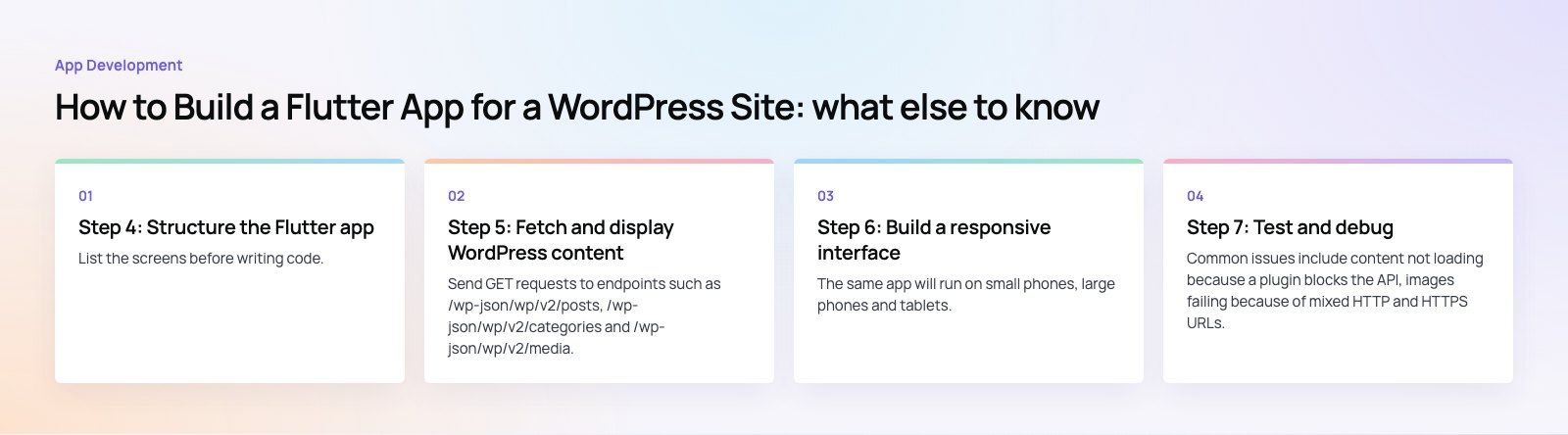
List the screens before writing code. A content app might need a home feed, category lists, an article view, search and saved items. A store app adds product lists, product detail, cart, checkout and account. A clear list keeps scope under control.
Organize the code by feature
Inside the lib folder, group code by feature (posts, categories, account) with models, services and screens for each. This scales better than one folder for all models and another for all screens.
Set up routing and state
Use Flutter's router, or a package such as go_router, so that deep links from notifications open the right article. Choose one state management approach, such as Provider, Riverpod or Bloc, and use it everywhere. Mixing several makes the app hard to follow.
Step 5: Fetch and display WordPress content
Request the data
Send GET requests to endpoints such as /wp-json/wp/v2/posts, /wp-json/wp/v2/categories and /wp-json/wp/v2/media. Use query parameters to keep responses small: _fields to return only the fields you need, per_page to control page size, and _embed when you want featured images and authors in the same response.
Parse into models
Create a Post model with a fromJson factory that reads the title, excerpt, content, date and featured image. Note that WordPress returns titles and content as objects with a rendered field containing HTML, so plan for that in your model.
Render the content
Use ListView.builder for feeds so only visible items are built. Post content arrives as HTML, so you will need an HTML rendering widget, plus styling rules for headings, links, images and embeds. Test this with your real content early; page builder output is often heavy and may need cleanup on the WordPress side.
Paginate
WordPress returns results in pages and reports the totals in the X-WP-Total and X-WP-TotalPages response headers, as described in the pagination guide. Load the first page, then fetch the next page as the user nears the bottom of the list.
Step 6: Build a responsive interface
The same app will run on small phones, large phones and tablets. Use MediaQuery or LayoutBuilder to adapt layouts, and widgets such as Expanded and Flexible so content fills space sensibly. On tablets, a two column layout for lists and articles often reads better than a stretched phone screen.
Respect each platform. Flutter provides Material widgets and Cupertino widgets, and small touches such as native style back gestures and dialogs make the app feel at home on each device. Use animations sparingly; a gentle fade or hero transition between a list and an article is enough.
Step 7: Test and debug
- Unit tests with flutter_test check that your models parse real sample responses saved from your site.
- Widget tests confirm that screens show loading, data and error states correctly.
- Integration tests with the integration_test package drive the full app: open the feed, read an article, sign in, and so on.
- Flutter DevTools lets you inspect the widget tree, watch network traffic and spot slow frames.
Common issues include content not loading because a plugin blocks the API, images failing because of mixed HTTP and HTTPS URLs, and broken formatting from shortcodes that only render on the website. Check API responses first, then the parsing, then the UI.
Step 8: Release to the App Store and Google Play
Prepare the build
Set the app name, icons, splash screen and version number. Remove debug code, update packages and make sure every API call points to the production site over HTTPS.
iOS
On a Mac with Xcode, configure signing with your Apple Developer account, then build with flutter build ipa and upload through Xcode or Apple's Transporter app. Read the App Store Review Guidelines before you submit. Apps that simply wrap a website with little added value are a common reason for rejection, which is another reason to give your app real features of its own.
Android
Build an app bundle with flutter build appbundle; Google Play requires this format for new apps. Check the minimum and target SDK levels in your Gradle settings, sign the bundle and upload it through the Play Console.
Test on real devices first
Run release builds on a range of real phones before submission. Simulators miss slow networks, older hardware and real notification behavior.
Mistakes to avoid
- Building the app before cleaning up the WordPress content model.
- Shipping WooCommerce or admin keys inside the app.
- Loading every post at once instead of paginating.
- Assuming page builder content will render well in a native view.
- Forgetting that every site change, such as a new custom field, may need an app update too.
A Flutter app on top of WordPress lets you keep one content system and reach users on both mobile platforms. If you want help planning or building one, our mobile app development and WordPress development teams work on both sides of the integration. For store apps, see our WooCommerce developers, or start with a product scoping session to decide what the app should do before you build it.
Frequently asked questions
Yes.
WordPress includes a REST API that returns posts, pages, media, categories and users as JSON. A Flutter app can request that data over HTTPS, turn it into Dart models and show it in native screens. Your team keeps publishing in the WordPress dashboard, and new content appears in the app without an app update, as long as the content structure stays the same.
App DevelopmentCross Platform App Development: How It Saves Time and MoneyHow shared code across iOS and Android cuts build and maintenance effort, which frameworks to consider in 2026, and when native development is still the better call. App DevelopmentHow to Plan an App Development Project From Start to FinishA step by step plan for an app project: define users and goals, scope an MVP, choose platforms, design, build the team, phase the timeline, test and launch.
 App DevelopmentMust Have Features of an HR Management AppThe features an HR management app needs, from onboarding and self service to payroll, performance and analytics, plus when to buy or build.
Tell us what the business needs. We will tell you what to build first.
Schedule a free consultation and get a written recommendation, with costs, before you commit to anything.
Get in touchPROVEN RESULTS
4.7 / 5verified reviews on Google