 E-Commerce10 Features of a High-Converting Ecommerce WebsiteThe ten features that turn store visitors into buyers, from product pages and checkout to speed, mobile design, social proof and ongoing testing.
How to Connect ShipStation to Shopify, Step by Step
Connect ShipStation to Shopify in a few steps: what to prepare, which orders import, settings to change after setup and how to fix common sync problems.
To connect ShipStation to Shopify, log in to ShipStation, open Account Settings, go to Selling Channels and then Store Setup, choose Connect a Store or Marketplace, select Shopify and enter your myshopify.com domain. ShipStation then sends you to Shopify to approve its app, and once you approve it your open orders start importing. You need admin access to the Shopify store, and only orders with at least one physical item created within the last 90 days will import.
This guide covers what the integration does, what to prepare, each step in detail, the settings worth changing after you connect, and the most common reasons orders fail to import.
What the ShipStation and Shopify integration does
Shopify runs your storefront, catalog and checkout. ShipStation is a shipping platform that pulls orders from one or more sales channels into one place, so you can compare carriers, print labels in batches and send tracking details to customers. Connecting the two gives you:
- Automatic order import. New paid Shopify orders appear in ShipStation without manual export.
- Carrier choice. You can compare services from the carriers you connect and pick the right one for each parcel.
- Batch label printing. Labels, packing slips and pick lists can be printed for many orders at once.
- Tracking sent back to Shopify. When you ship, ShipStation can notify Shopify, which marks the order fulfilled and passes the tracking number to the customer.
- Automation rules. Rules can set the carrier, service, package or warehouse based on weight, destination or product.
- One view across channels. If you also sell on marketplaces or another store, every order lands in the same queue.
It is not only for large stores. A small business shipping a handful of orders a day still saves time on label creation and avoids copy and paste errors in addresses.
What you need before you start
- An active Shopify store and a login with admin permissions.
- An active ShipStation account. Use the current ShipStation layout, because ShipStation's Shopify integration guide notes that legacy connections cannot use Shopify's latest access tokens.
- Your store's myshopify.com address. In Shopify, open Settings and then Domains to find it.
- Clean product data: every shippable product should have an accurate weight and SKU.
Which orders will import
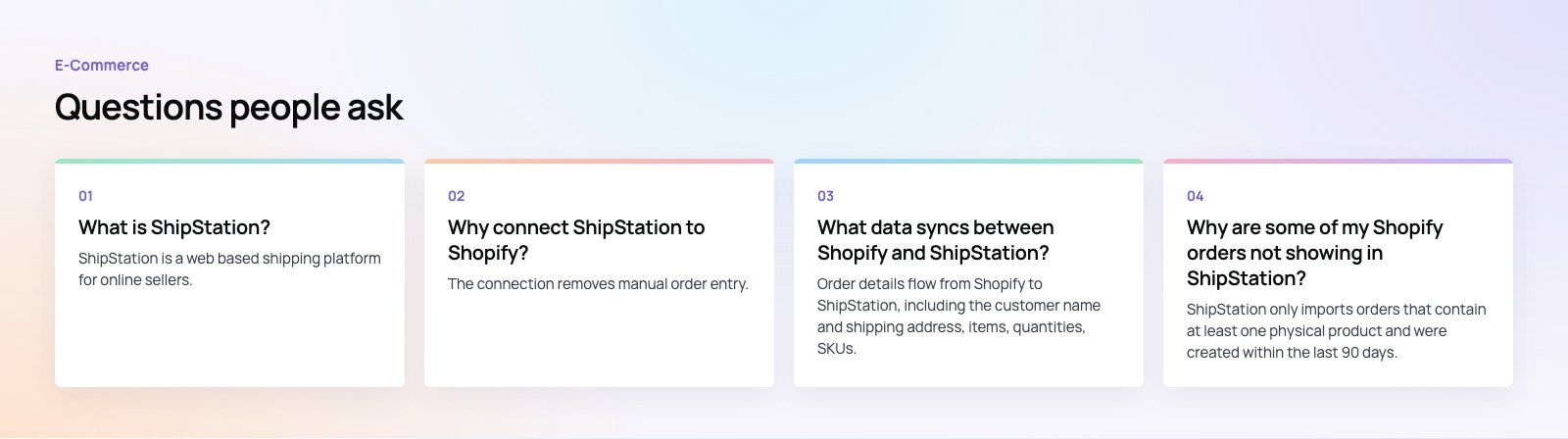
ShipStation imports Shopify orders that contain at least one physical product and were created within 90 days of the current date. Orders with missing address details, such as no postal code, can fail to import or arrive with errors. Digital only orders and gift card only orders are skipped because there is nothing to ship.
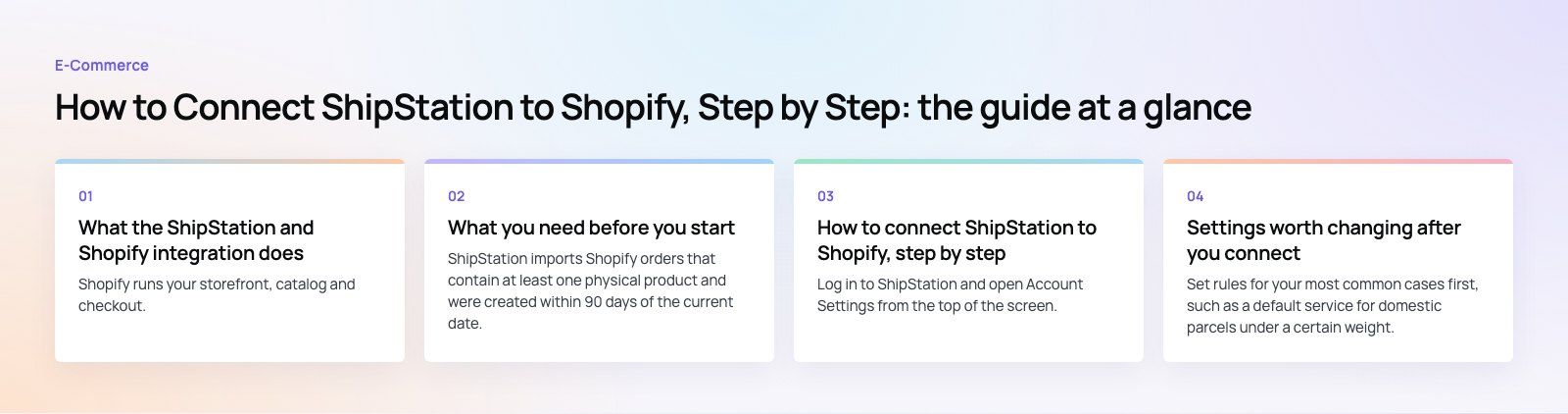
How to connect ShipStation to Shopify, step by step
Step 1: Open the selling channels screen
Log in to ShipStation and open Account Settings from the top of the screen. In the left menu, choose Selling Channels and then Store Setup.
Step 2: Choose Shopify
Click Connect a Store or Marketplace and select the Shopify tile from the list.
Step 3: Enter your store domain
Type your store address in the yourstore.myshopify.com format, not your custom domain, and click Connect.
Step 4: Approve the app in Shopify
ShipStation redirects you to Shopify. Log in if asked, review the permissions the ShipStation app requests and approve the install. If you manage several stores, log out of other Shopify sessions first so the app installs on the right one.
Step 5: Configure the store settings
Back in ShipStation, review the settings for the new store. Decide whether to import only unfulfilled orders or also older statuses, and check how order statuses in Shopify map to statuses in ShipStation.
Step 6: Map custom fields (optional)
You can map Shopify data such as order notes, customer tags or other order details into ShipStation's custom fields. This is useful for gift messages, priority handling or wholesale tags that should change how an order is packed.
Step 7: Test with a real order
Place a test order on your store, wait for it to import, buy or create a label for it, and confirm that Shopify shows the order as fulfilled with tracking. Then refund or cancel the test order.
The ShipStation app is also listed in the Shopify App Store, where you can review its permissions and the current plan options before you install.
Settings worth changing after you connect
Automation rules
Set rules for your most common cases first, such as a default service for domestic parcels under a certain weight, or a different service for international orders.
Product defaults
Give your most shipped products default package types and dimensions so labels are ready without manual edits.
Customer notifications
Decide whether Shopify or ShipStation sends the shipping confirmation email. If both are on, customers receive two messages.
Split and partial shipments
If items ship from different locations or at different times, set up splitting so each parcel gets its own tracking number in Shopify.
Troubleshooting common problems
| Problem | Likely cause | What to do |
|---|---|---|
| Orders not importing | Order older than 90 days, no physical item, or connection expired | Check the order details, then refresh or reconnect the store |
| Some fields missing | Incomplete address or product data in Shopify | Fix the order in Shopify and refresh the store in ShipStation |
| Orders not marked shipped in Shopify | Marketplace notification turned off, or permissions changed | Check the notification setting and reconnect if permissions changed |
| Wrong store connected | Another Shopify session was active during setup | Log out of other stores and connect again |
| Connection broken after a staff change | The approving user lost admin access | Use Edit Store Details in ShipStation to reconfigure the connection |
ShipStation updates its Shopify integration from time to time, so check its help center for recent changes to order import if something behaves differently from this guide.
What affects the cost
Connecting Shopify to ShipStation does not add a separate integration fee, but you will pay for a ShipStation plan and for the labels you buy. Plan cost depends mainly on your monthly shipment volume and the number of users and stores you need. Label cost depends on the carriers, services, parcel sizes and destinations you use. Check the current plans on ShipStation's own site, because they change.
When to get help
The basic connection takes minutes. It gets more involved when you run several warehouses, need custom packing rules, ship regulated products or want shipping data to reach your ERP or CRM as well. One issue we often see is a store whose product weights were never filled in, which makes every label a manual job until the catalog is cleaned up.
Codeeo builds and maintains stores like the bilingual EGO Sustainable Shopify store. If you want help with fulfillment setup, catalog cleanup or connecting Shopify to the rest of your systems, see our Shopify development services, our work on sales automation, or our notes for retail and ecommerce brands.
Frequently asked questions
ShipStation is a web based shipping platform for online sellers.
It pulls orders from stores and marketplaces into one queue, lets you compare and buy labels from connected carriers, prints labels and packing slips in batches, and sends tracking details back to each sales channel. It is used by stores that want to save time on fulfillment and reduce manual errors.
E-Commerce10 Features of a High-Converting Ecommerce WebsiteThe ten features that turn store visitors into buyers, from product pages and checkout to speed, mobile design, social proof and ongoing testing. E-CommerceBenefits of Using a CMS for Ecommerce WebsitesHow a CMS helps online stores manage products, SEO, growth and security, how it compares with a custom build, and how to choose between WooCommerce, Shopify and headless.
 E-CommerceEcommerce Website Development: 9 Elements Every Store NeedsThe nine parts every online store needs, from catalog data and search to checkout, security, operations and analytics, with what to decide before you build.
Tell us what the business needs. We will tell you what to build first.
Schedule a free consultation and get a written recommendation, with costs, before you commit to anything.
Get in touchPROVEN RESULTS
4.7 / 5verified reviews on Google