 E-Commerce10 Features of a High-Converting Ecommerce WebsiteThe ten features that turn store visitors into buyers, from product pages and checkout to speed, mobile design, social proof and ongoing testing.
How to Customize the Shopify Cart Page Step by Step
How to customize the Shopify cart page with the theme editor, what a good cart should include, code options like cart attributes, and mistakes that cost sales.
To customize the cart page in Shopify, open Online Store, then Themes, click Customize on your theme, choose Cart from the page selector at the top of the editor, and edit or add sections there. Cart wide options, such as whether the cart opens as a drawer or a full page and whether customers can leave a note, live under Theme settings. Anything the editor does not offer, such as a terms checkbox or custom order fields, needs an app or a small change to the theme code.
This guide covers what a good cart page should contain, the step by step editor method, the code based options and the mistakes that cost sales.
What the Shopify cart page does
The cart page is where shoppers review what they have chosen before paying. It lists each item with its variant, quantity and price, shows the subtotal, and sends the customer on to checkout. In Shopify's theme architecture, the cart page is rendered by the cart template, which also supports cart notes, cart attributes and discounts.
It is also the last point where your theme, rather than Shopify's checkout, controls the experience. That makes it the right place to reassure buyers about delivery, returns and payment, and to remove anything that might make them hesitate.
Cart page and checkout are different
The cart is part of your theme and can be edited with the theme editor or code. The checkout is hosted by Shopify and customized separately through the checkout settings and editor, with deeper changes depending on your plan. Many store owners try to fix checkout problems on the cart page, or the reverse, so it helps to be clear which one you are changing.
Elements a good cart page should include
| Element | Why it matters | How to add it |
|---|---|---|
| Clear line items | Shoppers confirm size, color and quantity | Built into most themes |
| Easy quantity changes and removal | Reduces frustration and support requests | Built into most themes |
| Subtotal and cost information | Avoids surprise costs at checkout | Theme editor text, or code for estimates |
| Delivery and returns message | Answers the most common last minute questions | Theme editor text block or section |
| Free shipping progress bar | Encourages larger baskets | Some themes include it; otherwise an app or code |
| Cart note or order fields | Gift messages, delivery instructions | Theme setting for notes; code for attributes |
| Product recommendations | Cross sells related or complementary items | Theme section, app or code |
| Payment method icons | Builds trust before checkout | Theme footer or cart section |
| Prominent checkout button | Makes the next step obvious | Theme styling or code |
| Continue shopping link | Gives a clear route back to the store | Theme setting or code |
Be upfront about costs
Unexpected costs are one of the most common reasons shoppers leave. If shipping is calculated at checkout, say so, and state your free shipping threshold or delivery options on the cart page. A short line such as "Delivery options and costs are shown at checkout" is better than silence.
Keep the checkout button obvious
The checkout button should be the most prominent element on the page, visible without scrolling on mobile. Accelerated checkout buttons such as Shop Pay, Apple Pay or Google Pay can also appear in the cart, depending on your theme and payment settings.
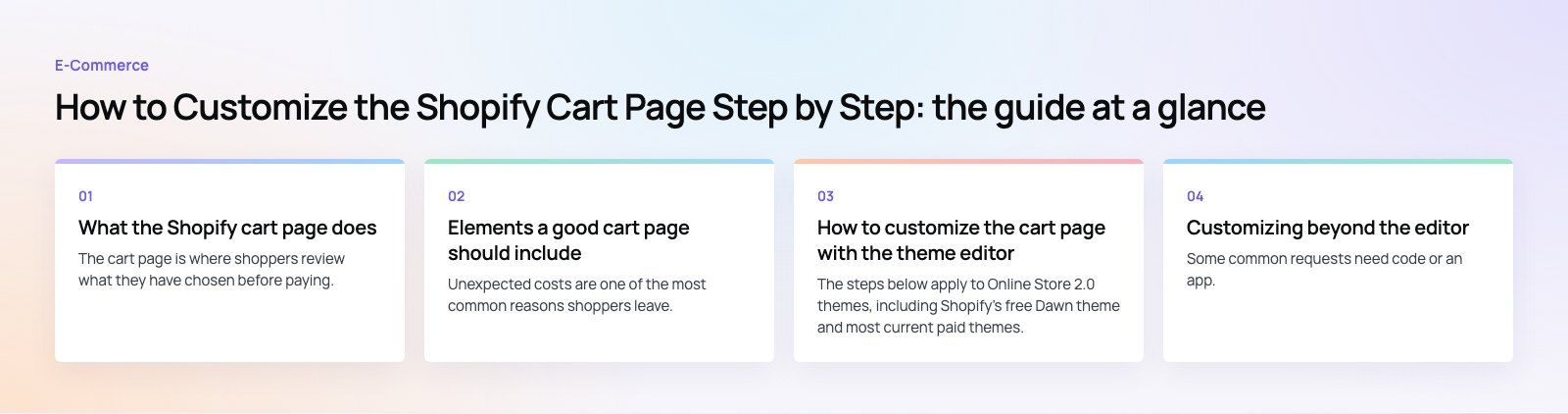
How to customize the cart page with the theme editor
The steps below apply to Online Store 2.0 themes, including Shopify's free Dawn theme and most current paid themes. Labels may vary slightly between themes.
- Open the editor. In Shopify admin, go to Online Store, then Themes. Next to your current theme, click Customize. If you want to experiment safely, duplicate the theme first and edit the copy.
- Select the cart page. Use the page selector at the top of the editor, which usually shows Home page, and choose Cart. You may need to add a product to the cart in the preview to see line items.
- Edit existing sections. The cart template usually contains sections such as the cart items and the subtotal or footer. Click a section to change its settings in the sidebar, such as headings or colors.
- Add sections. Click Add section to insert content such as a rich text block for delivery and returns information, a featured collection, or an image with text. Drag sections to reorder them.
- Adjust theme wide cart settings. Open Theme settings and look for the Cart group. Here many themes let you choose the cart type, such as a drawer, a full page or a pop up notification, and switch on the cart note.
- Preview on mobile. Use the device toggle in the editor to check the mobile layout. Most shoppers will see this version.
- Save and test. Click Save, then place a test order to make sure the cart, notes and checkout button all work.
Cart drawer or cart page?
A cart drawer slides out over the current page, so shoppers can keep browsing. A full cart page gives more space for information and recommendations. Many stores use the drawer for quick adds and keep the full page for review. If you switch to a drawer, check that delivery messages and notes still appear there, since drawers often show fewer elements.
Customizing beyond the editor
Some common requests need code or an app. Always work on a duplicate theme and test before publishing.
Terms and conditions checkbox
Some stores require customers to accept terms before checkout. This needs a small code change in the cart section: a required checkbox inside the cart form, with a message if it is not ticked. If you use a cart drawer as well, add it there too.
Custom fields with cart attributes
Cart attributes let you collect extra information, such as a gift message, a preferred delivery date or a company name. They are added as form inputs named with the attributes prefix and are saved with the order, so your team sees them in the admin.
Free shipping progress and upsells
A progress bar that shows how much more a customer needs to spend to qualify for free delivery can lift basket size. Some themes include one; otherwise it can be built in Liquid and JavaScript or added through an app. Cart recommendations work best when they are genuinely related, such as accessories or refills, rather than random bestsellers.
Apps versus custom code
Apps are quick to install but each one adds scripts that can slow the store, and several cart apps can conflict with each other. Custom code takes more effort upfront but loads only what you need. For stores with a lot of traffic, a light custom solution is usually better than stacking apps. If the store is slowing down, a speed optimization review will show which apps cost the most.
Mistakes that cost sales
- Hiding costs until checkout. Set expectations about shipping and taxes on the cart page.
- Weak checkout button. A small or low contrast button below the fold costs clicks.
- Too many distractions. A cart crowded with banners and upsells pulls attention away from paying.
- Broken mobile layout. Long product names and large images can push the button off screen on phones.
- Not testing after app installs. New apps can break the cart drawer or duplicate elements.
- Missing payment options. Show the methods your customers expect, and make sure they are enabled in your payment settings.
A checkout teardown looks at the cart and checkout together and shows where shoppers drop out. If your store needs new payment methods, such as local wallets or buy now pay later options, our payment integration team can add them. Our EGO Sustainable project, for example, is a bilingual Shopify store for a GCC athleisure label with Tabby and Tamara across five markets.
Small changes to the cart page often have an outsized effect on sales because every buyer passes through it. If you need changes beyond what your theme editor allows, our Shopify development team customizes cart pages, drawers and themes for stores of every size.
Frequently asked questions
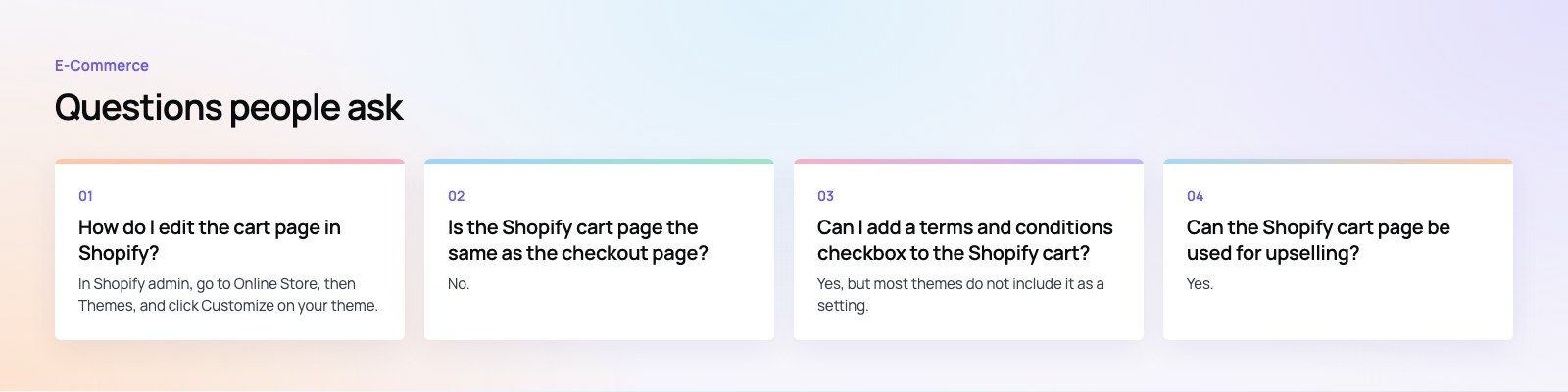
In Shopify admin, go to Online Store, then Themes, and click Customize on your theme.
Use the page selector at the top of the editor to choose Cart, then edit or add sections in the sidebar. Theme wide cart options, such as cart type and cart notes, are under Theme settings. Save your changes and test the cart on mobile.
E-Commerce10 Features of a High-Converting Ecommerce WebsiteThe ten features that turn store visitors into buyers, from product pages and checkout to speed, mobile design, social proof and ongoing testing. E-CommerceBenefits of Using a CMS for Ecommerce WebsitesHow a CMS helps online stores manage products, SEO, growth and security, how it compares with a custom build, and how to choose between WooCommerce, Shopify and headless.
 E-CommerceEcommerce Website Development: 9 Elements Every Store NeedsThe nine parts every online store needs, from catalog data and search to checkout, security, operations and analytics, with what to decide before you build.
Tell us what the business needs. We will tell you what to build first.
Schedule a free consultation and get a written recommendation, with costs, before you commit to anything.
Get in touchPROVEN RESULTS
4.7 / 5verified reviews on Google