 App DevelopmentCross Platform App Development: How It Saves Time and MoneyHow shared code across iOS and Android cuts build and maintenance effort, which frameworks to consider in 2026, and when native development is still the better call.
How to Design an Android App: From Concept to Handoff
A step by step guide to designing an Android app: purpose, research, user flows, wireframes, Material Design 3, prototyping, testing and developer handoff.
To design an Android app, define the problem it solves, research your users and competitors, map the user flows, build wireframes, apply Material Design to create the visual interface, then prototype and test with real users before handing a finished design system to developers. Good Android design follows the platform's own conventions, adapts to many screen sizes and puts accessibility in from the start. The steps below take you from a rough idea to a design that developers can build without guessing.
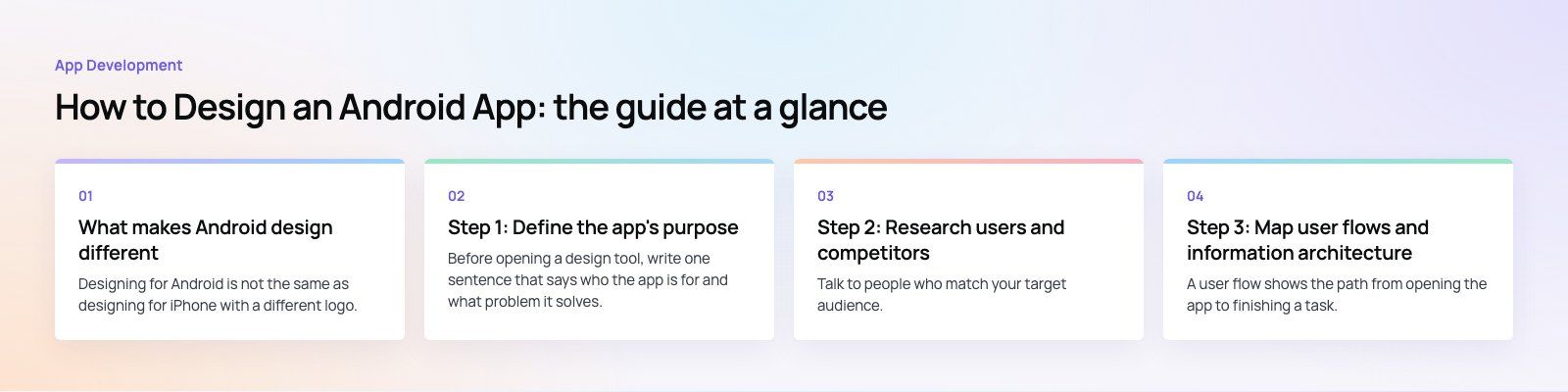
What makes Android design different
Designing for Android is not the same as designing for iPhone with a different logo. A few platform realities shape every decision:
- Device variety. Android runs on phones of every size, foldables, tablets, watches, TVs and cars. Layouts must adapt rather than assume one screen.
- Material Design. Google's design system, now Material Design 3, defines components, color, type, motion and layout patterns that Android users already recognize.
- System navigation. Android users go back with a system gesture or button, so your app must handle back behavior predictably on every screen.
- Personalization. Dynamic color can pull an app's palette from the user's wallpaper, and users can change font size and display size system wide. Your design has to survive both.
Step 1: Define the app's purpose
Before opening a design tool, write one sentence that says who the app is for and what problem it solves. "Help clinic patients book and manage appointments in under a minute" is useful. "A healthcare app" is not.
From that sentence, list the few core tasks users must be able to complete. Everything else is secondary. A clear purpose stops the feature list from growing until the app becomes confusing.
Step 2: Research users and competitors
Talk to people who match your target audience. Ask how they solve the problem today and what annoys them about it. Then study the apps they already use:
- Read recent reviews of competing apps on Google Play. Complaints are a free list of opportunities.
- Note which patterns users already expect, such as bottom navigation, search placement or checkout steps.
- Look for gaps: a missing language, poor offline support, slow sign up, cluttered screens.
The output of this step is a short list of user types, their goals and the pain points your app will remove.
Step 3: Map user flows and information architecture
A user flow shows the path from opening the app to finishing a task. Draw one for each core task: sign up, search, book, pay, get support. Count the steps and ask whether each one is necessary.
Then decide the app's structure. Most Android apps use one of these navigation patterns:
| Pattern | Best for | Watch out for |
|---|---|---|
| Navigation bar (bottom) | Three to five top level destinations used often | Too many tabs crowd small phones |
| Navigation rail | Tablets, foldables and larger screens | Needs a different layout from the phone version |
| Navigation drawer | Many sections or less frequent destinations | Hidden items get used less |
| Tabs | Switching between related views of the same content | Not a replacement for main navigation |
Step 4: Sketch and wireframe
Start with quick sketches on paper or a whiteboard to explore several layouts fast. Then move the best ideas into low fidelity wireframes in a tool such as Figma.
Wireframes are the app's blueprint. They show structure, content priority and interactions without color or imagery, so feedback stays on whether the screen works rather than whether people like the blue. Wireframe every screen in each core flow, including empty states, loading states and error messages, which are the screens teams most often forget.
Step 5: Design the visual interface with Material Design
With approved wireframes, build the high fidelity screens. Material Design 3 gives you a head start:
Use standard components
Buttons, cards, dialogs, bottom sheets, chips and text fields from Material behave the way Android users expect. Customize their color, shape and type to match your brand, but avoid reinventing basic controls.
Build a color system, not a palette
Define color roles (primary, secondary, surface, error) for both light and dark themes. Decide whether your app supports dynamic color or keeps fixed brand colors. Check contrast: the Android accessibility guidance recommends a contrast ratio of at least 4.5:1 for small text and 3:1 for larger text.
Choose readable typography
Use a clear type scale with distinct sizes for headlines, titles, body and labels. Test with the system font size turned up, because many users enlarge text and your layout must not break. If the app supports Arabic, design right to left layouts from the beginning rather than mirroring later.
Size touch targets properly
Android recommends interactive elements of at least 48dp by 48dp. Small icons can look tidy in a mockup and still be frustrating to tap with a thumb.
Design for every screen size
Plan how each screen behaves on compact phones, medium screens such as unfolded foldables and expanded tablet widths. Often a list on a phone becomes a list and detail view side by side on a tablet.
Step 6: Prototype and test
Link your screens into a clickable prototype so people can tap through real tasks. Then run short usability tests with five or so people from your audience:
- Give each person a task, such as "book an appointment for next Tuesday".
- Watch without helping. Note where they hesitate, misread or tap the wrong thing.
- Ask what they expected to happen at each point of confusion.
- Fix the biggest problems and test again.
A few rounds of this find most usability problems while they are still cheap to fix in design, not in code.
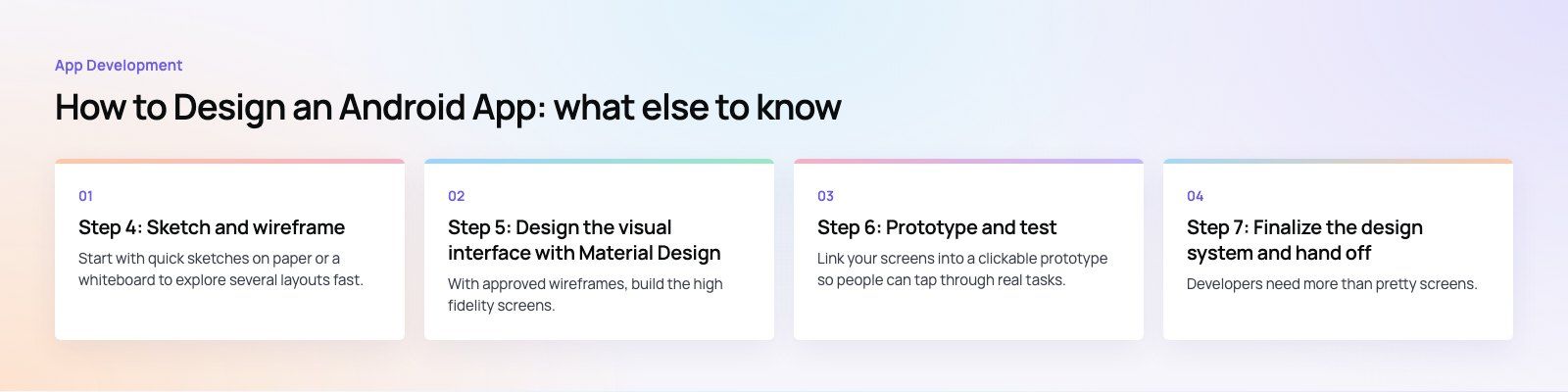
Step 7: Finalize the design system and hand off
Developers need more than pretty screens. A good handoff includes:
- A component library with every state: default, pressed, disabled, error, loading.
- Design tokens for color, type, spacing and corner radius, named the same way developers will use them.
- Layouts for compact, medium and expanded widths.
- Motion notes for transitions and feedback animations.
- Exported icons and images in the right formats, with vector icons where possible.
- Annotated flows that explain behavior, such as what happens on back, offline or after an error.
Modern Android apps are often built with Jetpack Compose, which maps neatly onto a token and component based design. Agreeing naming with developers early saves a lot of back and forth.
Step 8: Test again before and after launch
Once the app is built, test the real thing on a range of devices, not just the newest flagship. Check slow networks, large font settings, dark mode, screen readers such as TalkBack and right to left languages if you support them. After launch, use analytics, crash reports and Play Store reviews to find where users struggle, and feed that into the next design iteration.
Common Android design mistakes
- Copying the iOS design. Placing back buttons and controls where iPhone users expect them confuses Android users.
- Designing for one phone size. Layouts that look perfect on the designer's device break on smaller phones or tablets.
- Ignoring empty and error states. These are the screens new users see first.
- Low contrast text. Light grey on white looks elegant in a mockup and is unreadable outdoors.
- Too many features at launch. Every extra feature makes the core tasks harder to find.
What drives the cost of Android app design
Rather than a fixed figure, the effort depends on the number of screens and flows, how custom the visual style is, whether you need tablet and foldable layouts, the number of languages (especially right to left), the depth of user research and testing, and whether you are also designing an admin panel or web version. A focused first release with clear scope is the most reliable way to control it.
Codeeo's designers and developers have delivered 200+ projects across the UAE and the US, including apps such as Remin Diary and the Distinct healthcare platform. If you are planning an Android app, see our design services and mobile app development, or start with a product scoping session.
Frequently asked questions
Define the app's purpose and core tasks, research your users and competing apps, map user flows and navigation, sketch and wireframe each screen, design the visual interface using Material Design 3, build a clickable prototype and test it with real users, then hand developers a complete design system with components, tokens and layouts for different screen sizes. Test again on real devices before launch.
App DevelopmentCross Platform App Development: How It Saves Time and MoneyHow shared code across iOS and Android cuts build and maintenance effort, which frameworks to consider in 2026, and when native development is still the better call. App DevelopmentHow to Plan an App Development Project From Start to FinishA step by step plan for an app project: define users and goals, scope an MVP, choose platforms, design, build the team, phase the timeline, test and launch.
 App DevelopmentMust Have Features of an HR Management AppThe features an HR management app needs, from onboarding and self service to payroll, performance and analytics, plus when to buy or build.
Tell us what the business needs. We will tell you what to build first.
Schedule a free consultation and get a written recommendation, with costs, before you commit to anything.
Get in touchPROVEN RESULTS
4.7 / 5verified reviews on Google