 App DevelopmentCross Platform App Development: How It Saves Time and MoneyHow shared code across iOS and Android cuts build and maintenance effort, which frameworks to consider in 2026, and when native development is still the better call.
How to Publish an App on Google Play: A Step by Step Guide
Every step to publish an Android app on Google Play: developer account, closed testing, App Bundles, policy declarations, review, ASO and updates.
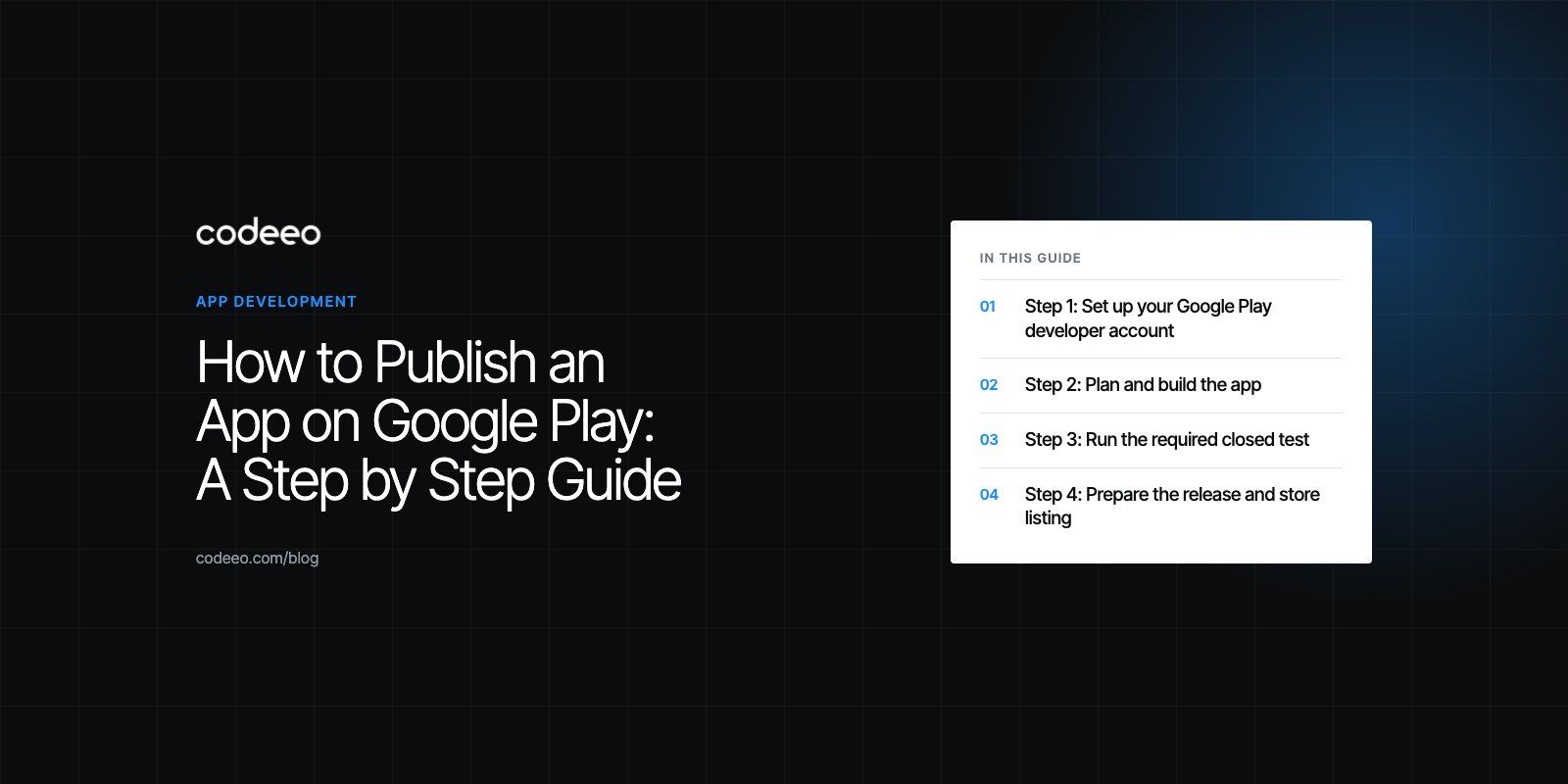
To publish an app on Google Play, you create a Google Play Console developer account, verify your identity, build and test your Android app, upload it as an Android App Bundle with a complete store listing, and submit it for review. New personal accounts must also run a closed test before they can release to the public. After launch, the work continues with monitoring, updates and store optimization.
This guide covers each stage in order, with the details that most often cause delays or rejections.
Step 1: Set up your Google Play developer account
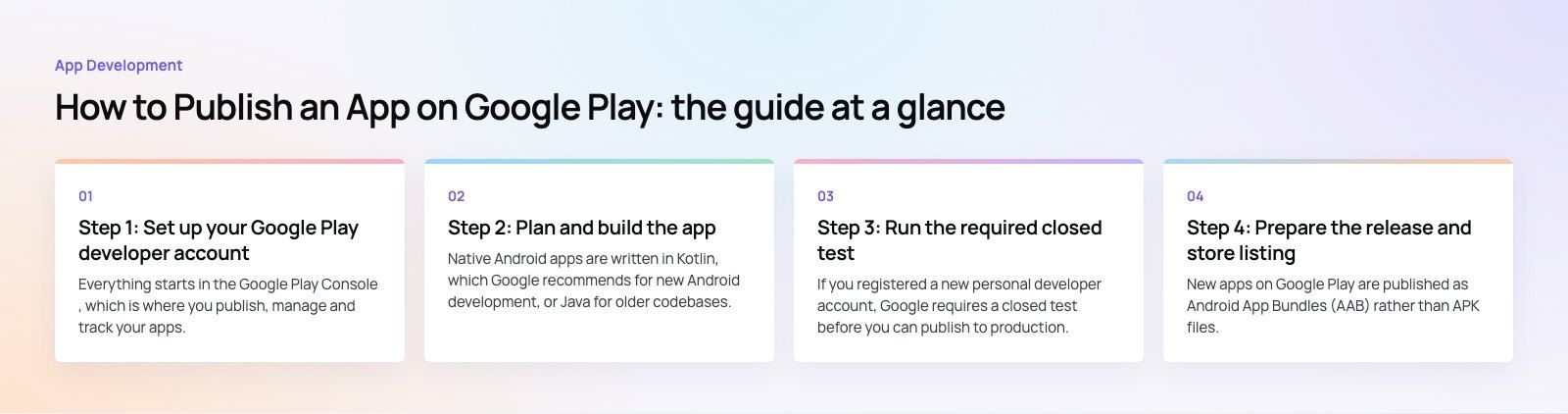
Everything starts in the Google Play Console, which is where you publish, manage and track your apps.
Personal or organization account
You choose between a personal account and an organization account when you register. If you publish on behalf of a company, use an organization account. It shows your company as the developer, lets you add team members with their own permissions, and avoids the extra testing rule that applies to new personal accounts. Organization accounts need business details for verification, such as a D-U-N-S number.
Registration and verification
Registration involves a one time fee, contact details and identity verification. Google checks that the name, address and documents match. Make sure the details you enter match your official records exactly, because mismatches are a common cause of delays.
One rule worth knowing early: the developer account should belong to your business, not to an agency or freelancer. Give your developers access through user permissions instead. That way you keep control of your apps if you change teams.
Step 2: Plan and build the app
Choose your technology
Native Android apps are written in Kotlin, which Google recommends for new Android development, or Java for older codebases. Cross platform frameworks such as Flutter and React Native let you ship to both Google Play and the App Store from one codebase. The right choice depends on your feature list, your need for device specific capabilities and whether you need an iOS version too. Our guide to mobile app development explains how we weigh these options.
Design for Android users
Android users expect apps to follow familiar patterns: back navigation, Material Design components, and layouts that adapt to a huge range of screen sizes, including tablets and foldables. Design for small and large screens from the start rather than stretching a phone layout later. Good UI and UX design reduces support requests and improves ratings.
Keep version one focused
Build the smallest set of features that delivers real value, then expand based on what users actually do. This shortens time to launch and gives you real data for the next release.
Test on real devices
The Android ecosystem includes many manufacturers, screen sizes and operating system versions. Test on a spread of real devices, including lower end phones, alongside emulators. Use Play Console's internal testing track to share builds with your team quickly.
Step 3: Run the required closed test
If you registered a new personal developer account, Google requires a closed test before you can publish to production. According to Google's Play Console help, as of 2026 personal accounts created after November 13, 2023 need at least 12 testers who stay opted in continuously for at least 14 days. If testers leave and rejoin, the count restarts.
Plan for this in your schedule. Recruit testers before the build is ready, keep them engaged, and use the feedback to fix problems before launch. Organization accounts are not subject to this specific rule, which is another reason businesses should register as an organization.
Play Console offers several testing tracks:
| Track | Who sees it | Best used for |
|---|---|---|
| Internal testing | A small list of testers you invite | Quick checks by your own team |
| Closed testing | Testers you invite by email or group | Wider feedback and the required test for new personal accounts |
| Open testing | Anyone who opts in from the store | Public beta before a full launch |
| Production | All users in your chosen countries | The full release, often rolled out in stages |
Step 4: Prepare the release and store listing
Upload an Android App Bundle
New apps on Google Play are published as Android App Bundles (AAB) rather than APK files. Google Play uses the bundle to generate optimized downloads for each device. You will also enroll in Play App Signing, where Google manages your app signing key. Keep your upload key safe, because you need it for every update.
Meet the technical requirements
Google sets a minimum target API level for new apps and updates, and raises it regularly. Check the current requirement in Play Console before you build, because an outdated target level blocks your upload.
Complete the policy sections
Before review, Play Console asks you to complete several declarations:
- Data safety: what data the app collects and shares, and why.
- Privacy policy: a public link explaining how you handle user data.
- Content rating: a questionnaire that sets the age rating.
- Target audience: including whether children are part of it, which brings stricter rules.
- Ads and permissions: whether the app shows ads, and justification for sensitive permissions such as location or SMS.
Inaccurate declarations are one of the most common reasons apps are rejected or removed later. Make sure they match what the app and its third party libraries actually do.
Write a strong store listing
Your listing includes the app name, a short description, a full description, the icon, a feature graphic and screenshots. Write for people first: explain what the app does and who it is for in plain language. Use the words people actually search for, without stuffing keywords. Screenshots should show real screens with short captions that explain the benefit.
Step 5: Submit for review
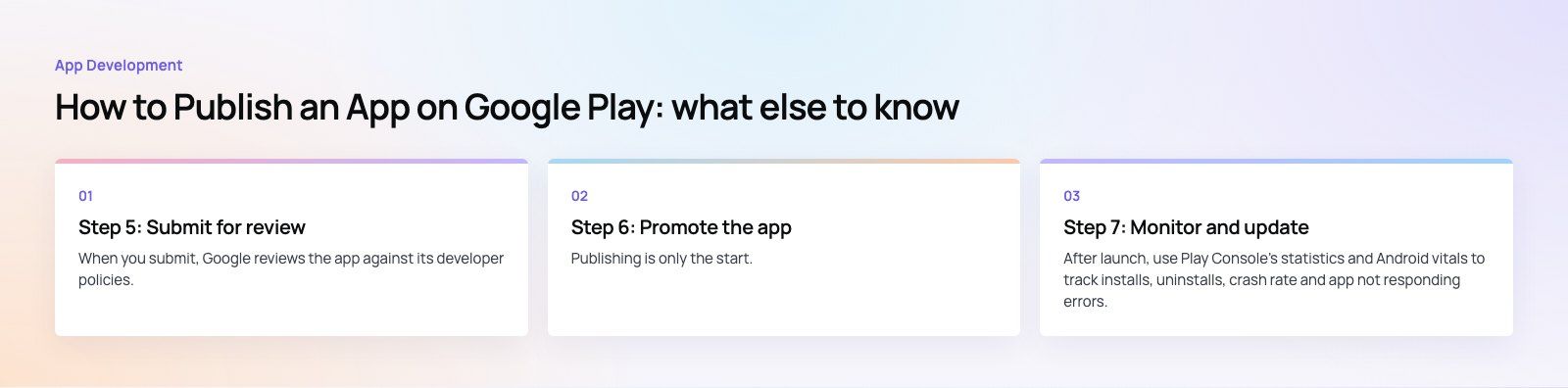
When you submit, Google reviews the app against its developer policies. Review time varies. Many apps are reviewed within a few days, but new developer accounts and apps in sensitive categories can take longer. Do not schedule a marketing launch for the same day you submit.
Common reasons for rejection include:
- A data safety section that does not match the app's behavior.
- Requesting sensitive permissions without a clear need.
- Broken features, crashes or placeholder content.
- A misleading title, description or screenshots.
- Missing or unreachable privacy policy.
- Login walls without test credentials for the reviewer.
If an app is rejected, the email and Play Console explain which policy was involved. Fix the issue, update the declarations if needed and resubmit.
Step 6: Promote the app
Publishing is only the start. People need to find the app.
App store optimization
App store optimization (ASO) means improving your listing so it ranks for relevant searches and converts visitors into installs. Test different icons, screenshots and short descriptions using Play Console's store listing experiments. Respond to reviews, because ratings and reviews affect both ranking and conversion.
Marketing outside the store
Link to the app from your website, emails and social channels. Paid campaigns through Google Ads app campaigns can drive installs directly from search, YouTube and Play. A clear landing page on your site helps people understand the app before they install. Our digital marketing team runs this kind of launch work.
Step 7: Monitor and update
After launch, use Play Console's statistics and Android vitals to track installs, uninstalls, crash rate and app not responding errors. High crash or freeze rates can lower your visibility in the store, so treat them as priorities.
Read reviews regularly and reply to them. Release updates with bug fixes and improvements, and use staged rollouts so a problem in a new version only reaches a small share of users before you can halt it. Plan at least one update a year to keep up with Google's target API requirements.
Monetization options
Google Play supports several ways to earn from an app:
- Paid apps: users pay once to download.
- In app purchases: one time digital items or upgrades.
- Subscriptions: recurring access to content or features.
- Advertising: through networks such as Google AdMob.
Digital goods sold inside the app generally go through Google Play Billing, while physical goods and services usually use your own payment gateway. Check the current payments policy for your category and countries before you design your checkout.
Codeeo has delivered 200+ projects across the UAE and the US, including Android apps built natively and with cross platform frameworks. If you want help building, testing or launching on Google Play, see our mobile app development service or browse our case studies.
Frequently asked questions
Review time varies by app and account.
Many apps are reviewed within a few days, while apps from new developer accounts, apps requesting sensitive permissions or apps aimed at children can take longer. New personal accounts also need to complete a closed test of at least 14 days before production access, so build that time into your launch plan and avoid fixed launch dates tied to submission.
App DevelopmentCross Platform App Development: How It Saves Time and MoneyHow shared code across iOS and Android cuts build and maintenance effort, which frameworks to consider in 2026, and when native development is still the better call. App DevelopmentHow to Plan an App Development Project From Start to FinishA step by step plan for an app project: define users and goals, scope an MVP, choose platforms, design, build the team, phase the timeline, test and launch.
 App DevelopmentMust Have Features of an HR Management AppThe features an HR management app needs, from onboarding and self service to payroll, performance and analytics, plus when to buy or build.
Tell us what the business needs. We will tell you what to build first.
Schedule a free consultation and get a written recommendation, with costs, before you commit to anything.
Get in touchPROVEN RESULTS
4.7 / 5verified reviews on Google