 E-Commerce10 Features of a High-Converting Ecommerce WebsiteThe ten features that turn store visitors into buyers, from product pages and checkout to speed, mobile design, social proof and ongoing testing.
QuickBooks WooCommerce Integration: Options, Setup and Pitfalls
How to connect WooCommerce to QuickBooks: extension, automation or custom API, step by step setup, data mapping and the mistakes that break reconciliation.
A QuickBooks WooCommerce integration sends your store's orders, payments, customers, taxes and stock levels into QuickBooks automatically, so you stop rekeying sales and your books match what actually happened in the store. You can set it up with a dedicated sync extension, an automation tool such as Zapier, or a custom integration built on both platforms' APIs. The method matters less than the mapping: decide how orders, taxes, fees and refunds should land in your accounts before you switch anything on.
This guide compares the options, walks through setup, and covers the mistakes that cause most reconciliation headaches.
What the integration should sync
Before choosing a tool, list the data you need flowing from WooCommerce to QuickBooks, and anything that should flow back.
- Orders as sales receipts or invoices, with line items, discounts, shipping and tax.
- Payments and the gateway they came through, so deposits match your bank feed.
- Customers, either as individual records or rolled into a single online sales customer.
- Products and inventory, matched by SKU, with stock levels kept in step.
- Refunds as refund receipts or credit memos.
- Taxes, mapped to the right tax codes or rates.
- Payment gateway fees, recorded as expenses rather than hidden inside net deposits.
Most stores only need orders, payments, refunds and taxes in the first phase. Inventory sync adds value when QuickBooks is your stock master or when you sell through several channels.
Three ways to integrate QuickBooks with WooCommerce
1. A dedicated sync extension
Purpose built extensions handle the common cases out of the box. The best known is QuickBooks Sync for WooCommerce by MyWorks, listed on the official WooCommerce marketplace, which supports QuickBooks Online, Desktop and POS and syncs orders, payments, customers, products and inventory. Extensions like this offer field mapping screens, sync logs and the ability to push historical orders.
2. An automation platform
Tools such as Zapier or Make connect WooCommerce events to QuickBooks actions: a new order creates a sales receipt, a new customer creates a customer record. This suits low order volumes and simple catalogs, or a single workflow that an extension does not cover. It becomes fragile when you need refunds, partial payments, inventory and tax handled consistently.
3. A custom API integration
When your rules are unusual, a developer can build the sync directly on the WooCommerce REST API and the QuickBooks Online API. Typical reasons include trade and retail pricing on the same catalog, orders that must post to different income accounts by product line, multiple currencies or entities, or a warehouse system sitting between the two.
| Method | Best for | Strengths | Watch out for |
|---|---|---|---|
| Sync extension | Most stores | Fast setup, mapping screens, sync logs, ongoing updates | Subscription fees; limits on unusual accounting rules |
| Automation platform | Low volume, simple needs | No code, flexible triggers | Task based pricing, weak refund and tax handling, silent failures |
| Custom API integration | Complex catalogs or accounting | Full control over rules and data flow | Build and maintenance effort; needs monitoring |
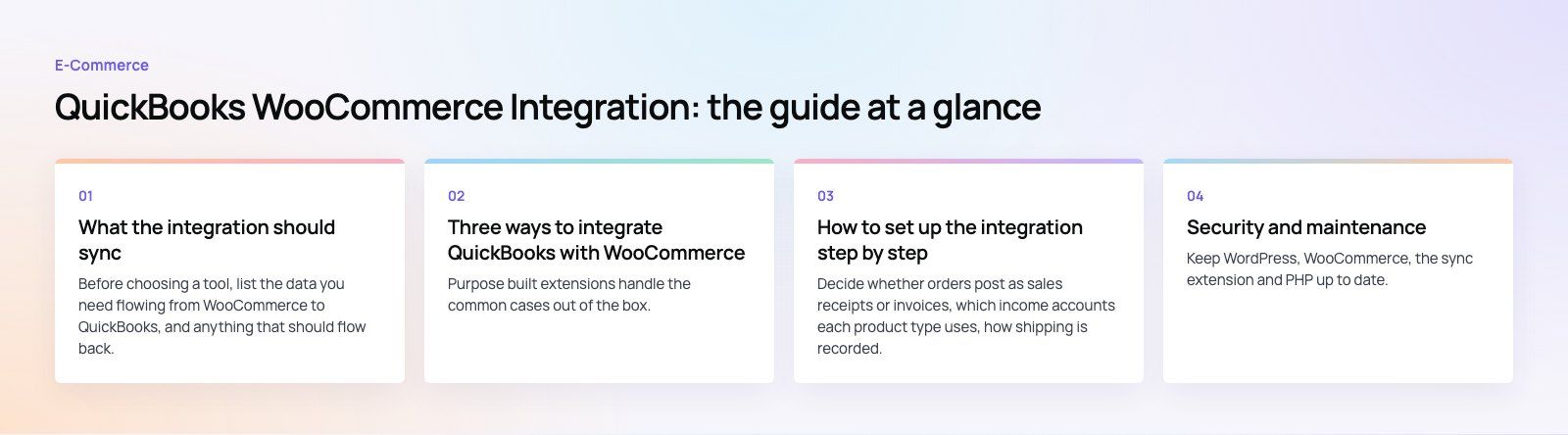
How to set up the integration step by step
1. Agree the accounting rules with your accountant
Decide whether orders post as sales receipts or invoices, which income accounts each product type uses, how shipping is recorded, how gateway fees are handled and how refunds are booked. Write these down. Every later setting follows from them.
2. Clean up products and SKUs
Matching usually happens on SKU. Make sure every WooCommerce product and variation has a unique SKU and that the same SKUs exist in QuickBooks. Duplicate or missing SKUs are the most common cause of failed syncs.
3. Back up both systems
Take a backup of your WordPress database and export key QuickBooks lists before connecting anything. Test on a staging copy of the store if you can.
4. Install and connect
Install the extension from the WooCommerce marketplace or your chosen tool, then authorize the connection to your QuickBooks company. Use an admin account that will remain with the business, not a personal login that might be removed later.
5. Map the data
- Map each payment gateway to the right deposit or clearing account.
- Map tax rates in WooCommerce to tax codes in QuickBooks.
- Map shipping, discounts and fees to their accounts.
- Choose whether customers sync individually or as one combined customer.
- Set the direction of inventory sync and which system is the master.
6. Test with real scenarios
Run test orders that cover a normal sale, a discounted sale, a multi item order with shipping, a partial refund, a full refund and an order in each tax region you sell into. Check each one in QuickBooks against what your accountant expects.
7. Decide what to do with historical orders
Most extensions can push past orders. Only do this if those periods are not already recorded, otherwise you will double count revenue. Many businesses start the sync from the first day of a new accounting period.
8. Monitor and reconcile
Check the sync log weekly at first, then monthly. Reconcile payment gateway payouts against deposits in QuickBooks so fees and refunds are accounted for.
Benefits once it is running
- Less manual entry. Orders appear in QuickBooks without anyone copying them, which frees time and removes typing errors.
- Faster month end. Sales, taxes and fees are already recorded, so closing the books becomes reconciliation rather than data entry.
- Cleaner tax reporting. Correct tax mapping means reports reflect what was actually charged.
- Accurate stock. When inventory syncs, you are less likely to oversell or tie up cash in stock you think you need.
- Better decisions. Profit and loss reports reflect current sales, so you can see margins by product line or channel while they still matter.
- Room to grow. A well mapped integration handles more orders without more admin staff.
Common mistakes and how to avoid them
- Recording net payouts as sales. Gateways deduct fees before paying out. Record the full sale and the fee separately, or your revenue will look lower than it is.
- Double counting orders. Running a sync while still entering daily sales summaries by hand records everything twice. Pick one method.
- Ignoring refunds. If refunds do not sync, QuickBooks overstates revenue. Test partial and full refunds before launch.
- Tax mismatches. A rate that exists in WooCommerce but not in QuickBooks can block the sync or post the wrong amount.
- Plugin conflicts. Subscription, bundle and custom checkout plugins can change order data in ways a sync extension does not expect. Test them together.
- No owner. Someone needs to read the sync log and fix errors. Unread errors pile up into a painful clean up.
Security and maintenance
Keep WordPress, WooCommerce, the sync extension and PHP up to date. Grant API access only through the official connection flow, restrict admin accounts, and remove access for people who leave. Review the connection after major WooCommerce or QuickBooks updates, since changes on either side can affect field mapping.
When to bring in a developer
An extension is enough for many stores. Bring in help when you sell trade and retail from one catalog, run several stores or currencies, have custom checkout logic, or need the integration to include a warehouse or ERP. Our Clock Springs Australia project, a WooCommerce parts store with trade pricing, is the kind of setup where accounting rules need careful thought.
If you want an integration that your accountant trusts from day one, our WooCommerce developers can plan the mapping, set up or build the sync and test it against real orders. For checkout and gateway work, see our payment integration service, and for deeper system links, our custom software team.
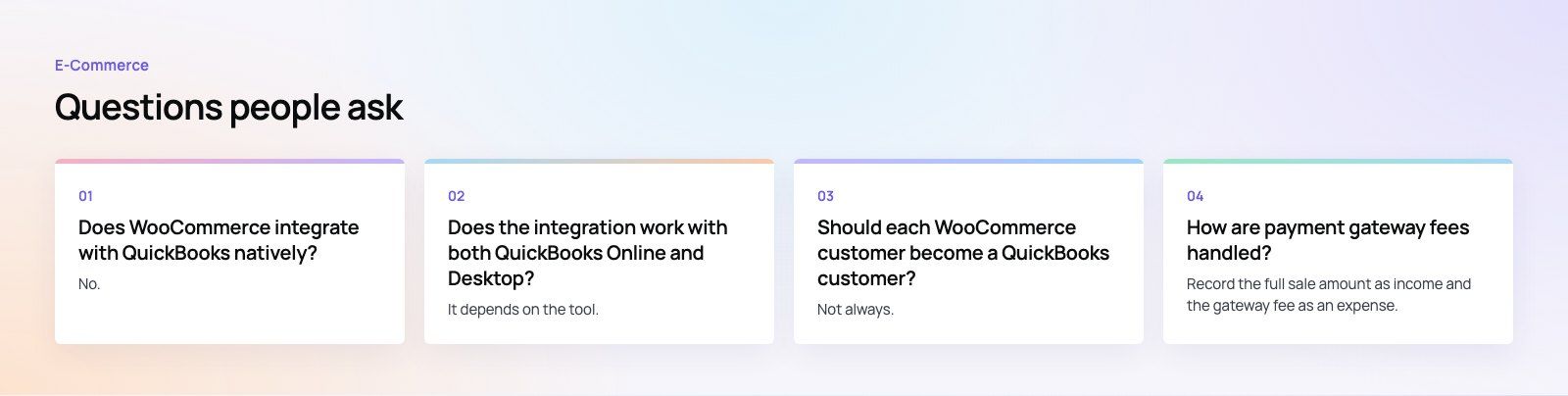
Frequently asked questions
No.
WooCommerce does not include a built in QuickBooks connection. You add one with a sync extension from the WooCommerce marketplace, an automation platform such as Zapier, or a custom integration built on the WooCommerce REST API and the QuickBooks API. For most stores a dedicated extension is the quickest reliable route, because it already handles mapping, logs and historical orders.
E-Commerce10 Features of a High-Converting Ecommerce WebsiteThe ten features that turn store visitors into buyers, from product pages and checkout to speed, mobile design, social proof and ongoing testing. E-CommerceBenefits of Using a CMS for Ecommerce WebsitesHow a CMS helps online stores manage products, SEO, growth and security, how it compares with a custom build, and how to choose between WooCommerce, Shopify and headless.
 E-CommerceEcommerce Website Development: 9 Elements Every Store NeedsThe nine parts every online store needs, from catalog data and search to checkout, security, operations and analytics, with what to decide before you build.
Tell us what the business needs. We will tell you what to build first.
Schedule a free consultation and get a written recommendation, with costs, before you commit to anything.
Get in touchPROVEN RESULTS
4.7 / 5verified reviews on Google