 E-Commerce10 Features of a High-Converting Ecommerce WebsiteThe ten features that turn store visitors into buyers, from product pages and checkout to speed, mobile design, social proof and ongoing testing.
Zoho WooCommerce Integration: Options, Setup and Pitfalls
How to connect WooCommerce to Zoho CRM, Books and Inventory, the four ways to set it up, what to decide first and how to avoid common sync problems.
A Zoho and WooCommerce integration connects your online store to Zoho's business apps, so orders, customers, products and stock move between them without manual entry. The usual pattern is WooCommerce for selling, Zoho CRM for customer history, Zoho Books for invoices and accounts, and Zoho Inventory for stock. You can connect them through Zoho Inventory's built-in WooCommerce connector, through Zoho Flow, or through a third party or custom integration, depending on how much control and real-time sync you need.
This guide covers what the integration does for each part of the business, the ways to set it up, what to decide before you start and how to keep the sync healthy once it is live.
Why connect WooCommerce to Zoho
WooCommerce is good at running a storefront and checkout. It is not built to be your CRM, accounting system or warehouse tool. When those jobs live in separate apps with no connection, the same data gets typed in two or three times, and mistakes creep in.
A working integration gives you:
- One customer record: every order lands in Zoho CRM, so sales and support teams see what a customer bought and when.
- Automatic invoices: orders create invoices or sales receipts in Zoho Books, which keeps accounts current without manual posting.
- Accurate stock: stock levels managed in Zoho Inventory are reflected in the store, which reduces overselling.
- Less admin time: staff stop exporting spreadsheets and copying orders between systems.
- Better reporting: sales, margin and customer data sit in tools designed to report on them.
What the integration does for each Zoho app
| Zoho app | What it receives or sends | Typical use |
|---|---|---|
| Zoho CRM | Customers, orders and order values from WooCommerce | Purchase history, segmentation, follow-up tasks, sales pipeline for repeat or B2B buyers |
| Zoho Books | Orders converted to invoices or sales receipts, payments, refunds | Bookkeeping, tax reporting, reconciliation against payment gateway payouts |
| Zoho Inventory | Products, stock levels and orders | Stock control, purchase orders, multi-channel selling, low stock alerts |
| Zoho Campaigns or Marketing tools | Customer lists and purchase data | Post purchase emails and targeted campaigns, with consent |
| Zoho Desk | Customer and order details | Support agents see the order behind every ticket |
Customer relationship management
When each order creates or updates a contact in Zoho CRM, your team gets a full purchase history for every customer. That makes it easier to spot repeat buyers, group customers by what they buy and plan targeted offers. Support agents can answer "where is my order" questions faster because the details are already in front of them.
Accounting and finance
Linking orders to Zoho Books removes most manual invoicing. Each order becomes a transaction with the right customer, items and tax, so month end is about checking, not typing. Expense tracking and financial reports in Books then reflect real sales instead of estimates.
Inventory and product catalog
If Zoho Inventory is your source of truth for stock, it should push stock levels to WooCommerce rather than the other way round. Zoho's WooCommerce integration page for Zoho Inventory describes matching products by SKU or item name, a scheduled catalog sync and order import from a start date you choose. Read the current details carefully, because sync timing affects how fast stock changes reach the store.
Ways to connect WooCommerce and Zoho
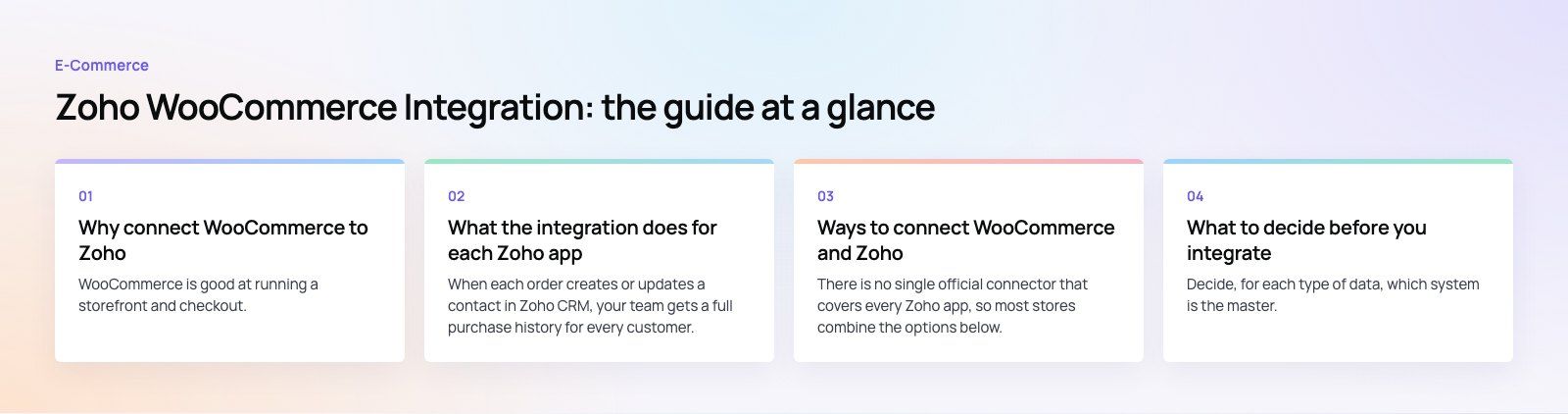
There is no single official connector that covers every Zoho app, so most stores combine the options below.
1. Zoho Inventory's built-in WooCommerce connector
The simplest route for stock and orders. You connect your store inside Zoho Inventory, map products and choose which orders to import. It suits stores that want Inventory as the hub, with Books and CRM fed from Inventory inside the Zoho ecosystem.
2. Zoho Flow
Zoho Flow is Zoho's workflow automation tool. Its WooCommerce integration offers ready flows such as creating a Zoho Books invoice or a Zoho CRM record when a new WooCommerce order arrives, and creating a WooCommerce product when a new item is added in Zoho Inventory. Flow is a good fit for event based tasks, and you can add conditions and extra steps without code.
3. Third party connectors
Several vendors sell WooCommerce and Zoho connectors, some listed on the Zoho Marketplace. They often add two way sync, custom field mapping and real-time webhooks. Check that the connector is actively maintained, supports your WooCommerce version and the Zoho apps you use, and explains how it handles errors and retries.
4. Custom integration
When you have unusual rules, such as trade pricing, bundles, multiple warehouses or custom fields, a developer can build the sync directly against the WooCommerce REST API and Zoho APIs. This costs more to build but gives full control over logic, timing and error handling.
| Option | Best for | Trade off |
|---|---|---|
| Zoho Inventory connector | Stock and order sync with little setup | Scheduled sync, limited custom logic |
| Zoho Flow | Event based tasks across Zoho apps | Many separate flows can be hard to manage |
| Third party connector | Two way sync with field mapping | Depends on a vendor's roadmap and support |
| Custom integration | Complex catalogs and business rules | Higher build effort, needs ongoing ownership |
What to decide before you integrate
Which system owns which data
Decide, for each type of data, which system is the master. A common split is: WooCommerce owns orders and checkout, Zoho Inventory owns stock and product data, Zoho CRM owns customer relationships and Zoho Books owns financial records. When two systems both think they own stock, numbers drift.
How data maps between systems
Write down how each field maps: SKUs, product variants, tax classes, shipping lines, discounts, refunds and order statuses. Most sync errors come from mismatched SKUs, missing tax mappings or variants that exist in one system and not the other.
How fast the sync needs to be
A store with deep stock can live with scheduled sync. A store with low stock on popular items needs near real-time updates, or it will sell products it no longer has.
Security and access
Use dedicated API credentials with the minimum permissions needed, keep them out of shared documents, and remove access when a vendor or staff member leaves. Make sure customer data transfers follow your privacy policy and local data protection rules.
A practical rollout plan
- Clean your data first. Fix duplicate customers, missing SKUs and inconsistent product names in both systems.
- Start small. Begin with the flow that removes the most manual work, usually orders to Books or stock from Inventory.
- Test on staging. Run test orders, refunds and cancellations on a copy of the store before switching on live sync.
- Add the next app. Once the first flow is stable, connect CRM, then marketing and support.
- Assign an owner. One person should check sync logs, handle errors and approve changes.
- Train the team. Show staff where data now lives and which system to edit for each task.
Common problems and how to avoid them
- Duplicate contacts: match customers by email before creating new records.
- Stock that does not match: usually two systems updating stock. Pick one owner.
- Invoices with wrong tax: map WooCommerce tax classes to Zoho tax rates explicitly.
- Refunds that never reach accounts: include refunds and cancellations in your mapping, not just new orders.
- Silent failures: turn on error alerts so a broken connection is noticed the same day.
Codeeo's team of 80+ across Dubai, Riyadh and Karachi has delivered 200+ projects across the UAE and the US, including WooCommerce stores like Ghezlan. If you need a store connected to Zoho, our WooCommerce developers can plan the data mapping and build the sync, and our CRM migration service helps when you are moving customer data into a new system. For broader automation between sales and your store, see our sales automation work or contact us.
Frequently asked questions
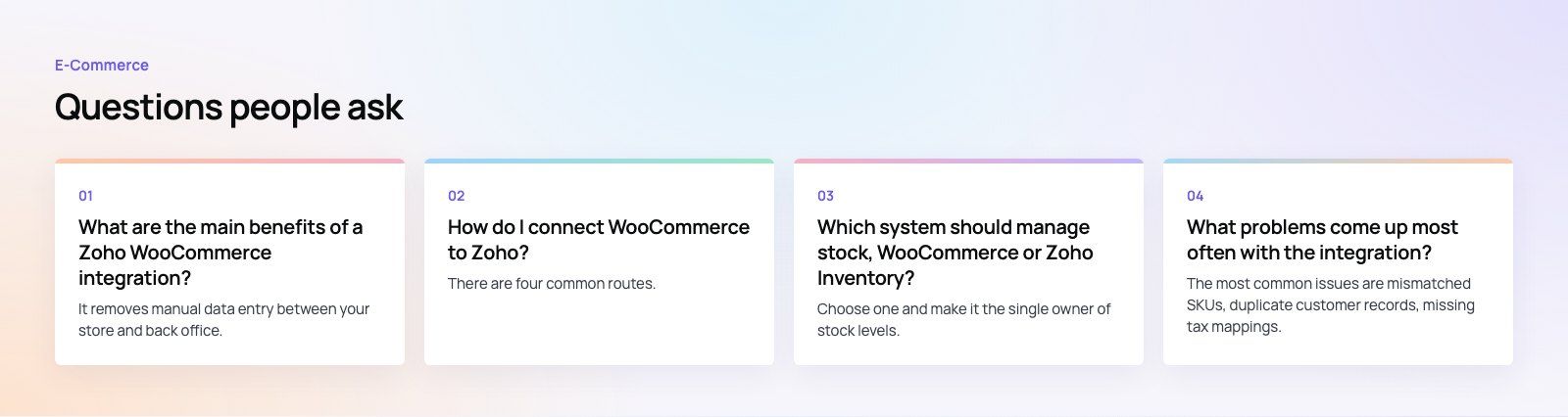
It removes manual data entry between your store and back office.
Orders can create invoices in Zoho Books, customers and purchase history can flow into Zoho CRM, and stock managed in Zoho Inventory can update the store. The result is fewer errors, faster month end, less overselling and better customer data for marketing and support.
E-Commerce10 Features of a High-Converting Ecommerce WebsiteThe ten features that turn store visitors into buyers, from product pages and checkout to speed, mobile design, social proof and ongoing testing. E-CommerceBenefits of Using a CMS for Ecommerce WebsitesHow a CMS helps online stores manage products, SEO, growth and security, how it compares with a custom build, and how to choose between WooCommerce, Shopify and headless.
 E-CommerceEcommerce Website Development: 9 Elements Every Store NeedsThe nine parts every online store needs, from catalog data and search to checkout, security, operations and analytics, with what to decide before you build.
Tell us what the business needs. We will tell you what to build first.
Schedule a free consultation and get a written recommendation, with costs, before you commit to anything.
Get in touchPROVEN RESULTS
4.7 / 5verified reviews on Google