 E-CommerceSquare WooCommerce Integration: A Step by Step Setup GuideHow to connect Square to WooCommerce with the official plugin, choose a system of record, test in sandbox and fix the sync problems stores hit most often.
Shopify Square Integration: How to Sync Your Store and POS
How to connect Shopify with Square: sync apps, automation tools and custom builds, setup steps, common stock errors, and when Shopify POS is the better move.
Shopify and Square do not share a Shopify-built connector, so a Shopify Square integration is usually done with a third party sync app or an automation tool that keeps products and inventory aligned between your online store and your Square point of sale. It suits businesses that already sell in person with Square and want Shopify for online sales. The main decision is whether to sync the two or move in store sales to Shopify POS instead.
This guide explains how the connection works, the options available, how to set it up, and when switching platforms makes more sense than syncing them.
Why businesses end up with Shopify and Square
The combination is common for good reasons. Square is widely used by cafes, salons, market stalls and small shops for card payments and in person sales. Shopify is widely used for online stores. A business that started selling in person with Square often adds Shopify later for its online store features, themes and apps.
The trouble starts when the same products sell in both places. Without a connection, every sale in the shop means updating stock online, and every online order means updating Square. Prices drift, items sell out in one system but not the other, and reports live in two places.
What a sync needs to handle
- Products and variants: creating and updating items in both systems.
- Inventory: one stock count that updates after sales in either place.
- Prices: the same price, or deliberate differences, kept consistent.
- Locations: stock split across several shops or a warehouse.
- Reporting: enough shared data to see total sales across channels.
Your options for connecting Shopify and Square
| Option | How it works | Good for | Watch out for |
|---|---|---|---|
| Inventory sync app | An app from the Shopify App Store links your Square account and syncs items and stock | Small retailers with one or a few locations | Sync frequency, location limits, variant mapping |
| Automation tools | Zapier or Make trigger actions in one system when something happens in the other | Simple flows, such as creating a customer or logging an order | Not designed for continuous stock sync at volume |
| Custom integration | Code that uses the Shopify APIs and the Square Inventory API with webhooks | Many locations, complex catalogs, strict accuracy needs | Development and ongoing maintenance |
| Switch to Shopify POS | Retire Square and run in store sales on Shopify | Businesses that want one system for everything | Hardware, staff retraining, payment setup in your country |
Sync apps differ a lot in how often they update, how many Square locations they support and how they treat variants. Read recent reviews and use the trial with real products before relying on any of them.
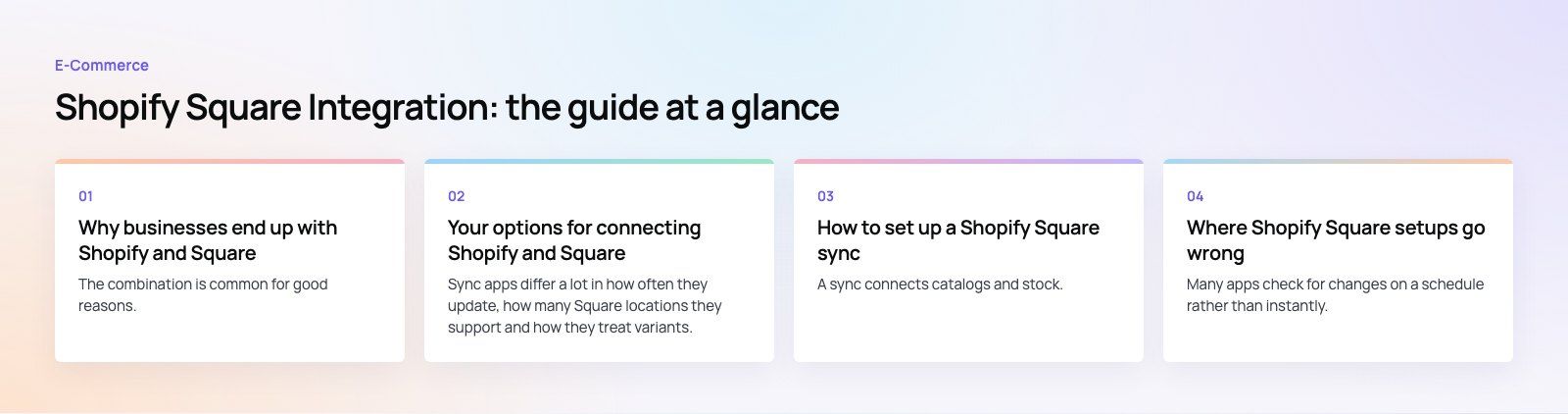
How to set up a Shopify Square sync
- Pick the master system. Decide whether Shopify or Square owns the product catalog. Most businesses choose the one where products are created and edited most often.
- Clean up SKUs. Give every item and variant a unique SKU, and make sure the same product has the same SKU in both systems. Sync apps match on SKU, and duplicates cause most errors.
- Match variant structure. If a shirt has size and color in Shopify, make sure Square represents it the same way, or the app will treat variants as separate items.
- Install the sync app. Add it from the Shopify App Store and connect your Square account with the permissions it requests.
- Choose locations. Map Square locations to Shopify locations so each shop's stock is tracked correctly.
- Run a test. Sync a few products, sell one in Square and one online, and confirm stock updates both ways.
- Go live in stages. Sync the rest of the catalog in batches and check the app's logs for skipped or failed items.
Payments stay separate
A sync connects catalogs and stock. It does not make Square the payment processor for your Shopify checkout. Online orders are paid through the payment providers available in your Shopify settings, which depend on your country, while Square continues to process in person payments. That means two sets of payouts and fees, and your bookkeeping should reconcile both.
Where Shopify Square setups go wrong
Sync delays on busy days
Many apps check for changes on a schedule rather than instantly. During a busy weekend or a promotion, a delay can be enough to sell the last unit twice. Keep a small buffer on popular items, or choose an app that uses webhooks for near real time updates.
Refunds and exchanges
One issue we often see is returns processed in Square that never reach Shopify's stock count, or exchanges recorded as a new sale and a separate refund. Test returns and exchanges specifically before going live.
Products created in both places
If staff add new items in Square while the marketing team adds them in Shopify, you end up with duplicates. Agree that new products are created in the master system only.
Reports that never match
Shopify and Square each report their own sales. Even with stock in sync, you will need a combined view for total revenue, best sellers across channels and margin. Some businesses export both into a spreadsheet or a dashboard tool each week.
Sync or switch? How to decide
Syncing keeps what already works. Your staff know Square, your hardware is in place and your payment setup is settled. It makes sense when in person sales are a large share of revenue, you have one or two locations and your catalog is simple.
Moving everything to Shopify POS removes the sync altogether. Products, stock, customers and reports live in one system, and online and in store purchases share one customer profile. It makes sense when you have several locations, a growing catalog, loyalty or click and collect plans, or a sync that keeps breaking.
Questions that help you decide:
- How many hours a week does your team spend fixing stock differences?
- Do you want in store and online customers in one profile for marketing?
- Do you plan to offer buy online, pick up in store?
- Is your existing card reader hardware due for replacement anyway?
- Which payment options do your customers expect at the counter and online?
Examples of businesses that use both
Cafes and food businesses often keep Square at the counter for speed and use Shopify to sell packaged products, gift cards or merchandise online. Here the overlap is small, so a light sync or even manual updates can work.
Independent retailers selling the same stock online and in store need the tightest sync, because every item is shared. They are also the most likely to benefit from moving to one system.
Makers and market sellers use Square at fairs and pop ups and Shopify as their year round store. Stock moves in and out of the event box, so clear location mapping matters.
If you are weighing a sync against a move to one platform, or your current setup keeps losing stock counts, our Shopify developers can set up the sync or the migration, and our payment integration team works on checkout and payment providers. We built the payments app in the Purpose Payment case study, and you can see more retail and ecommerce work or get in touch.
Frequently asked questions
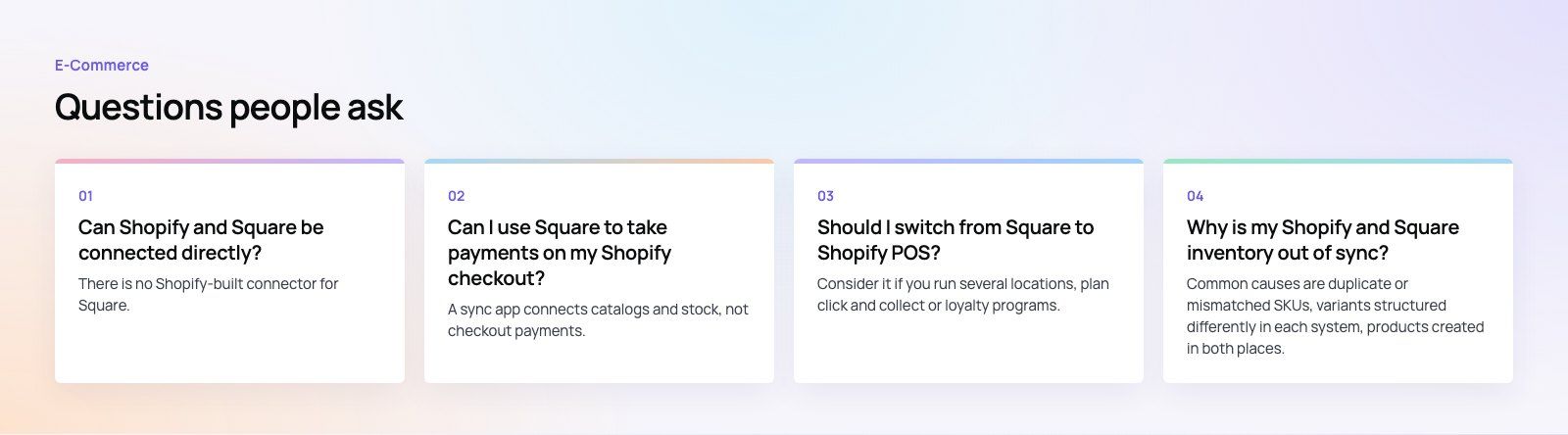
There is no Shopify-built connector for Square.
Businesses connect them with third party sync apps from the Shopify App Store, with automation tools such as Zapier or Make for simple flows, or with a custom integration using both platforms' APIs. Sync apps are the usual choice for keeping products and inventory aligned between an online store and a Square point of sale.
E-CommerceSquare WooCommerce Integration: A Step by Step Setup GuideHow to connect Square to WooCommerce with the official plugin, choose a system of record, test in sandbox and fix the sync problems stores hit most often. E-CommerceDo You Need a Business License to Dropship in the US?Do you need a business license to dropship? What US sellers need: a local business license, a state seller's permit, an EIN, and when you might not need one.
 E-CommerceLiquor Store POS Systems: Key Features and BenefitsWhat a liquor store POS system should do: age verification, case and bottle inventory, reordering, reporting and compliance, plus how to choose one.
Tell us what the business needs. We will tell you what to build first.
Schedule a free consultation and get a written recommendation, with costs, before you commit to anything.
Get in touchPROVEN RESULTS
4.7 / 5verified reviews on Google