 E-Commerce10 Features of a High-Converting Ecommerce WebsiteThe ten features that turn store visitors into buyers, from product pages and checkout to speed, mobile design, social proof and ongoing testing.
How to Change the Return to Shop Link in WooCommerce
Change the WooCommerce Return to Shop button link and text on both the Cart block and the classic cart, add the code safely, and test the result.
To change the Return to Shop link in WooCommerce, first check which cart your store uses. On the classic shortcode cart, add a small PHP snippet that hooks the woocommerce_return_to_shop_redirect filter for the URL and the woocommerce_return_to_shop_text filter for the label. On the newer Cart block, the button is an ordinary block inside the Empty Cart view, so you edit its link and text directly in the editor with no code at all.
The Return to Shop button appears when a shopper opens the cart page with nothing in it. By default it points to your shop page. Sending people somewhere more useful, such as new arrivals, a sale or your best sellers, is a small change that gives a dead end page a job to do. This guide covers both cart types, how to add code safely, how to test, and the mistakes to avoid.
Step 1: find out which cart your store uses
WooCommerce now ships two cart experiences, and the method is different for each.
- Cart block. New stores and block themes use the Cart block by default. Open Pages, edit the Cart page, and if you see a block called Cart with inner blocks for Filled Cart and Empty Cart, you are on the block cart. The WooCommerce Cart block documentation describes how it is structured.
- Classic cart. Older stores and many classic themes use the shortcode cart. If the Cart page contains a shortcode block with woocommerce_cart inside it, or a Classic Cart block, the button is rendered by the cart-empty.php template and the PHP filters apply.
| Cart block | Classic cart | |
|---|---|---|
| Where the button comes from | A Buttons block inside the Empty Cart inner block | The cart-empty.php template |
| How to change the URL | Edit the button link in the editor | woocommerce_return_to_shop_redirect filter |
| How to change the text | Type new text on the button | woocommerce_return_to_shop_text filter |
| Code needed | No | Yes, a short PHP snippet |
Step 2a: change the button on the Cart block
When WooCommerce builds the Empty Cart view, it inserts a heading and a standard WordPress button labeled Return to shop that points to your shop page. Because it is a normal block, you control it like any other.
- Go to Pages and edit the Cart page. On a block theme you can also open Appearance, Editor, and edit the Page: Cart template.
- Select the Cart block, then switch the view from Filled Cart to Empty Cart using the block toolbar or the list view.
- Click the Return to shop button. Change its text, then use the link control to point it at the page you want, such as a collection or a landing page.
- While you are there, consider adding a short line of copy or a product block under the button so the empty cart offers something to click.
- Save, then test the cart in a private browser window with an empty basket.
The PHP filters below do not change this button, because the block saves its own link and label. If you added a snippet and nothing happened, the block cart is the usual reason.
Step 2b: change the link and text on the classic cart
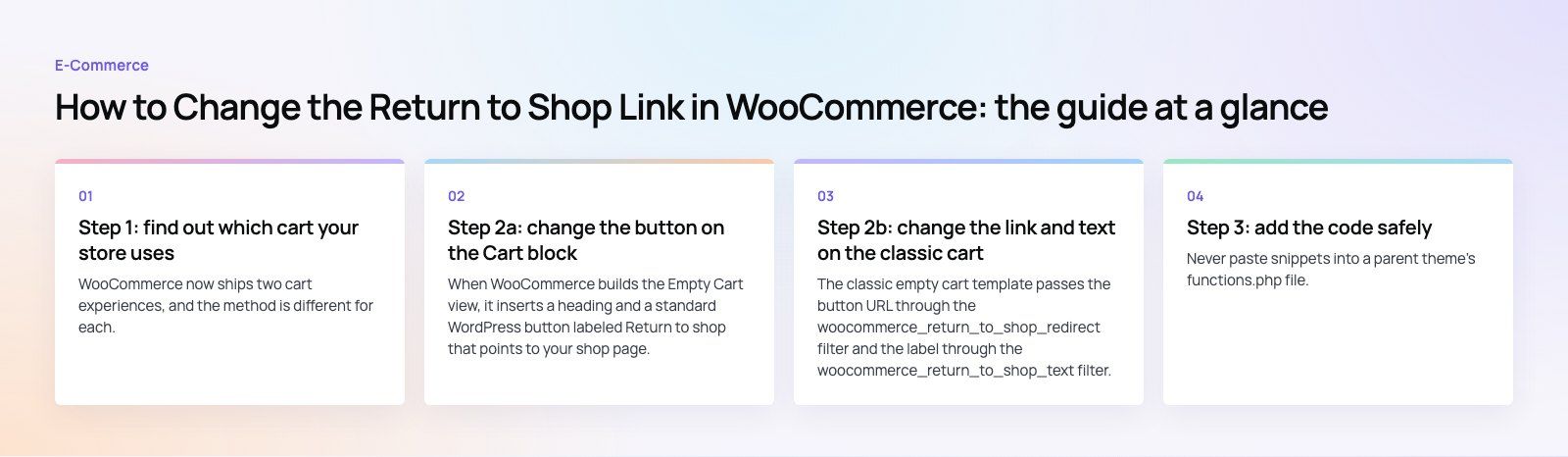
The classic empty cart template passes the button URL through the woocommerce_return_to_shop_redirect filter and the label through the woocommerce_return_to_shop_text filter. The text filter has existed since WooCommerce 4.6, so it is a cleaner choice than translating strings with the general gettext filter, which older tutorials use.
Change the URL
This snippet sends shoppers to a page called new-arrivals on your own site. Replace the path with the page you want.
add_filter( 'woocommerce_return_to_shop_redirect', function() { return home_url( '/new-arrivals/' ); } );
The home_url() function builds the full address from your site URL, so the link keeps working if you move from a staging domain to the live one. To send people to your home page instead, use home_url( '/' ).
Change the text
This snippet replaces the label. Keep it short and specific to where the button now goes.
add_filter( 'woocommerce_return_to_shop_text', function() { return 'See new arrivals'; } );
Send different people to different pages
Because the redirect filter is just a function, you can add logic. For example, you could send logged in trade customers to a wholesale catalog and everyone else to new arrivals by checking is_user_logged_in() or the user's role inside the function. Keep the logic simple and always return a valid URL, or the button will break.
Step 3: add the code safely
Never paste snippets into a parent theme's functions.php file. A theme update will wipe them, and a typo can take the site offline. Use one of these instead:
- A code snippets plugin. The free Code Snippets plugin adds a Snippets menu where you create a new PHP snippet, paste the code, name it and activate it. It is the easiest route for store owners.
- A child theme. If you already run a child theme, add the filters to its functions.php file.
- A small custom plugin. Developers often keep store tweaks in a site specific plugin so they survive theme changes and are easy to track in version control.
Whichever you choose, add the code on a staging copy first. If the site shows a critical error after saving, WordPress recovery mode will usually let you log in and deactivate the snippet.
Step 4: test the result
- Open the store in a private window so you start with an empty cart.
- Visit the cart page directly. The button should show your new text and link.
- Click it and confirm the destination loads, especially on mobile.
- Clear any page cache or CDN cache if you still see the old button.
- If you also use a mini cart drawer from your theme, check its empty state separately. Many themes render that drawer with their own template, so it may need its own change.
Avoid pointing the button at the previous page the shopper visited. On an empty cart that page is often the cart itself, which creates a loop.
Where to send shoppers from an empty cart
The best destination depends on why people land on an empty cart. Common reasons are a timed out session, a removed item or a curious click on the cart icon. Good options include:
- Best sellers or new arrivals, for stores where most visitors are browsing.
- A current offer page, during a sale, so the empty cart becomes a prompt to buy.
- The main category, for single focus stores where the full shop page is too broad.
- A trade or wholesale catalog, for logged in business customers.
Keep the destination live. A button that points to an expired sale page or a deleted category is worse than the default.
Does this change help SEO?
Not directly. The cart page is normally excluded from search results, and the Return to Shop button is just an internal link on that page. The value is in user experience: fewer dead ends and more shoppers returning to products. Think of it as part of a wider cart and checkout tidy up rather than an SEO tactic.
Common mistakes
- Adding the PHP filter to a store that uses the Cart block, then wondering why nothing changed.
- Hardcoding the full staging URL, which breaks after launch. Use home_url() instead.
- Editing the parent theme's functions.php and losing the change at the next update.
- Overriding the cart-empty.php template just to change a link. It works, but the override must be checked after every WooCommerce update, while a filter does not.
- Forgetting the mini cart drawer, which may show its own empty state.
Get help with your WooCommerce store
Changing one button is quick. If your cart and checkout need a wider review, our WooCommerce developers handle block cart migrations, checkout customization and store speed, and the checkout teardown shows where your current flow loses buyers. You can see delivery dates and windows built into a WooCommerce checkout in The Gorgeous Flower Co case study, explore our wider web development work, or contact us to talk it through.
Frequently asked questions
The most common reason is that your store uses the WooCommerce Cart block.
Its empty state contains a normal WordPress button with its own saved link and text, so the woocommerce_return_to_shop_redirect and woocommerce_return_to_shop_text filters never touch it. Edit the button in the Empty Cart view of the Cart block instead. Also clear page and CDN caches before testing again.
E-Commerce10 Features of a High-Converting Ecommerce WebsiteThe ten features that turn store visitors into buyers, from product pages and checkout to speed, mobile design, social proof and ongoing testing. E-CommerceBenefits of Using a CMS for Ecommerce WebsitesHow a CMS helps online stores manage products, SEO, growth and security, how it compares with a custom build, and how to choose between WooCommerce, Shopify and headless.
 E-CommerceEcommerce Website Development: 9 Elements Every Store NeedsThe nine parts every online store needs, from catalog data and search to checkout, security, operations and analytics, with what to decide before you build.
Tell us what the business needs. We will tell you what to build first.
Schedule a free consultation and get a written recommendation, with costs, before you commit to anything.
Get in touchPROVEN RESULTS
4.7 / 5verified reviews on Google