 Software DevelopmentSQL vs NoSQL Databases: Differences and How to ChooseHow SQL and NoSQL databases differ in data model, schema, scaling and consistency, where each one fits, and five questions to choose for your project.
CodeeoInsightsSoftware Development
How to Install Node.js on a Raspberry Pi
Install Node.js on a Raspberry Pi with NodeSource, nvm or the OS repositories, check it works, run a first server and keep your app running after reboot.
The simplest way to install Node.js on a Raspberry Pi is to run the 64 bit version of Raspberry Pi OS, add the NodeSource repository for the current LTS release, and install the nodejs package with apt. Then confirm it worked with node -v and npm -v. If your Pi can only run a 32 bit system, use the version in the Raspberry Pi OS repositories instead, and expect it to be older.
This guide covers what you need, how to set up the Pi, three installation methods and how to choose between them, a first test script, and how to keep a Node.js app running after you log out.
Why run Node.js on a Raspberry Pi
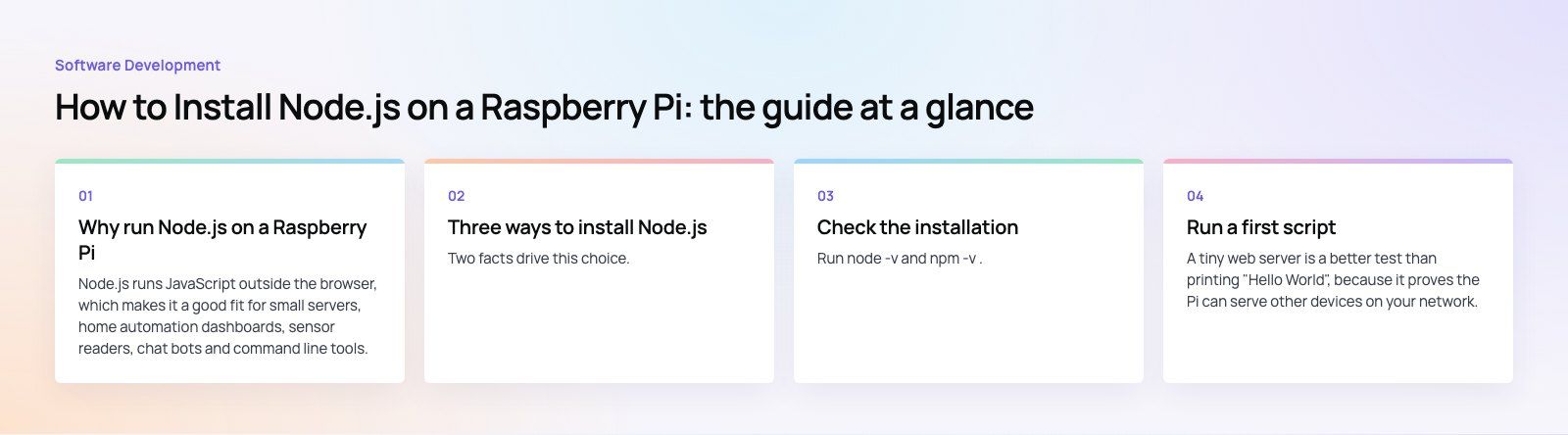
Node.js runs JavaScript outside the browser, which makes it a good fit for small servers, home automation dashboards, sensor readers, chat bots and command line tools. A Raspberry Pi is cheap, quiet and always on, so it is a natural place to run those projects or to prototype a device before it becomes a product. Because Node.js handles input and output without blocking, a modest Pi can serve a small web interface while it reads sensors or talks to other devices on the network.
What you need
- A Raspberry Pi that can run a 64 bit OS. The Raspberry Pi 3, 4, 5 and Zero 2 W all qualify. Older models and the original Zero are limited to 32 bit, which narrows your options, as explained below.
- A microSD card of good quality. Cheap cards are the most common cause of a Pi that corrupts itself or runs slowly.
- The right power supply for your model. Recent models use USB C, older ones micro USB. An underpowered supply causes random crashes that look like software bugs.
- A network connection, wired or Wi Fi, to download packages.
- Optional: a monitor, keyboard and mouse. You can skip them and work over SSH from another computer.
Set up the Raspberry Pi
Flash Raspberry Pi OS
- Install Raspberry Pi Imager on your computer from the official Raspberry Pi website.
- Choose your Pi model, then choose Raspberry Pi OS (64 bit). Pick the Lite version if the Pi will run headless as a server, or the desktop version if you want a graphical interface.
- Open the customization settings before writing. Set a hostname, a username and password, your Wi Fi details and your time zone, and enable SSH.
- Write the image to the microSD card.
First boot
- Insert the card and connect power. The first boot takes a little longer while the system expands the file system.
- Connect over SSH using the hostname you set, or log in directly with a keyboard and monitor.
- Update the system: sudo apt update followed by sudo apt full-upgrade.
- Confirm you are on a 64 bit system with getconf LONG_BIT. It should print 64.
Three ways to install Node.js
| Method | Version you get | Works on 32 bit | Best for |
|---|---|---|---|
| NodeSource repository | Current LTS, updated through apt | No | Most projects and servers |
| nvm (Node Version Manager) | Any release you choose | Only release lines that still publish 32 bit builds | Developers switching between versions |
| Raspberry Pi OS repositories | Whatever the OS ships, often older | Yes | Older Pi models and quick experiments |
Two facts drive this choice. The NodeSource setup script only supports amd64 and arm64 systems, so it will stop with an error on a 32 bit Pi. And the official Node.js 24 builds on nodejs.org include 64 bit ARM Linux binaries but no 32 bit ARMv7 ones, which is why a 64 bit OS is the practical choice for a current Node.js on a Pi.
Method 1: NodeSource (recommended)
NodeSource maintains apt repositories for Node.js release lines. Its distributions repository documents the setup scripts. To install the current LTS:
- Make sure curl is installed: sudo apt install -y curl.
- Download and run the LTS setup script: curl -fsSL https://deb.nodesource.com/setup_lts.x -o nodesource_setup.sh, then read it, then run sudo bash nodesource_setup.sh.
- Install Node.js, which includes npm: sudo apt install -y nodejs.
Downloading the script to a file before running it is a good habit. It lets you see what will run with root access instead of piping an unseen script straight into the shell. If you need a specific release line rather than the current LTS, NodeSource also publishes versioned setup scripts.
Method 2: nvm
nvm installs Node.js into your home folder and lets you switch versions per project. It is ideal on a development Pi, less so on a server where several users or system services need Node.js. Install nvm using the script in the official nvm repository, open a new terminal, then run nvm install lts/*. Because nvm installs per user, a systemd service will not find that Node.js unless you point it to the full path.
Method 3: Raspberry Pi OS repositories
Run sudo apt install -y nodejs npm. This works on 32 bit and 64 bit systems and needs no extra repository. The trade off is age: the version is fixed by the Debian release the OS is based on and can be well behind the current LTS. Check that it meets the minimum version your packages require before you build on it.
Check the installation
Run node -v and npm -v. Each should print a version number. As of October 2026, the Node.js download page lists Node.js 24 as the latest LTS release. A new LTS line is promoted every October, so check the page if you need a specific version.
If you get "command not found", the install did not complete or, with nvm, the terminal was not restarted. If node runs but reports a much older version than you expected, an older copy from the OS repositories is probably earlier in your path. Remove it with sudo apt remove nodejs and install again with your chosen method.
Run a first script
A tiny web server is a better test than printing "Hello World", because it proves the Pi can serve other devices on your network.
- Create a folder and a file: mkdir hello && cd hello && nano server.js.
- Add a few lines that import the built in http module, create a server that responds with a short text message, and listen on port 3000.
- Save and run it with node server.js.
- Find the Pi's address with hostname -I and open that address on port 3000 from a browser on another device on the same network.
If the page loads, Node.js is installed and working, and your Pi is serving requests on the network.
Keep your app running
A script started in an SSH session stops when you disconnect. For anything that should run all the time, use a process manager.
systemd
systemd is already part of Raspberry Pi OS. Create a service file that sets the working directory, the user and the full path to node, and set it to restart on failure. Enable it so it starts at boot. This approach needs no extra software and logs output to the system journal.
PM2
PM2 is a Node.js process manager installed through npm. It restarts crashed apps, keeps logs and can generate a startup script so your apps come back after a reboot. It is convenient when you run several Node.js apps on one Pi.
Keep Node.js updated
With NodeSource, updates arrive through apt like any other package: sudo apt update and sudo apt upgrade. Moving to a new major release line means running the setup script for that line. With nvm, install the new version and switch to it. Plan a major upgrade before your current line reaches end of life, and test your app first, since native modules sometimes need rebuilding.
Common problems and fixes
- "Unsupported architecture" from the NodeSource script. You are on a 32 bit OS. Reflash with the 64 bit image if your model supports it, or use the OS repositories.
- npm install fails on native modules. Install build tools with sudo apt install -y build-essential python3.
- Installs are very slow or the Pi freezes. Check the power supply and the SD card first. On Pi models with little memory, close the desktop or use the Lite image.
- Permission errors with global npm packages. Avoid running npm with sudo for project packages. Use nvm, or configure a user level global folder.
A Raspberry Pi is a good place to prove an idea. Turning that prototype into a product with an app, an API and dependable hardware software is a different job. Our custom software team builds that full stack, as in the Runvse project, which combines a mobile app, an API and microcontroller firmware that talks to the vehicle. If you are scoping something similar, our product scoping session is a practical first step, or you can contact us.
Frequently asked questions
Any model that can run 64 bit Raspberry Pi OS, which includes the Raspberry Pi 3, 4, 5 and Zero 2 W.
Current official Node.js builds for ARM Linux are 64 bit only, and the NodeSource repositories support arm64 but not 32 bit ARM. Older models and the original Zero are limited to 32 bit systems and need the older version from the OS repositories.
Software DevelopmentSQL vs NoSQL Databases: Differences and How to ChooseHow SQL and NoSQL databases differ in data model, schema, scaling and consistency, where each one fits, and five questions to choose for your project. Software DevelopmentOpen Source Apps: Examples, Licenses and How to Build Your OwnWhat makes an app open source, well known examples, the steps to build your own, how to pick MIT, Apache or GPL, and when to customize instead.
 Software DevelopmentHow an Online HR Portal Improves Employee ExperienceWhat an online HR portal does, how self service improves employee experience, which features matter, and whether to buy, configure or build one.
Tell us what the business needs. We will tell you what to build first.
Schedule a free consultation and get a written recommendation, with costs, before you commit to anything.
Get in touchPROVEN RESULTS
4.7 / 5verified reviews on Google