 Cloud TechnologyCloud Based HR and Payroll Systems: Benefits and How to ChooseHow cloud based HR and payroll systems streamline operations, the core features to expect, cloud versus on premise, and how to choose and migrate safely.
CodeeoInsightsCloud Technology
How to Migrate a Google Shared Drive to SharePoint
A step by step guide to moving Google shared drives to SharePoint: inventory, site design, Migration Manager or other tools, cutover and fixing common problems.
To migrate a Google shared drive to SharePoint, you inventory the files and permissions, create the destination SharePoint sites and libraries, move the content with Microsoft's Migration Manager or a third party tool, then rebuild and test access before switching users over. Manual download and upload works for a handful of small folders, but anything larger needs a tool that carries permissions, versions and metadata across. This guide covers when the move makes sense, how to plan it, and the problems to expect.
Why move from Google shared drives to SharePoint?
The most common reason is consolidation. When a company standardizes on Microsoft 365 for email, Teams and Office apps, keeping files in Google Workspace means two sets of logins, two security models and two places to search. SharePoint puts documents next to Teams channels, Outlook and the Office apps people already use.
Other reasons include finer control over permissions, retention and data loss prevention policies managed in one place, and the ability to build workflows and apps on top of document libraries with the Power Platform.
Before you commit, answer three questions honestly:
- Will SharePoint fit how your teams actually collaborate, or are they deeply attached to Google Docs and Sheets?
- Do your security and compliance needs require controls you cannot get in your current setup?
- Are you moving everything, or only the content that belongs with Microsoft 365 workloads?
Google shared drives vs SharePoint
Both platforms handle shared files well. The differences lie in how they are organized and governed.
| Area | Google shared drives | SharePoint |
|---|---|---|
| Structure | Shared drives with folders, owned by the team rather than a person | Sites with document libraries, folders, metadata columns and views |
| Editing | Real time co editing in Docs, Sheets and Slides | Real time co editing in Word, Excel and PowerPoint, on the web and desktop |
| Integration | Google Workspace apps | Teams, Outlook, OneDrive and the Power Platform |
| Permissions | Shared drive membership roles, plus file level sharing | Site, library, folder and item level permissions, plus groups |
| Governance | Admin console policies and Vault for retention | Microsoft Purview for retention, labels and data loss prevention |
| Offline | Drive for desktop | OneDrive sync client |
Storage allowances on both sides depend on your license tier, so check your current plans rather than relying on published figures that change.
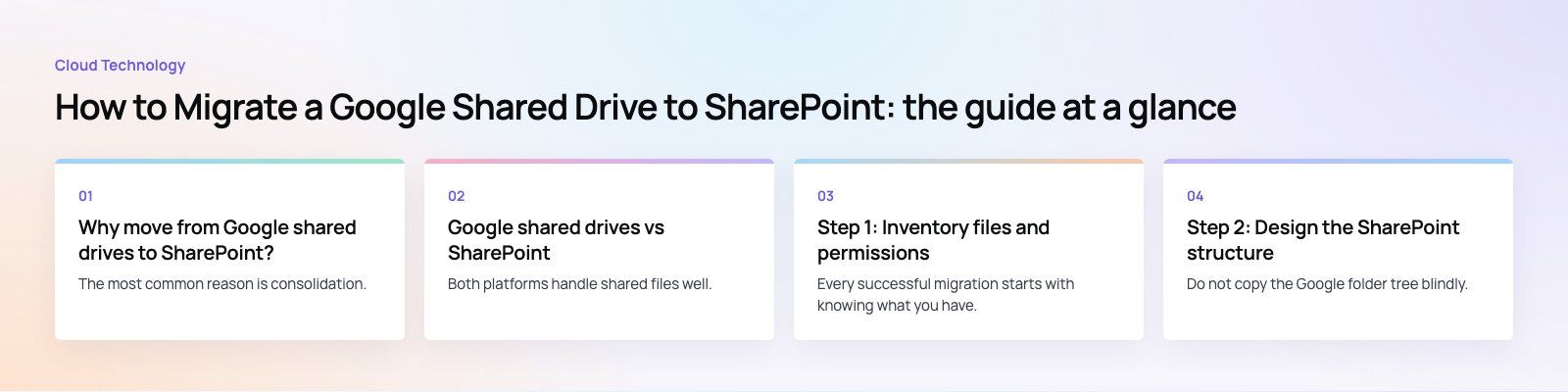
Step 1: Inventory files and permissions
Every successful migration starts with knowing what you have.
- List the shared drives. Record each shared drive, its owner and the team that uses it.
- Measure content. Note file counts, total size, very large files and very deep folder paths. Long paths and unusual characters cause failures later.
- Document permissions. Record who has manager, content manager, contributor, commenter and viewer access, and which files are shared outside the organization.
- Flag Google native files. Docs, Sheets, Slides and especially Forms, Sites and Apps Script do not have exact Microsoft equivalents. Decide how each should be converted or replaced.
- Clean up first. Archive or delete obsolete content. Moving clutter costs time and makes the new site harder to use.
Step 2: Design the SharePoint structure
Do not copy the Google folder tree blindly. A migration is a chance to fix it. Map each shared drive to a SharePoint site or a document library within a site, decide which permission groups each site needs, and add metadata columns where they would replace deep folder nesting. If the content belongs to a team that already works in Microsoft Teams, use the site connected to that team so files appear in the channel.
Step 3: Choose a migration method
Microsoft Migration Manager
Microsoft offers Migration Manager for Google Workspace, started from the Microsoft 365 admin center. It connects to Google with an administrator account, scans and assesses drives, lets you map destinations and user identities, then migrates and reports on the results. Microsoft's documentation notes that file level permissions and older file versions need explicit migration settings, so review those options before you run anything. A simplified Lite version is available for smaller tenants.
Third party migration tools
Commercial tools exist for complex projects with heavy permissions, external sharing, tight cutover windows or multiple source systems. They usually add more detailed reporting, scheduling and delta syncs. Compare them on how they handle permissions, versions, Google native file conversion and incremental passes, and run a pilot before you sign.
Manual download and upload
For a small set of files you can download from Google Drive and upload to a SharePoint library. Google converts native files to Office formats on download.
- In Google Drive, open the shared drive, select the folders and choose Download.
- In SharePoint, create or open the destination site and its document library.
- Upload the files in small batches, or sync the library with OneDrive and copy them in.
- Set access on the site or library using SharePoint groups, then adjust exceptions folder by folder.
Manual migration loses version history, sharing settings and original owners, so treat it as a fallback, not a plan.
| Method | Strengths | Weaknesses |
|---|---|---|
| Migration Manager | Built by Microsoft, scans before moving, maps identities, detailed reports | Permissions and versions need careful settings, some file types unsupported |
| Third party tool | Extra scheduling, reporting and delta syncs for complex moves | License cost, vendor evaluation, still needs a pilot |
| Manual | No setup, full control of each file | Slow, error prone, loses history and permissions |
Step 4: Pilot, migrate and cut over
- Run a pilot. Migrate one representative shared drive and have its users test access, links and file formats.
- Fix mapping issues. Unmatched user identities and unsupported files show up in the pilot reports.
- Migrate in waves. Move departments one at a time, with a short freeze on the source drive during each wave.
- Run a final delta pass. Copy anything changed since the main run, then set the Google drive to read only.
- Communicate. Tell users where their files now live, how to sync them and who to ask for help.
Troubleshooting common problems
Files fail to transfer
Check the migration report first. Common causes are file paths that are too long, unsupported characters, files above the size limit and file types the tool cannot convert. Shorten paths, rename problem files, then rerun only the failures.
Permissions do not match
Compare the SharePoint permissions against your inventory from step 1. Unmapped user accounts are the usual culprit. Fix the identity mapping, then reapply permissions at the site or library level rather than file by file wherever possible. Ask a sample of users to confirm they see what they should.
Missing or broken files
Spot check that file counts and sizes match between source and destination. Google Forms, Sites and Apps Script will not arrive as working equivalents and need separate rebuilds. Embedded links between Google files will still point to Google, so plan to update the most important ones.
Codeeo's team of 80+ across Dubai, Riyadh and Karachi works with Microsoft 365, SharePoint and the Power Platform as part of wider system projects. If you are planning a move, our Microsoft 365 services cover migration planning, site design and governance, and we can extend libraries with Power Platform developers or connect them to other systems through Azure integration. To discuss your shared drives, contact our team.
Frequently asked questions
Most organizations move because they have standardized on Microsoft 365 and want files to sit alongside Teams, Outlook and the Office apps.
A single platform means one set of logins, one permission model and one place to apply retention and data loss prevention policies. SharePoint also lets teams build workflows on top of document libraries with the Power Platform.
Cloud TechnologyCloud Based HR and Payroll Systems: Benefits and How to ChooseHow cloud based HR and payroll systems streamline operations, the core features to expect, cloud versus on premise, and how to choose and migrate safely. Cloud TechnologyHow Cloud Computing Supports Digital TransformationThe real business benefits of cloud computing in digital transformation, the challenges to plan for, what to move first and how to measure progress.
 Cloud TechnologyAzure Migration Steps: A Practical Five Step GuideThe five Azure migration steps, from planning and assessment to cutover and optimization, with the Microsoft tools that help at each stage.
Tell us what the business needs. We will tell you what to build first.
Schedule a free consultation and get a written recommendation, with costs, before you commit to anything.
Get in touchPROVEN RESULTS
4.7 / 5verified reviews on Google